The Domino Assistant
The Assistant is a chat panel inside the quote builder. You tell it what you want done to the quote and it prepares the change for you to apply. It works on the quote as you, with your permissions, so it can do anything you can do there: add, change, copy, move and delete lines, set prices, change the settings and the quote details, research items, and start a Review, Recommended Contingencies, the Bulk Price Calculator or a Time Estimate. It cannot publish or lock the quote, change its status, or touch its Fergus versions. You can also ask it anything else, about the quote or in general.
Where to Find It
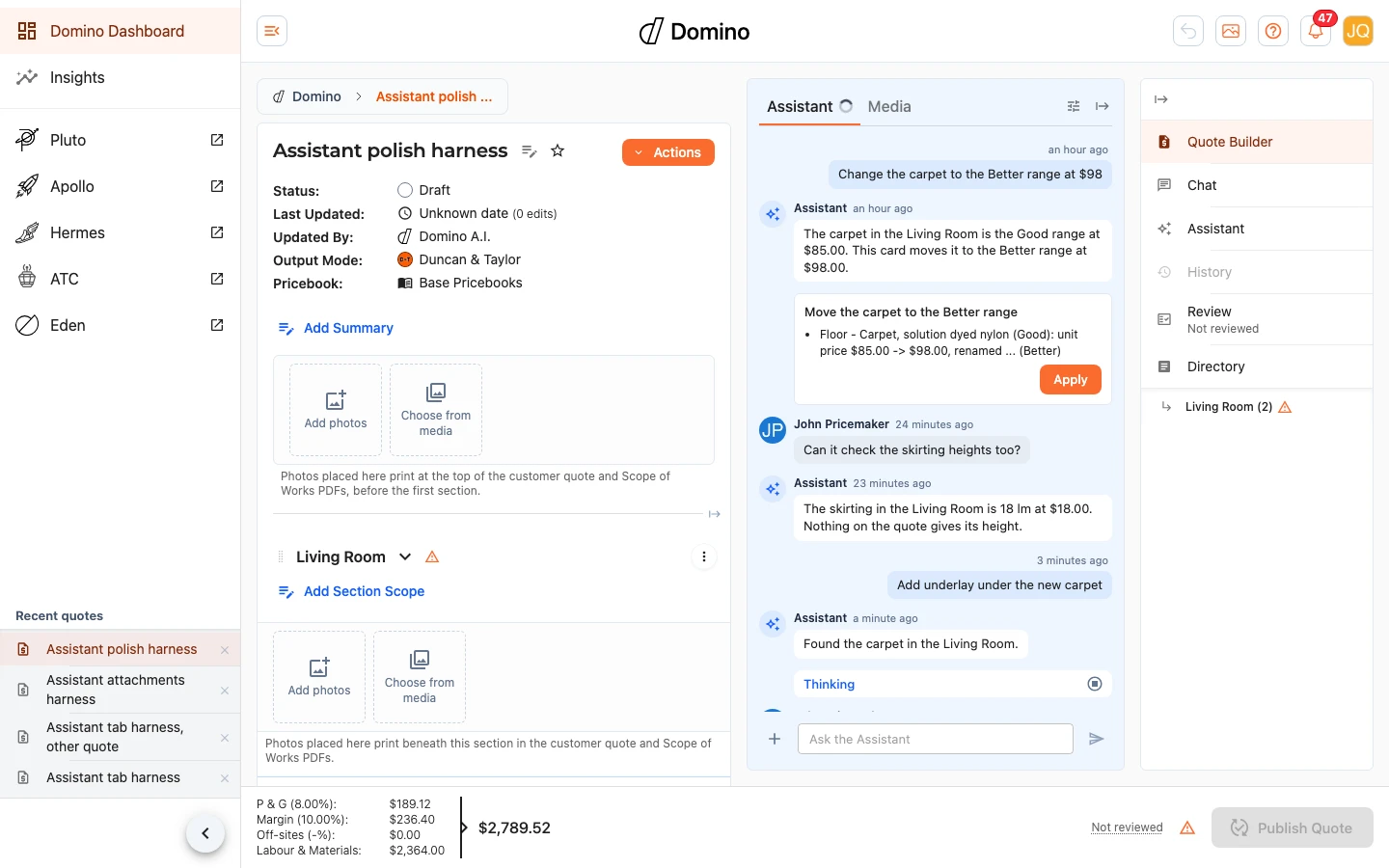
On a desktop the Assistant is the first tab in the right-hand column beside the quote (Assistant and Media), and it is open when you arrive. On a phone, the Assistant button in the navigation opens it full screen.
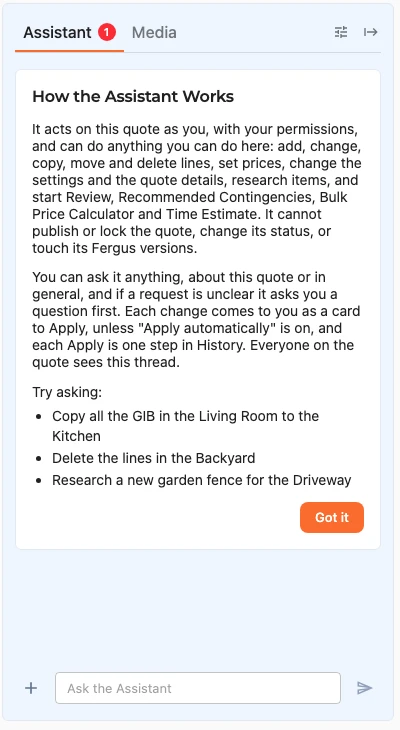
The first time you open it, a card called "How the Assistant Works" explains what it can and cannot do, with a few things to try. Press Got it to put it away. It comes back from How the Assistant works in the panel's settings, or under "No messages yet" on an empty thread.
Asking
Type a request at the bottom of the panel and press Enter, for example "Copy all the GIB in the Living Room to the Kitchen" or "Delete the lines in the Backyard". If something is unclear the Assistant asks a question with buttons to choose from, such as which room a heat pump belongs in. Anyone working on the quote can answer it. Press Stop to cancel a request that is still running.
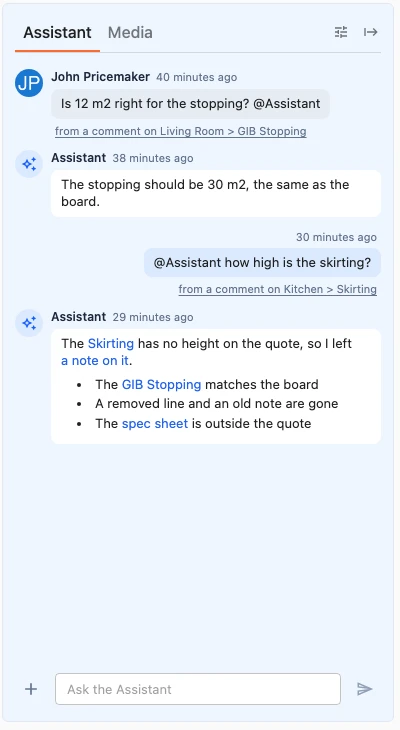
The conversation belongs to the quote, so everyone working on it sees the same thread. Your own messages sit on the right. Other people and the Assistant sit on the left with an avatar, name and time, and each reply sits directly under the message that asked for it. A message waiting for its turn shows "Queued". While the Assistant works, a "Thinking" line shows under the message it is answering, with a stop icon () to cancel it.
Links in Replies
When a reply or a question mentions a line, a room or a comment, the Assistant links it. Pressing a line or room link opens its room and any collapsed rows it sits under, then scrolls to it and flashes it, and a comment link does the same before opening that comment's thread. On a phone the Assistant screen closes first. A link to something no longer on the quote shows as plain text.
Settings
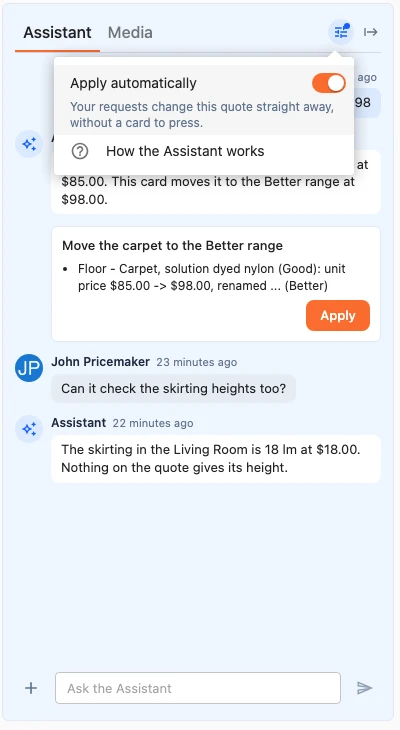
The settings icon () beside the collapse arrow at the top of the panel opens a menu with Apply automatically and How the Assistant works. On a phone the icon is in the title bar. While Apply automatically is on, the icon is highlighted.
When the Assistant Is Hidden
When the Assistant is out of sight, on the Media tab, with the column collapsed or with the phone screen closed, the Assistant button in the side navigation and the Assistant tab show how many new Assistant messages there are. The count is red while a question is waiting for an answer. The person who asked also gets a short "The Assistant has replied" or "The Assistant has a question" message on screen with an Open button.
If you are away from the quote, the Assistant can also reach you through your notifications. A question left unanswered for about a minute sends "The Assistant has a question" with the quote's name, and a finished request sends "The Assistant has replied" when you are not on the quote. Only the person who asked is alerted, once per request, and your usual notification settings and Do Not Disturb apply. Tapping the notification opens the quote with the Assistant showing.
Note: a question nobody answers within 30 minutes ends the request. Ask again to carry on.
Change Cards
Each change arrives as a card listing what will happen. Nothing touches the quote until you press Apply. A card nobody wants is left where it is, and you can still apply it later. An applied card is one step in History, called "Applied an Assistant change", so you can roll it back like any other edit.
A change card shows each change as before -> after, for example "unit price $85.00 -> $98.00".
If somebody changes the quote after a card was made, the card goes stale and reads "Changed since. Ask again." Ask the Assistant again and it will work from the quote as it is now.
Apply automatically in the settings menu lets your requests change the quote straight away, without a card to press. It is set for each person on each quote.
Note: a change to the quote details, such as the Fergus job link, cannot be undone from History. Change it back by hand.
Trade Totals
You can ask for a trade's total, for example "make all the decorating sum $2900". The Assistant sets the trade's line items so they add up to that figure to the cent. The figure is before P&G, margin, off-sites and GST.
Lines that are kept at their price are left alone: PC sums, credits and split subcontract lines. The Assistant cannot aim for the customer price including P&G and margin. If you ask for that it will ask for the line items' figure instead.
Suggestions
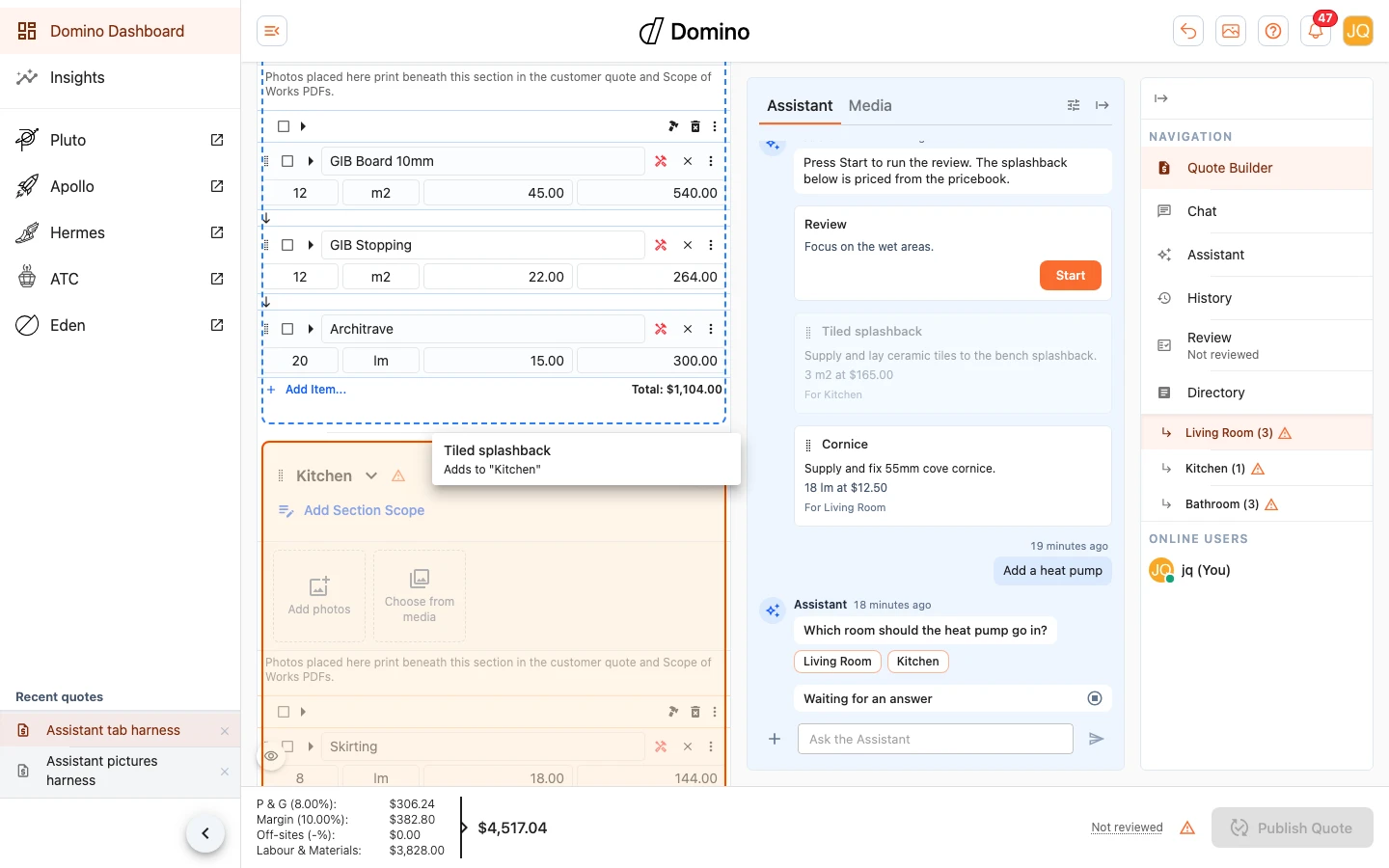
When you ask for new items, or the Assistant researches an item for you, the results come as suggestion cards. On a desktop, drag a card into a room or between rows to place it.
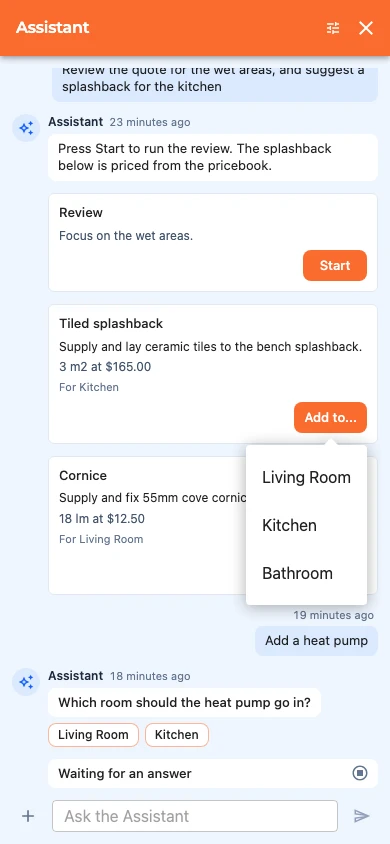
On a phone, press Add to... on the card and choose the room.
Running Tools
A run card offers to start one of Review, Recommended Contingencies, the Bulk Price Calculator or the Time Estimate. Press Start and it runs under your name, the same as if you had started it from the quote yourself.
Comments
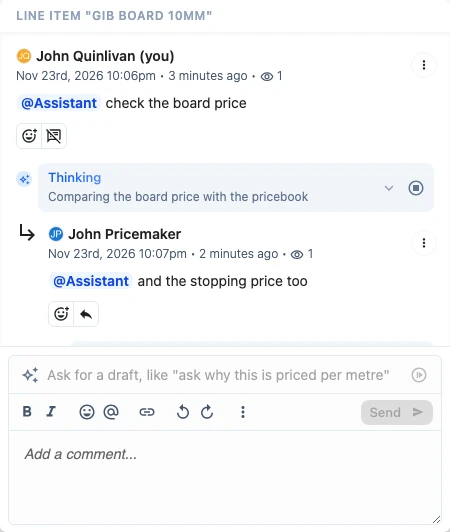
You can also ask the Assistant from a comment. Type @ in a comment on a line's item name, quantity, price or amount, on a room, or in Quote Chat (Chat in the side navigation), and choose Assistant at the top of the list. A room's comments show as a count beside its name, which you press to open them. To start the first comment on a room, choose Edit Name from the room's menu () and use the comment button () beside the name field. The comment starts a request as the person who wrote it. The Assistant answers in that thread, and the request also shows in the panel marked "from a comment on Kitchen > Gib stopping", which you can press to go back to the comment.
While it works, a "Thinking" line shows under the comment that asked, with the stop icon () to cancel it, or "Queued - waiting for another request" while another request is running. A question from the Assistant goes into the thread as well, and the next reply there answers it, whoever writes it. You can also answer it in the panel, within the same 30 minutes. An answer too long for a comment is cut short and ends "The full answer is in the Assistant panel." Change cards, suggestions and run cards stay in the panel, and a request that ends with only a card says "There is a card for this in the Assistant panel."
The Assistant's Own Comments
The Assistant can leave comments on lines and rooms, when you ask it to from the panel or on its own when a note would help. They post straight away, with the Assistant's mark () and a name such as "Assistant (for Sam)", which says whose request it was. One on a room adds to the count beside the room's name. It does not @mention anyone, so its comments send nobody a notification. It leaves at most 10 comments for each request, counting the answers and questions it has already posted in the thread it was asked from, but its answer still reaches that thread. Where a line or room already has a thread on the same point, it adds to that thread.
Its comments cannot be edited, but anyone on the quote can use Mark as Resolved or Delete Comment from the comment's menu ().
Note: deleting a comment also deletes the replies under it. When people have replied to one of the Assistant's comments, Delete Comment asks first ("Delete this comment and its 2 replies?"), and one with no replies is deleted straight away.
Attachments
Give the Assistant files to read with the plus button () at the left of the message box. Upload files opens your files, and on a quote linked to a Fergus job From Fergus picks files from that job. Dropping files on the panel or pasting them also works, and Send () is on the right. A message takes up to 20 files of 25 MB each.
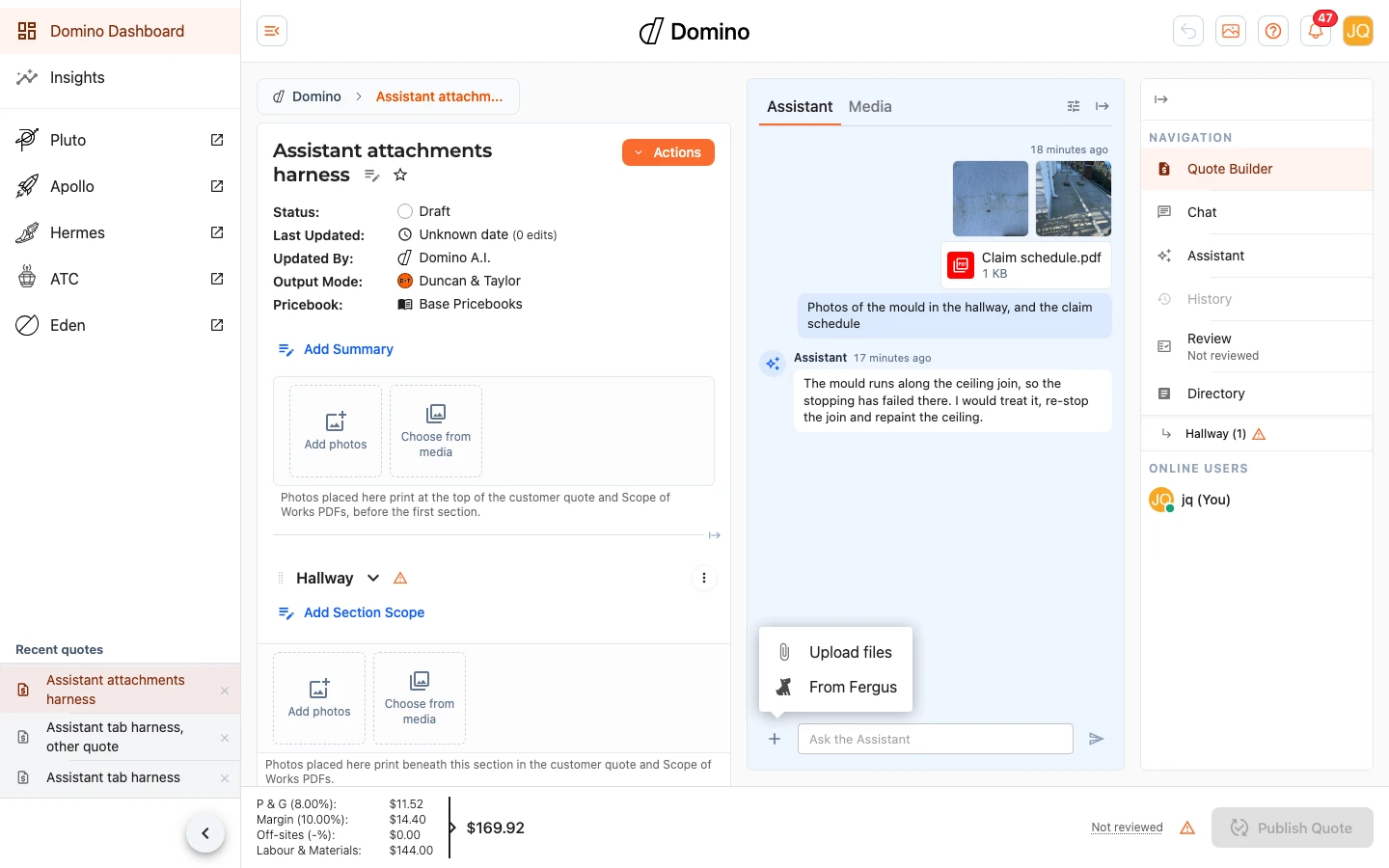
Anything you attach also becomes a quote file, so it appears in the quote's files and in Media. When it needs to, the Assistant can look at the quote's photos and documents without being sent them again.
Pictures
The Assistant can edit a site photo that is already on the quote, for example to show a wall with the mould treated, make a picture from a description, or draw a diagram from the quote's own figures, such as the line items by room, or a simple labelled plan sketch. What it makes appears in the thread as tiles, and pressing one opens it full size.
To put a picture into Media or into a room's photos, press Add to... under it, or in its full-size view, and choose Media or a room such as "Kitchen photos". A larger copy is placed there and a short message confirms it ("Added to Kitchen photos"). An edited or made-up picture takes 20 to 30 seconds while it shows a spinner, and a diagram is placed at once. On a computer you can also drag the picture onto a room's photos.
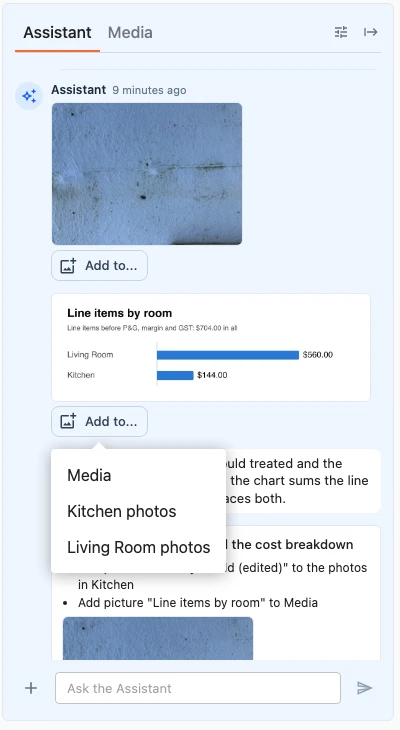
This is your own action, so there is no change card and Apply automatically does not come into it. If the quote is locked, rooms are not offered, and when everything is locked the button is hidden.
You can also ask the Assistant to place a picture. It then prepares a change card such as "Add picture ... to Media" or "Add picture ... to the photos in Kitchen", showing the larger copy, and Apply places it. With Apply automatically on, it is placed the same way other changes are applied.
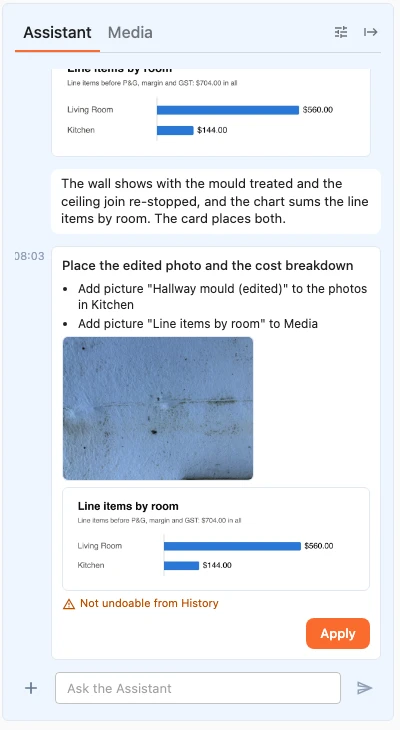
Note: placing a picture cannot be undone from History. Remove it from Media or the room's photos as usual. An edited or made-up picture is drawn by an A.I. image model, so treat it as an illustration of the site rather than a record of it. A diagram is drawn from the quote's figures.
If you get stuck, email support@samconsulting.co.nz.