Start a new quote with the Create New button on the dashboard, or go straight to:
A quote is built from a short form and the documents you feed into it. Domino does the heavy lifting from there, reading your documents and drafting a scope of works for you to refine. Your progress is saved automatically as you go, so you can step away and come back to finish later.
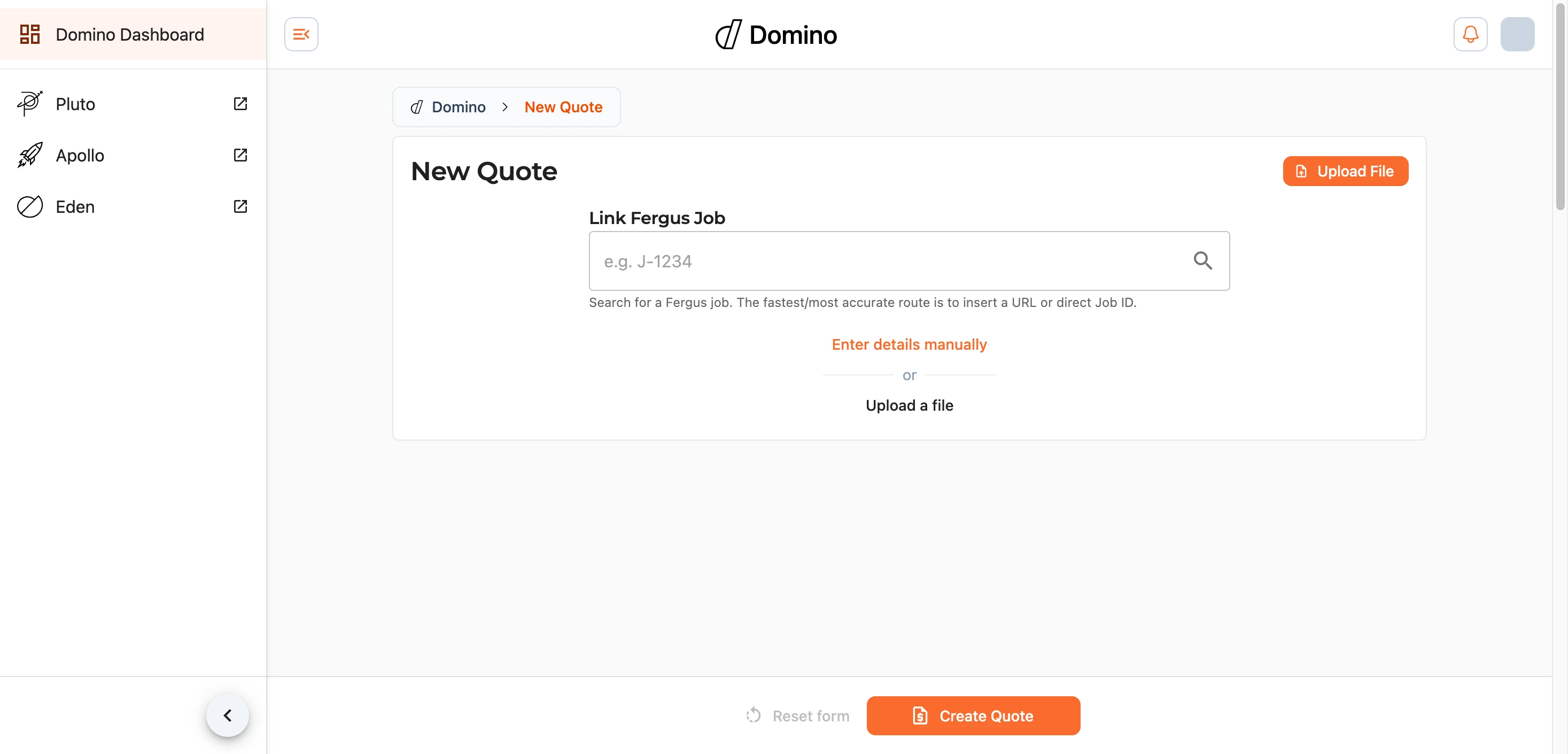
Where to Begin
There are two ways to get started:
- Link a Fergus job - search for the job and Domino will pull through what it already knows: the site address, references, customer details, and any files attached to it. You will be shown what it found and can choose what to bring across.
- Enter the details yourself - choose Enter details manually, or Upload a file to begin straight from a document.
Details
The Details section captures the essentials of the quote:
- Site Location - the address the work is being carried out at.
- References - any reference numbers or labels you want to attach.
- Billing - who the quote is addressed to: the customer (usually a company) and contact name, the email any finalised quote will be sent to, and the postal address that appears on the finished quote document.
Visualisations
If there are 3D visualisations of the site, you can attach them here so they travel with the quote.
Scope of Works
This is the heart of a Domino quote. Upload the documents the quote should be based on - a scope document, photos, a marked-up report - and Domino reads them and drafts a scope of works from what it finds. You can drag files straight onto the page and drop them, or pull in files from a linked Fergus job.
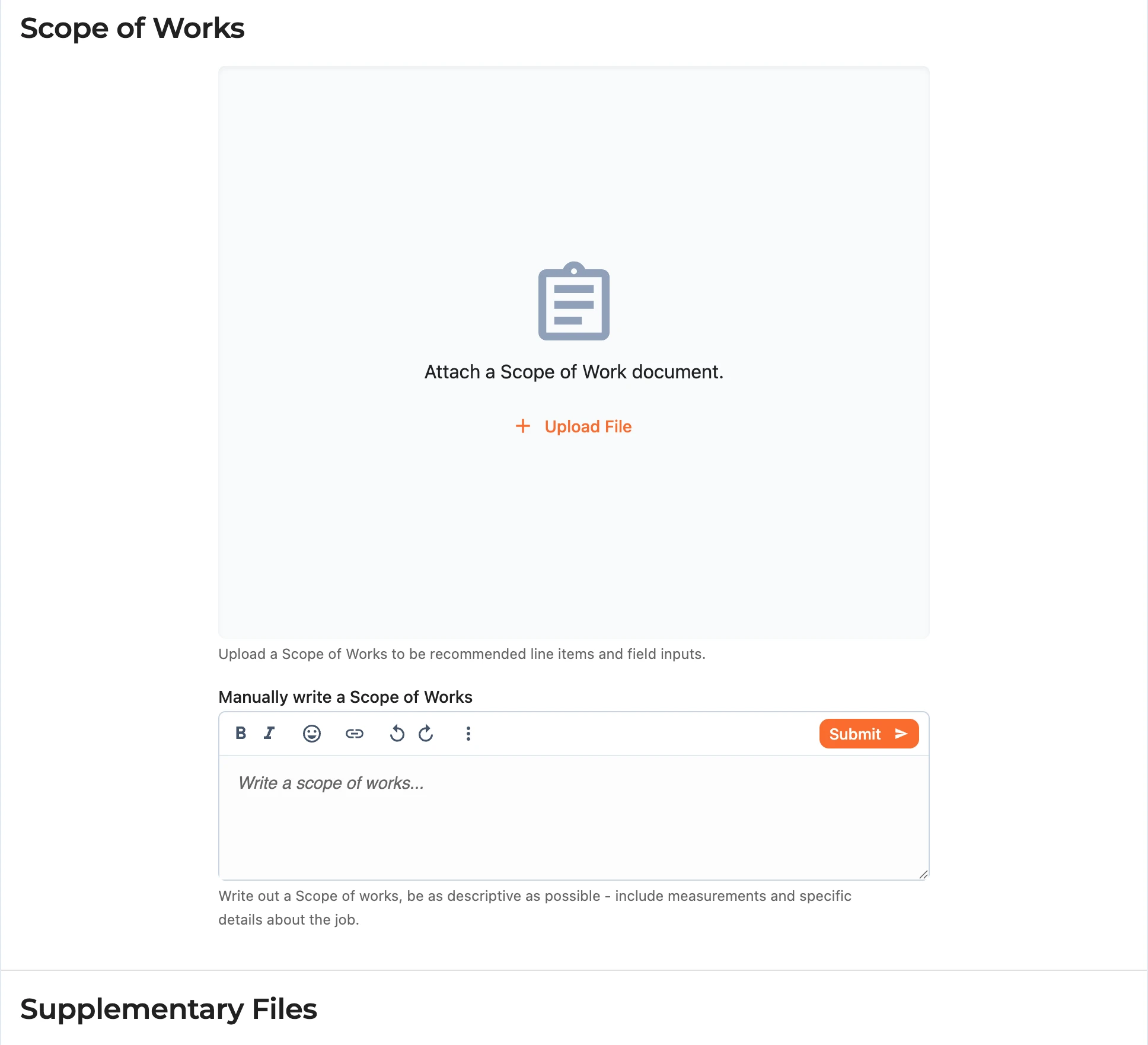
Supplementary Files
Supplementary files are extra documents you want kept with the quote for context - things that should not be turned into line items. Domino keeps them attached for reference but does not read them into the scope.
Configuration
The Configuration section controls how Domino's A.I. interprets your documents. The defaults suit most quotes; adjust them when a particular job calls for it.

- Strictly Extract Line Items as they Appear - pull line items out exactly as written, with no interpretation. Only turn this on when the document already contains a clear, well-defined table of line items.
- Scan Images for Scope of Works - read photos for items to include, rather than treating them as context only.
- Create Pricebook Suggestions - suggest matching items from the approved Domino pricebook against each line item.
- Create A.I. Suggestions - let the system offer its own suggestions for each line item.
- Create "Facilitating Works" Section - add a project-management section with appropriate line items.
- Default "Struck Off" Label - how struck-off line items are shown on the quote (for example
Cash SettledorDeferred). You can change this later.
Note: turning off the suggestion options makes Domino noticeably faster, so leave them on only when you want that extra help.
Creating the Quote
When you are ready, use the save bar at the bottom of the page to create the quote, or reset the form to start over. Once created, you are taken straight into the quote to review and refine what Domino has drafted.