The builder is where an SSSP takes shape. Once Apollo has prepared a plan, selecting it from the dashboard opens it here, drafted and ready for you to refine. Everything is laid out in one page: the five safety sections, the environmental impact table, the Work Breakdown Structure, and the site configuration, with a save happening quietly in the background as you work. If several of you open the same SSSP, you edit it together in real time.
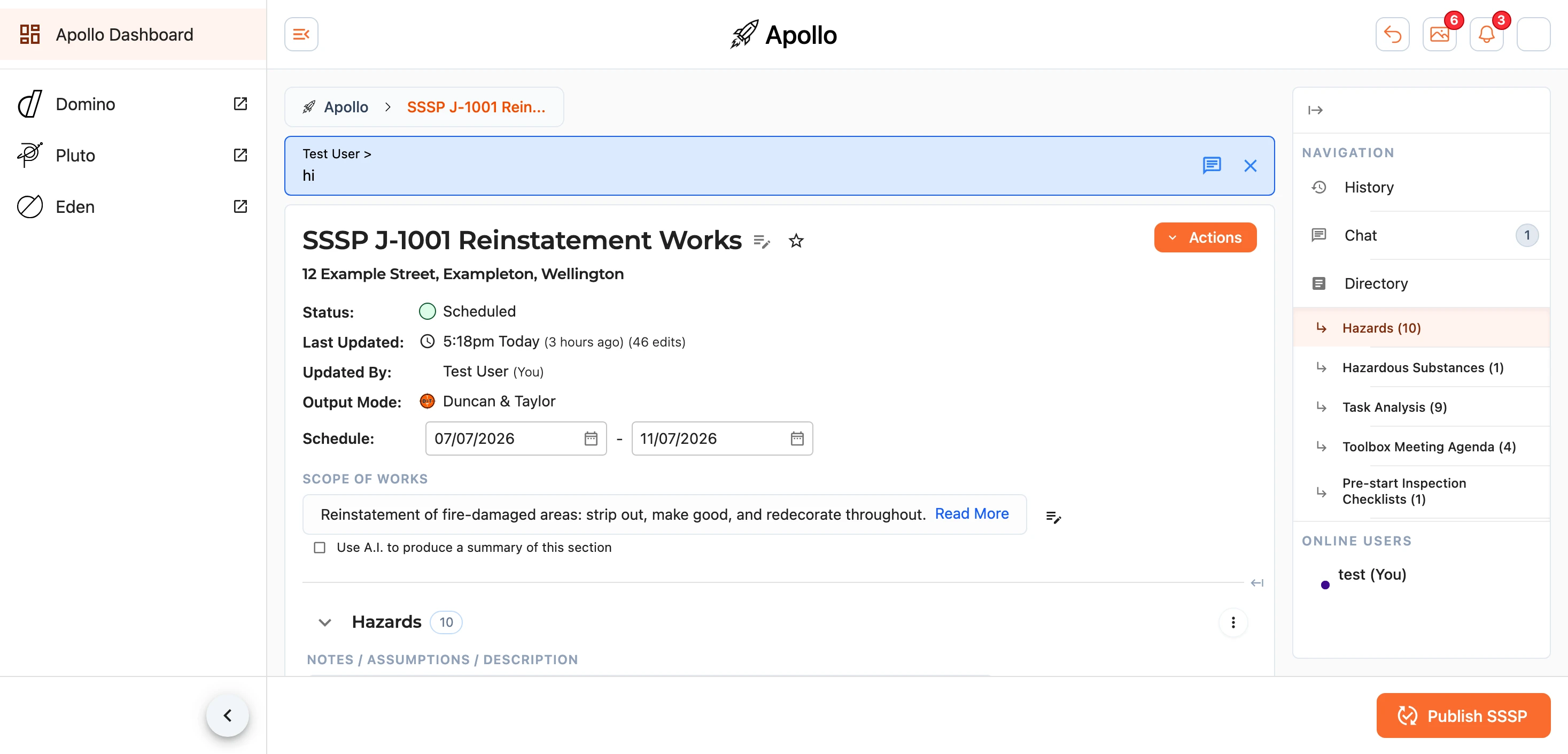
At the top you can rename the SSSP, adjust its site address, and open the Actions menu (covered under Editing Details & Deleting below). When you are ready to produce the documents, use Publish SSSP in the footer - see Publishing.
The Sections
An SSSP is made up of five sections, each a table you can build up row by row:
- Hazards - the hazards on site, their risk Rating, the Controls in place, and the Residual rating once those controls are applied.
- Hazardous Substances - substances on site with their quantity, location, storage, class, ratings, and controls.
- Task Analysis - each Task, the Hazard it carries, the Controls, and the ratings before and after.
- Toolbox Meeting Agenda - the Topic and Detail for each item to raise at toolbox talks.
- Pre-start Inspection Checklists - the checks the crew works through before starting. These are grouped into checklists and sections, and you can add to them with the
Add Check,Add Section, andAdd Checklistbuttons.
Beneath them sits the Environmental Impact table, which works the same way but records the job's emissions and waste rather than its risks. It has a page of its own.
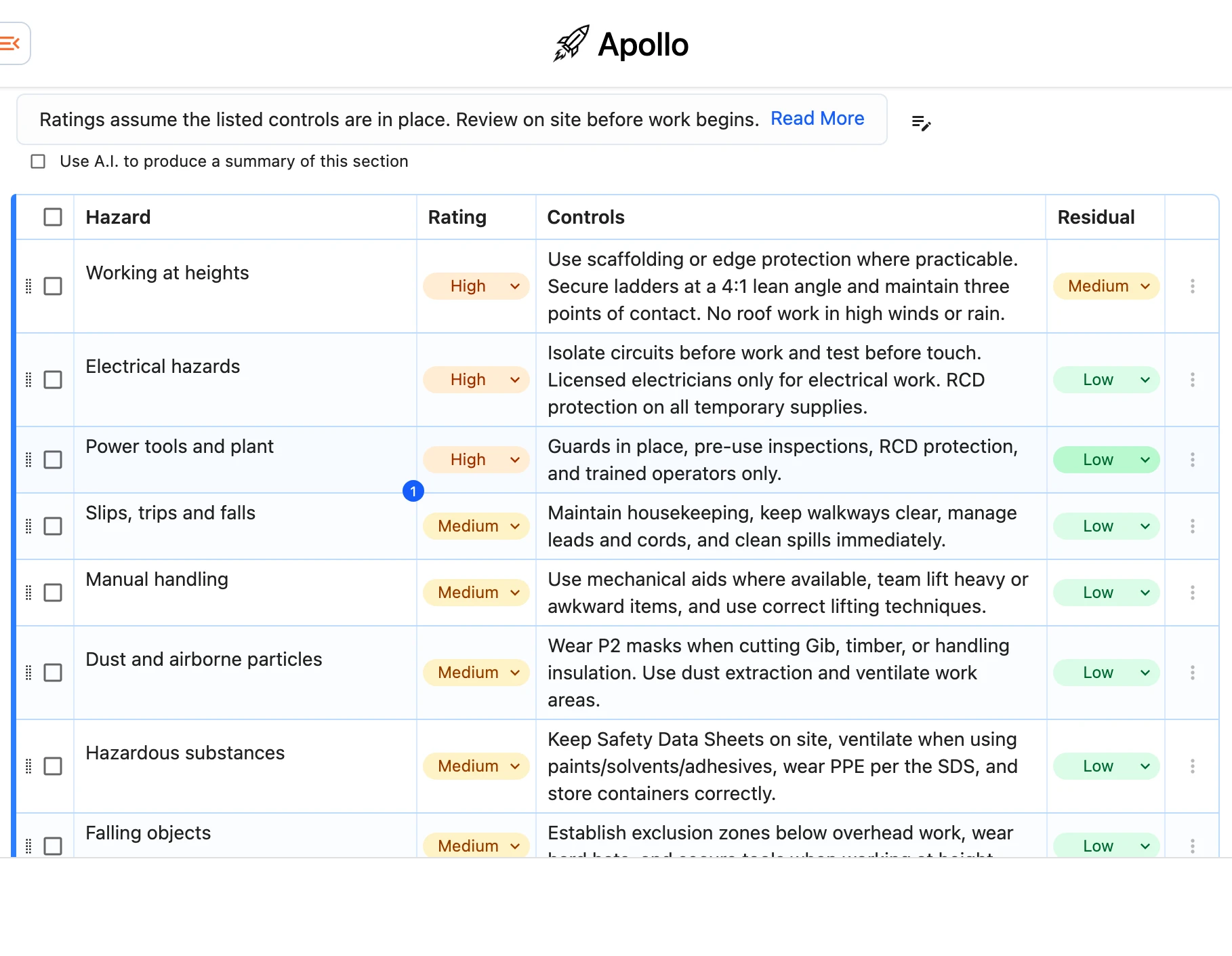
Every section can be collapsed with the arrow beside its heading, shows a count of how many items it holds, and carries a Notes / Assumptions / Description field for any context the reader should be aware of. Ratings run on a five-level scale - Very Low, Low, Medium, High, and Critical - colour-coded from green through to red so risk is easy to read at a glance.
Working With Items
Each row can be reordered, duplicated, or removed from its own menu, and rows can be dragged to reorder them. Tick the checkboxes to select several rows at once, then use the floating action button that appears to delete the whole selection in one go.
The menu on each section heading gathers the section-wide actions: generating items with A.I. (below), selecting or deselecting every item, resetting the column widths, and deleting the items in that section.
Generating With A.I.
Any section can be filled out - or topped up - by Apollo. Choose Generate items with A.I. from the section menu (an empty section also offers a Generate with A.I. button) to open the generator.
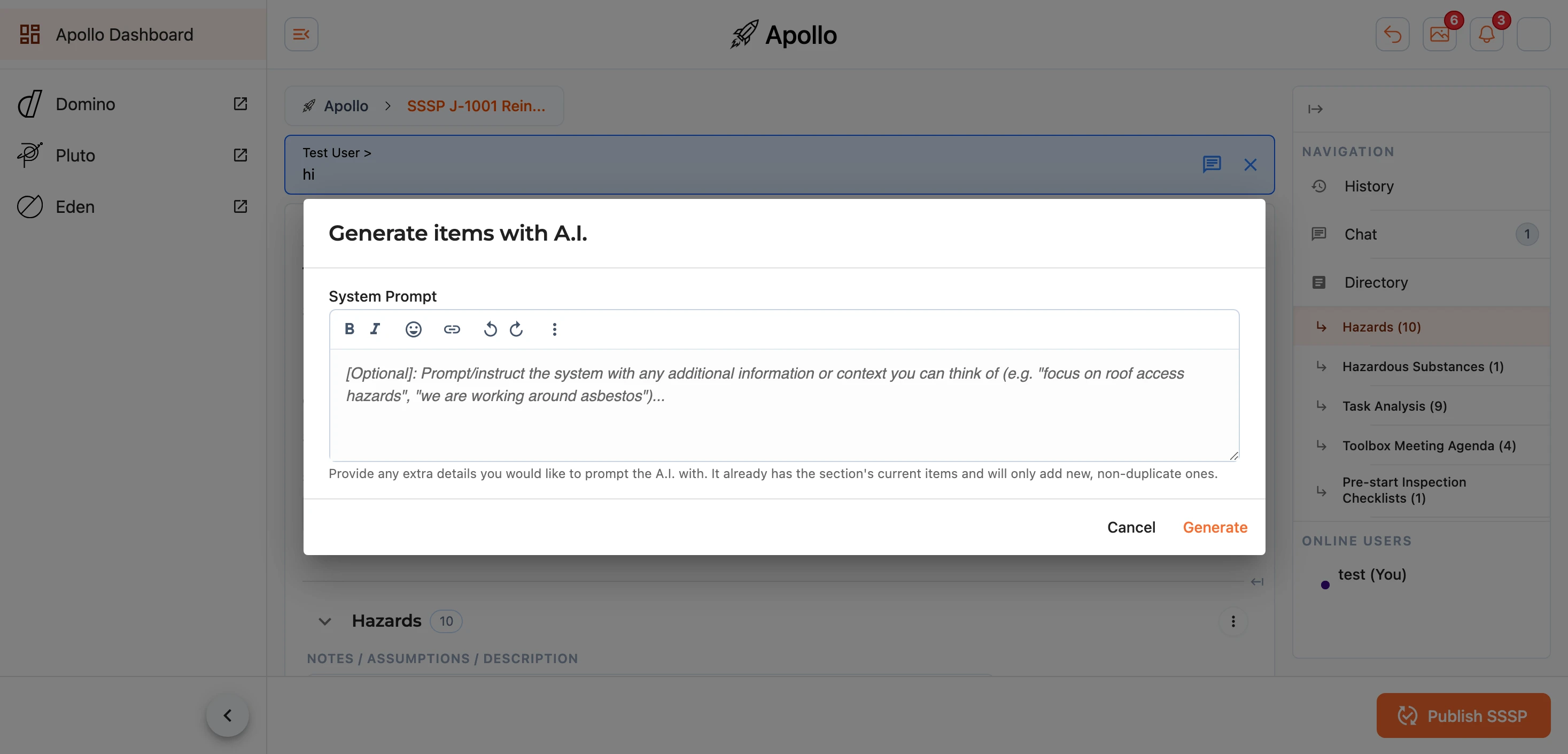
You can add an optional System Prompt to steer it - for example focus on roof access hazards or we are working around asbestos - then choose Generate. Apollo already has the section's current items and the scope of works to work from, and only adds new, non-duplicate items.
Note: the suggestions are a starting point, not the finished plan. Always read through what Apollo adds and adjust it to the job in front of you.
Work Breakdown Structure
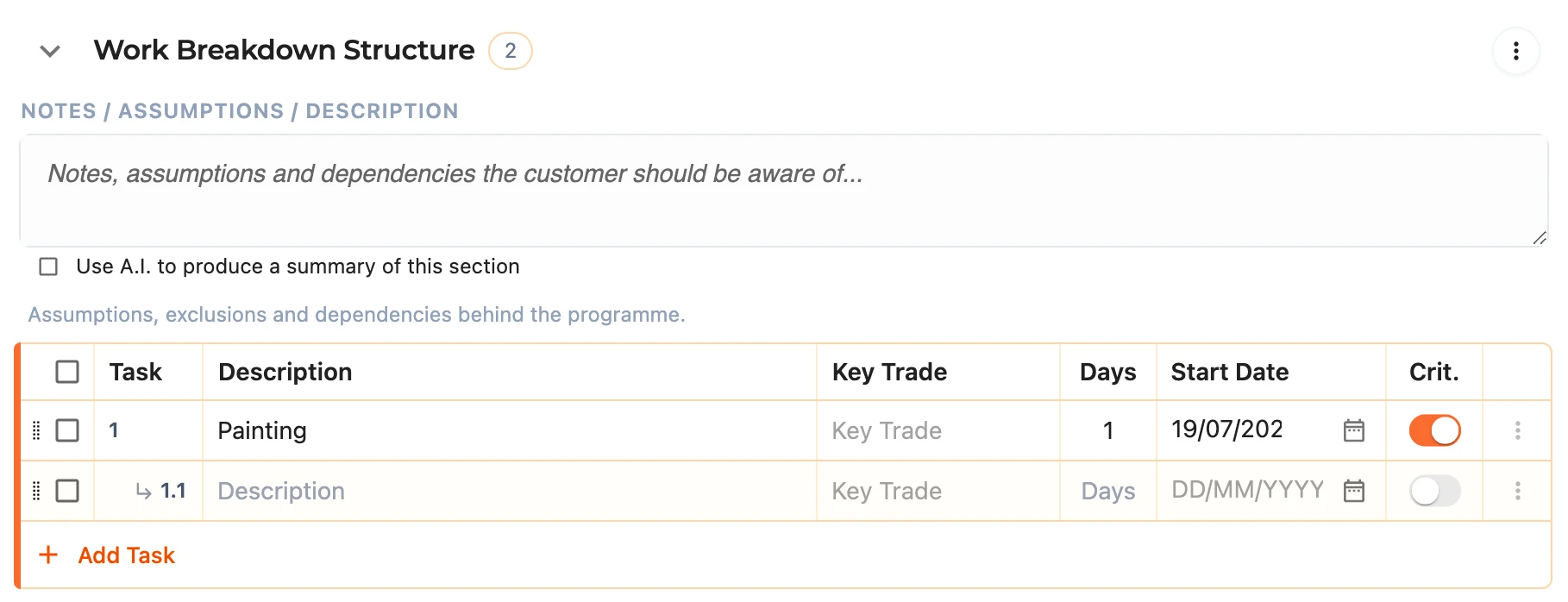
Beneath the safety sections sits the Work Breakdown Structure - the ordered programme of work behind the job. It works like the other sections, with its own count and its own Notes / Assumptions / Description field for the assumptions, exclusions, and dependencies behind the programme. Tasks can be nested under one another by dragging them, so the structure of the job reads clearly on the finished schedule.
Configuration
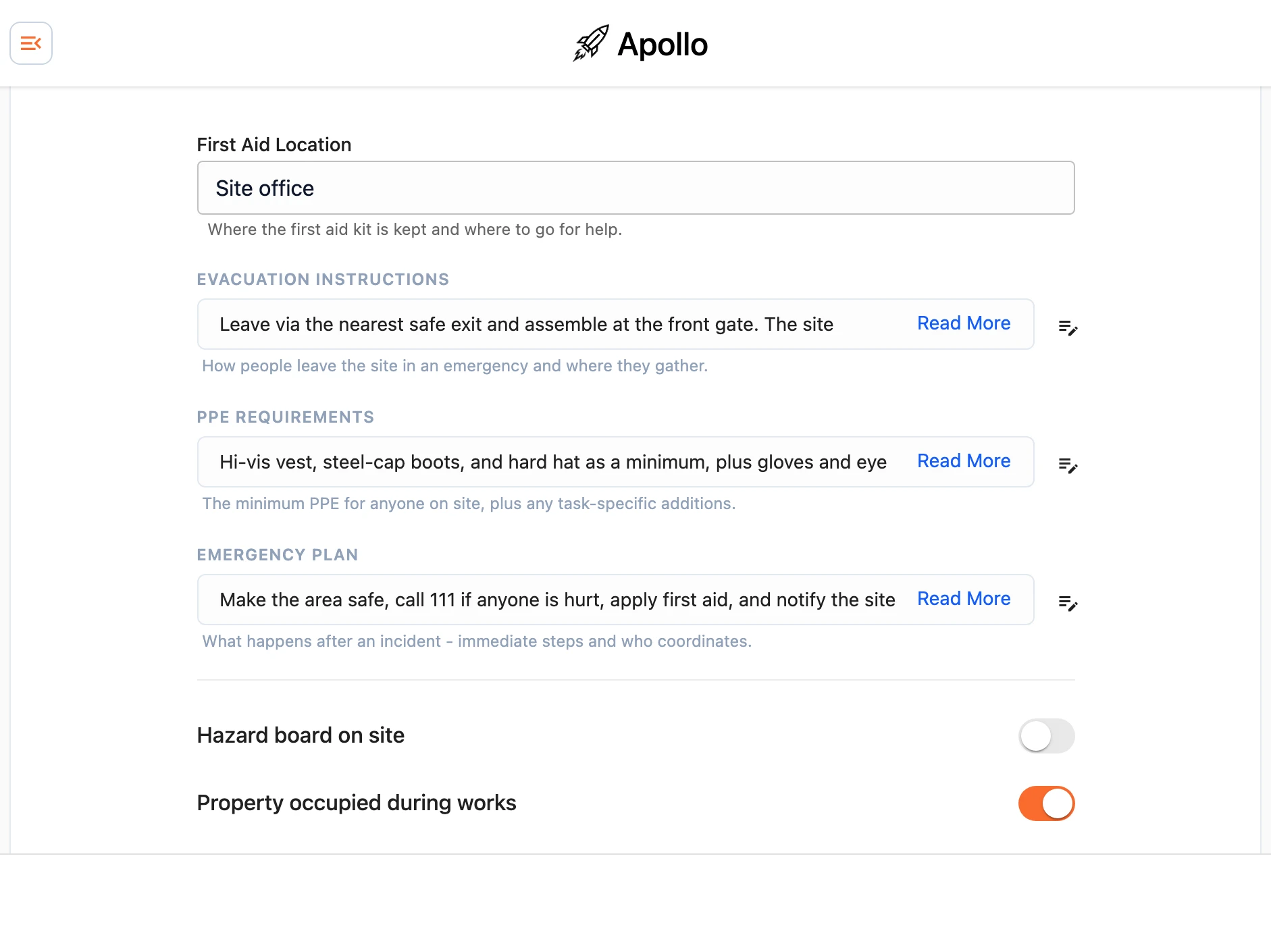
The Configuration section at the foot of the builder holds the site-wide details that appear across the finished documents:
- First Aid Location - where the first aid kit is kept and where to go for help.
- Evacuation Instructions - the escape routes, assembly point, and who takes the roll call.
- PPE Requirements - the minimum PPE for anyone on site, plus any task-specific additions.
- Emergency Plan - the immediate steps after an incident and who coordinates them.
- Site Induction Notes - anything specific to this job that has to be said when someone is inducted onto the site, such as access, parking, the neighbours, or a live service. It prints on the Site Induction & Sign-in Register under "Also covered at this induction".
Below these are the site flags - Hazard board on site, Property occupied during works, Vulnerable persons on site, and WorkSafe notifiable works (with its WorkSafe Notifiable Reference) - along with the meeting cadences you set when creating the SSSP.
Emergency Locations
Record the nearest Medical Centre and Hospital for the site. If you have set a site address, you can let Apollo fill each one in for you with the Find nearest medical centre and Find nearest hospital links rather than searching by hand.
People
Confirm the Project Manager, Site Foreman, and Safety Manager for the job, each with a contact phone number, so the crew knows who to call.
Working Together
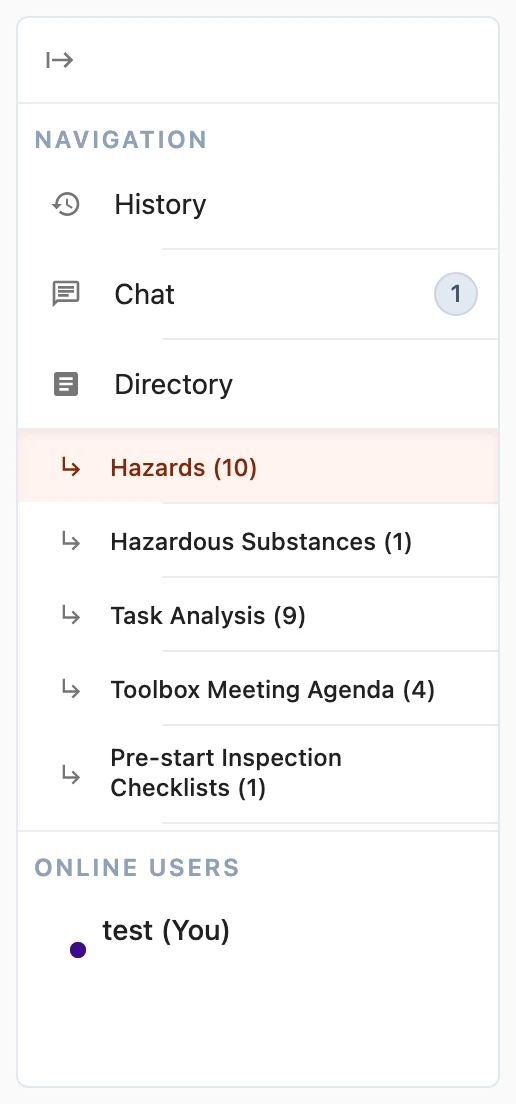
An SSSP can be edited by several people at once, and the builder keeps everyone in step. A drawer down the right-hand side lists who is currently viewing the plan, gives you a directory to jump straight to any section, and holds the history and comments.
You can leave a comment on individual fields to raise a query or note a decision, and others can reply, react, or acknowledge it to sign off that they have read it. When someone adds a comment, a banner appears at the top of the builder so it is not missed.
History
Apollo keeps a running history of changes to the SSSP. Open it from the History () button in the drawer to review earlier versions and, if you need to, restore one.
Subcontractors Signing On
The published SSSP carries a Health & Safety Agreement page with a signature row for each subcontractor on the job, and the person holding the site check on site is usually the one standing next to them when it has to be signed. Their site check has a Subcontractors section for it. Invite a subcontractor asks for the person's name, their company and a mobile or an email, and sends them a link of their own; Share a link hands over one link for whoever turns up, which the first person to open it signs their name to. Either way the site check keeps working for its holder, and the list under the buttons says where each subcontractor has got to - sent, opened, or signed at a given time - with Send again beside anyone who has not opened theirs.
A subcontractor's link opens the plan to read rather than the check to fill in: who is running the job and how to reach them, the site rules and PPE, the emergency detail, and the hazard register with its controls. They can report a hazard the plan missed, which goes onto the register for everyone, and at the foot they sign the agreement with a finger on their phone, naming the company they are signing for. The signature prints in that company's row on the agreement page the next time the SSSP is published, the company joins the Subtrades in the configuration, and the office is told in a comment on the plan and a notification.
In the builder, the Site Checks dialog lists every subcontractor invited under Waiting on until they sign, and under Signed afterwards, each row saying who invited them. Copy, resend and delete work on those rows as they do on any other link.
Note: a subcontractor signs once per link, and inviting the same person again resends the link they already hold. If somebody has to sign afresh, delete their link from Site Checks first and invite them again.
Notifications
Two things happen to an SSSP once it leaves the office: a plan goes out to site on a capture link, and a site check comes back with its record. The bell () beside the Actions menu is where you choose whether you hear about either of them for this SSSP. Tick A plan goes out to site, A site check comes back, or both, and Save; the bell lights () while you are subscribed, and each notice reaches you in the app, by push and by email with the site check record attached, subject to your own notification settings. The back office validator is subscribed to every new SSSP automatically and uses the same dialog to switch one off.
Editing Details & Deleting
The Actions menu in the title bar gathers the whole-SSSP tasks:
- Edit Details - change the title, source, site location, and linked Domino quote.
- Notification Settings - the same choices as the bell, for this SSSP.
- Fullscreen - give the builder the whole screen.
- Reset Column Widths - return every table to its default column layout.
- Close out SSSP - record how the job ended, covered under Closing Out below.
- Lock SSSP - stop anyone editing the sections, programme and history until it is unlocked again from the same menu. Publishing, files and comments carry on as normal while it is locked.
- Clear All Items - empty every section and the Work Breakdown Structure.
- Delete SSSP - remove the SSSP altogether.
Note: Clear All Items and Delete SSSP cannot be undone. If you are unsure, restore an earlier version from the history rather than clearing, and reach out to support@samconsulting.co.nz if you need a hand.
Closing Out
Every stage an SSSP shows is worked out for you from what has happened to it - whether it has a start date, whether that date has passed, whether a link went out and whether a site check came back - and none of that tells Apollo the job is over. A job that finished without a site check being filed would sit on the board as overdue and be chased in the morning summary for as long as it existed, so once the job is done somebody in the office records that it is.
Choose Close out SSSP from the Actions menu, or press the Status line at the top of the SSSP, and say how the job ended:
- Completed - the works finished and the plan ran its course.
- Closed - the job stopped before the works finished.
- Archived - filed away, with nothing further expected on it.
Whichever you pick becomes the SSSP's stage on the board and in Insights, it drops out of the outstanding lists and the morning summary, and the SSSP is locked at the same time so nothing changes on a finished job. The Status line shows the outcome, when it was recorded and by whom.
If a job comes back to life, Reopen SSSP in the same menu puts it back to the stage it would otherwise be at, unlocks it and, where it applies, starts chasing it again.