Every job has its own chat room where everyone involved can talk in one place - ask a question, share a photo, or give the team an update. You can open it from the Chat Room section of a job's navigation menu, or from the floating Job Messages panel that follows you around the job.
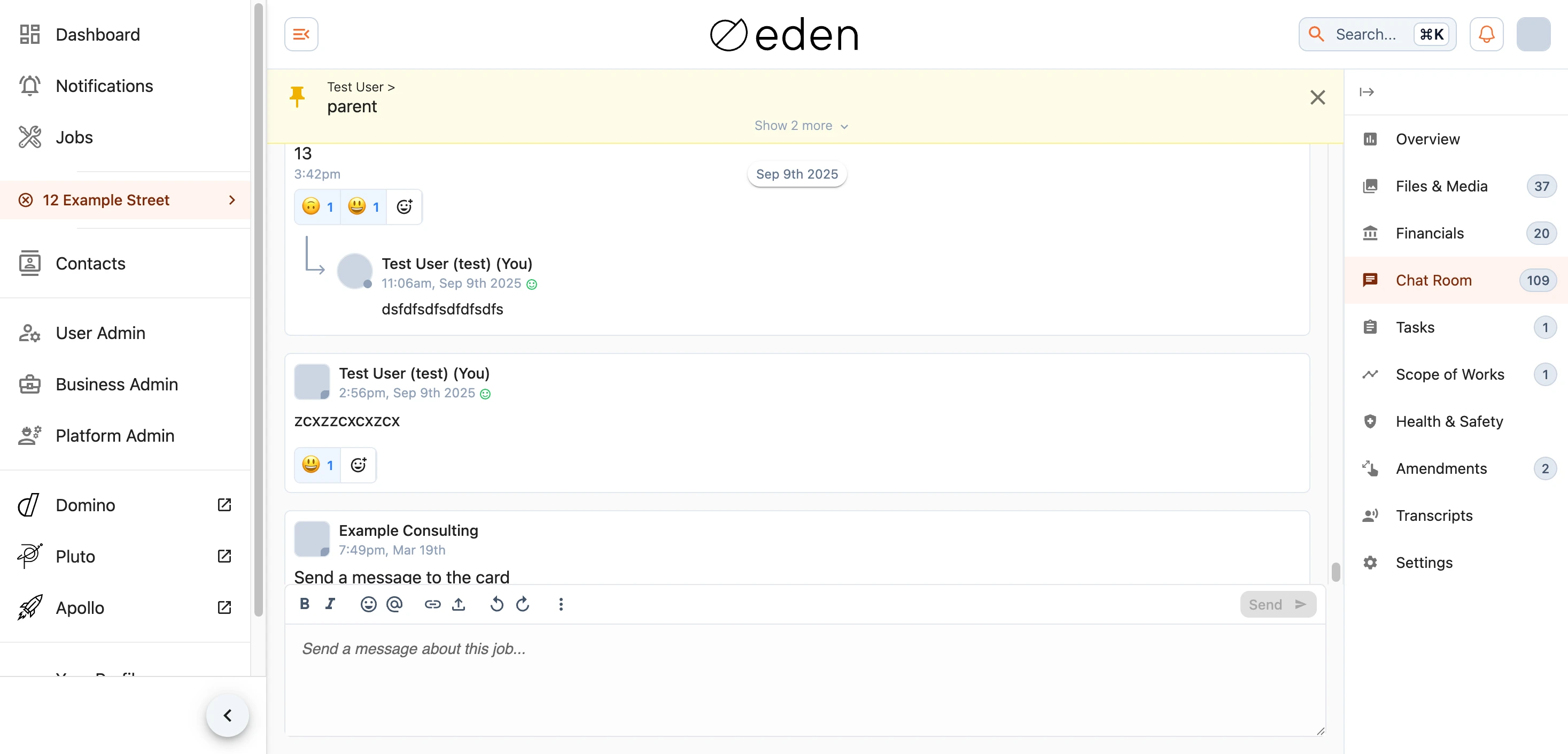
Messages are shown in order with the most recent at the bottom, grouped by date so it is easy to follow the conversation over time. Each message shows who sent it and when, and a small green dot on someone's picture means they are online right now.
Sending a Message
Type your message in the box at the bottom of the chat and send it with the send button (). You can format your text - bold, italics, lists, links, quotes, and more - using the toolbar, and mention someone directly by typing @ and choosing their name, which lets them know you are talking to them.

Anything you have started typing is saved automatically, so you can leave the page and pick up where you left off.
Attachments
To share a photo or document, use the attachment button in the message toolbar, or simply drag a file onto the chat and drop it. You can preview images before sending, and choose to also add them to the job's Files & Media section so they are easy to find again later.
Replying and Reacting
Hover over (or tap) a message to bring up its actions. From here you can:
- Reply to start a focused back-and-forth on that particular message.
- React with an emoji - handy for a quick acknowledgement without adding another message. Select an existing reaction to add or remove your own, and hover over it to see who else reacted.
- Delete a message. You can always remove your own messages, and job administrators can remove others where needed.
Pinned Messages
Job administrators can pin an important message so it does not get lost in the conversation. Pinned messages appear in a highlighted bar at the top of the chat (and on the job overview). Select one to jump straight to it, and where there is more than one, expand the bar to see them all.
