When you sign into EDEN you land on your jobs dashboard - the list of every job you have been invited to. It is the hub you will use to find a job, jump back into the ones you visit often, and keep an eye on which jobs have something new waiting for you. You can return to it at any time:
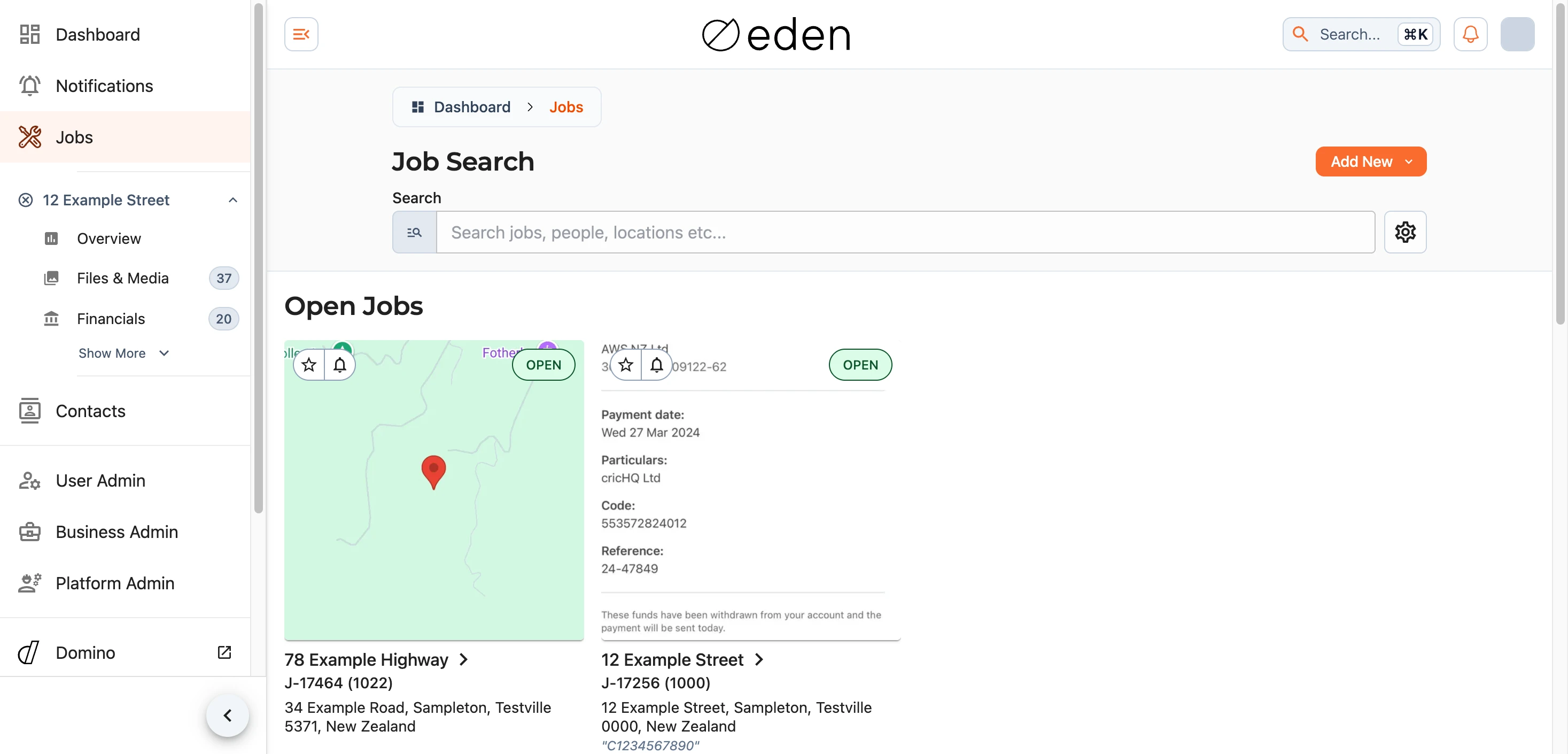
Each job appears as a card (or a row, depending on the layout you choose) showing its cover photo, name, reference, location, and current status. Selecting a job opens its overview page. If you have not been added to any jobs yet, the dashboard will tell you so - you will be invited by email or SMS when a job involving you begins.
Finding a Job
Start typing in the search box at the top of the page to filter your jobs. Search looks across job names, references, locations, and the people on each job, so you can find what you need however you happen to remember it.

Results update as you type. Clear the box with the button to return to your full list.
Filtering and Sorting
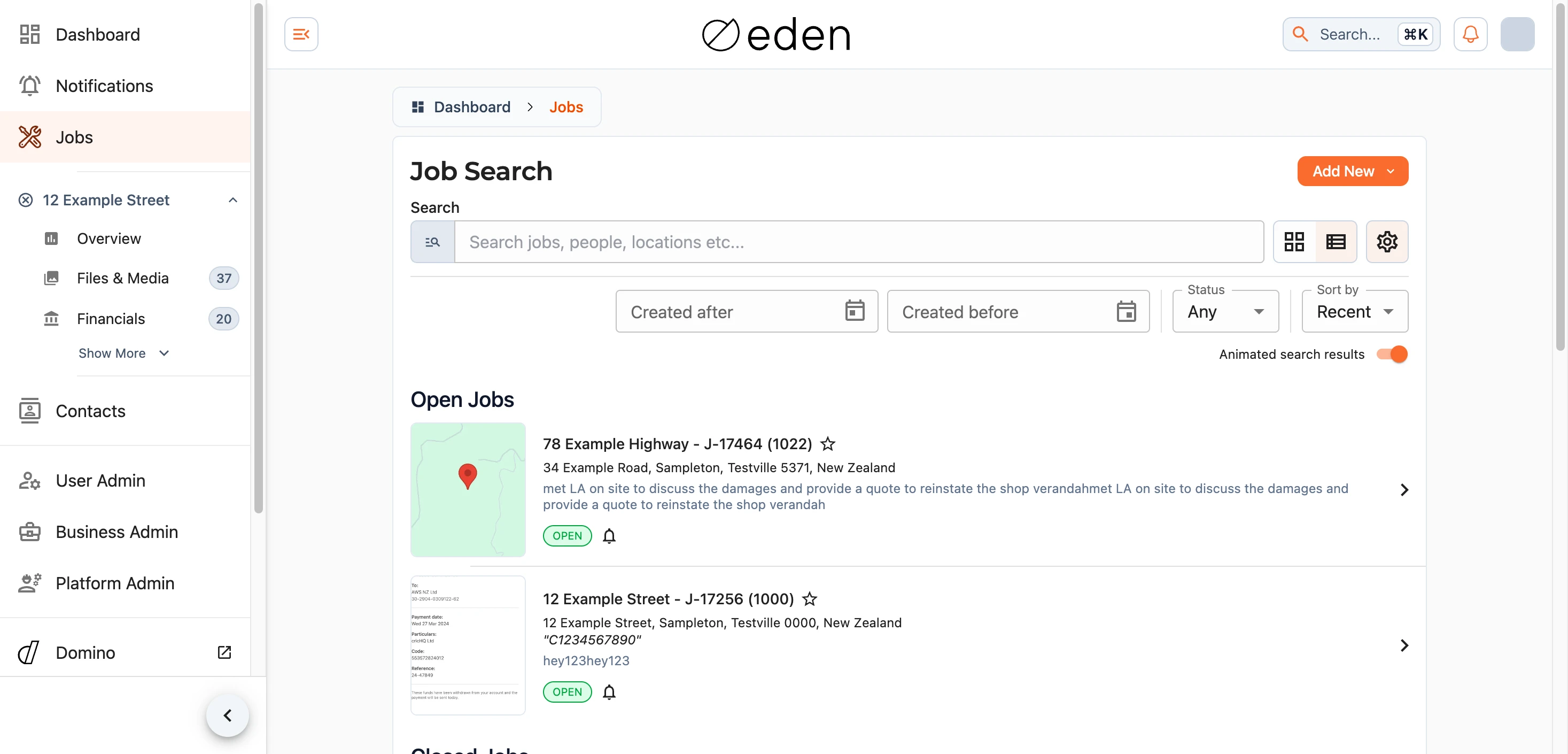
Click the button beside the search box to expand the search options. From here you can change the layout, narrow the list with filters, and choose how it is ordered. Any filters you have applied are summarised above the options, so you can see at a glance what is being shown.

Status
The Status selector lets you show only jobs in a particular state, and you can pick more than one at a time:
Open- jobs that are currently underwayDraft- jobs that are still being set up or quotedClosed- jobs that have been completedCancelled- jobs that are no longer going ahead
Choose Any (the default) to clear the status filter and show everything again.
Dates
Use the Created after and Created before date pickers to limit the list to jobs created within a certain window. You can set either one on its own, or both together to bracket a range.
Sort
The Sort by selector controls the order of your results:
Newest- most recently created first (the default)Oldest- oldest firstName- alphabetically by job nameLocation- grouped by location
Layout
Toggle between the grid () and list () layouts to suit your preference. The grid view leads with a large cover photo for each job; the list view is more compact and shows a short description alongside each one. EDEN remembers your choice for next time.
Animated Results
By default, results gently animate in as they load. If you would rather they appear instantly, switch off Animated search results.
Note: if you have reduced motion turned on for your device, this option is disabled and results will not animate regardless.
Favourites
Mark a job as a favourite by clicking the star () on its card. Favourited jobs turn the star yellow () and are gathered into their own Favourites section at the top of the dashboard, keeping the jobs you check most often within easy reach.
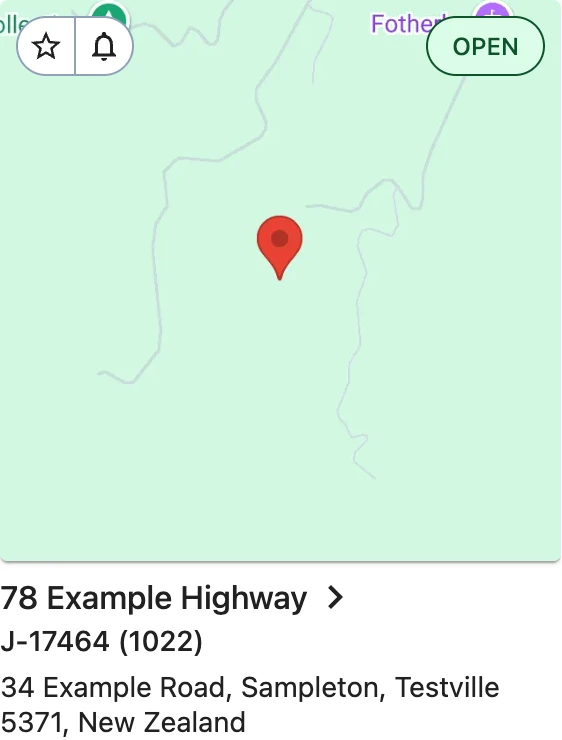
In the grid layout, the rest of your jobs sit below your favourites, grouped into Open Jobs and Closed Jobs.
Status at a Glance
Every job card carries a status pill so you can tell where each one is up to without opening it. Open jobs are shown in green, drafts in grey, and closed or cancelled jobs in red.
Notifications
The bell () on each job opens that job's notification preferences, letting you set how and when EDEN keeps you updated about it. A filled, yellow bell () means you are currently subscribed to updates for that job.
You can read more about what these preferences mean and how they work in the notifications article.
Loading More Jobs
The dashboard loads a batch of jobs at a time. If you are on a lot of jobs, use the Fetch more button at the bottom of the list to load the next batch. Once everything has loaded you will see "No further jobs to show".