Tasks keep a job moving by making it clear what still needs doing, who is looking after it, and when it is due. You will find them in the Tasks section of a job's navigation menu.
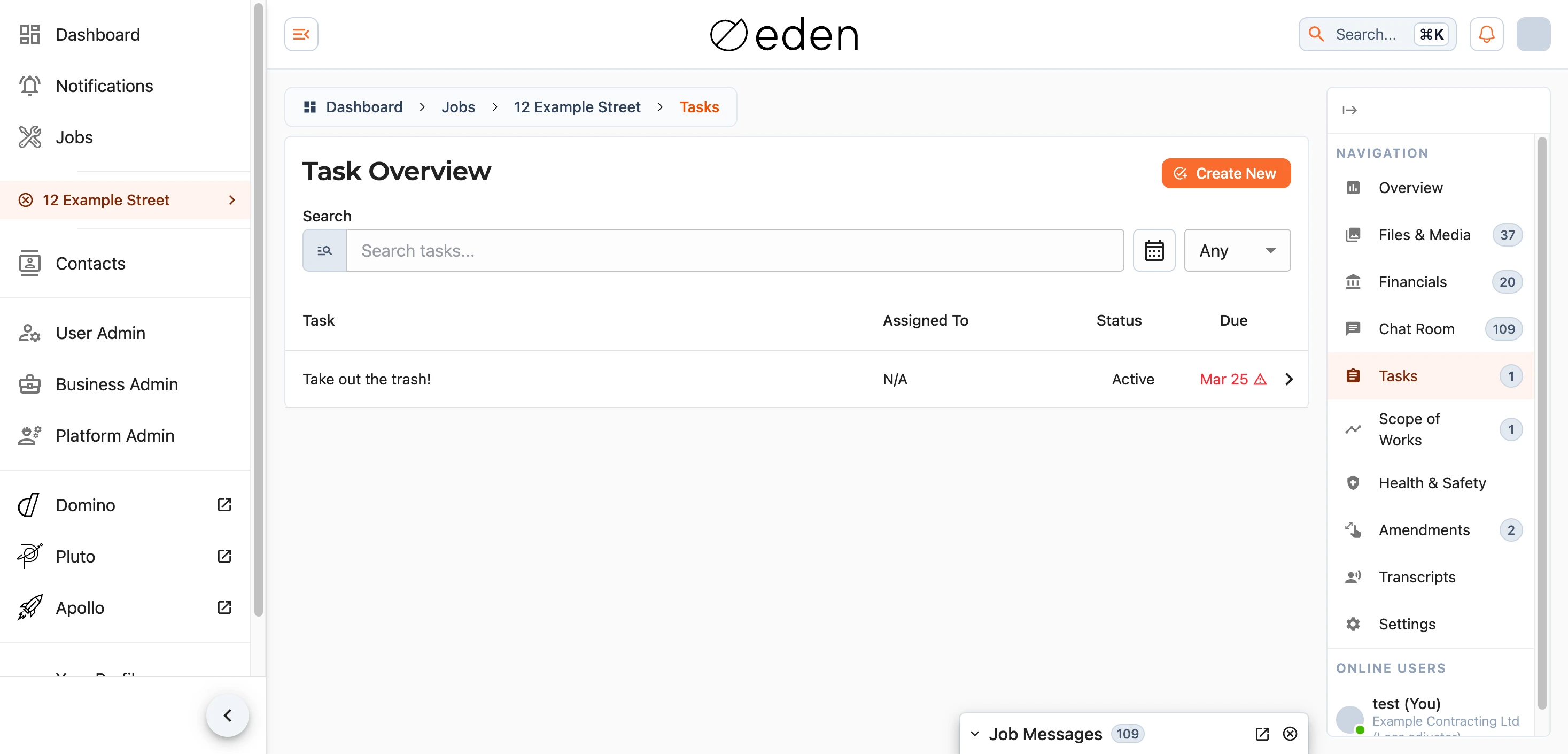
Each task shows who it is assigned to, whether it is still active or complete, and when it is due. Selecting a task opens it in full. If a job has no tasks yet, the list will simply tell you so.
Finding a Task
The search box at the top of the list filters your tasks as you type, looking across task names, the people assigned, descriptions, and the requirements within each task.

Alongside the search box you can narrow the list further by a date range, or by priority - Low, Normal, or High. Choose more than one priority at once if you like, or leave it on Any to show everything. Whatever you have applied is summarised beneath the search box.
You can also sort the list by any column - task name, who it is assigned to, status, or due date - by selecting that column's heading.
Due Dates at a Glance
The Due column highlights tasks that need attention. A task due within the coming week is shown in blue, and one that is overdue turns red with a warning icon, so the things that matter most are easy to pick out.
Creating a Task
If you have permission to add tasks, a Create New button sits at the top of the list. If you do not see it, you have not been given permission to create tasks on this job.
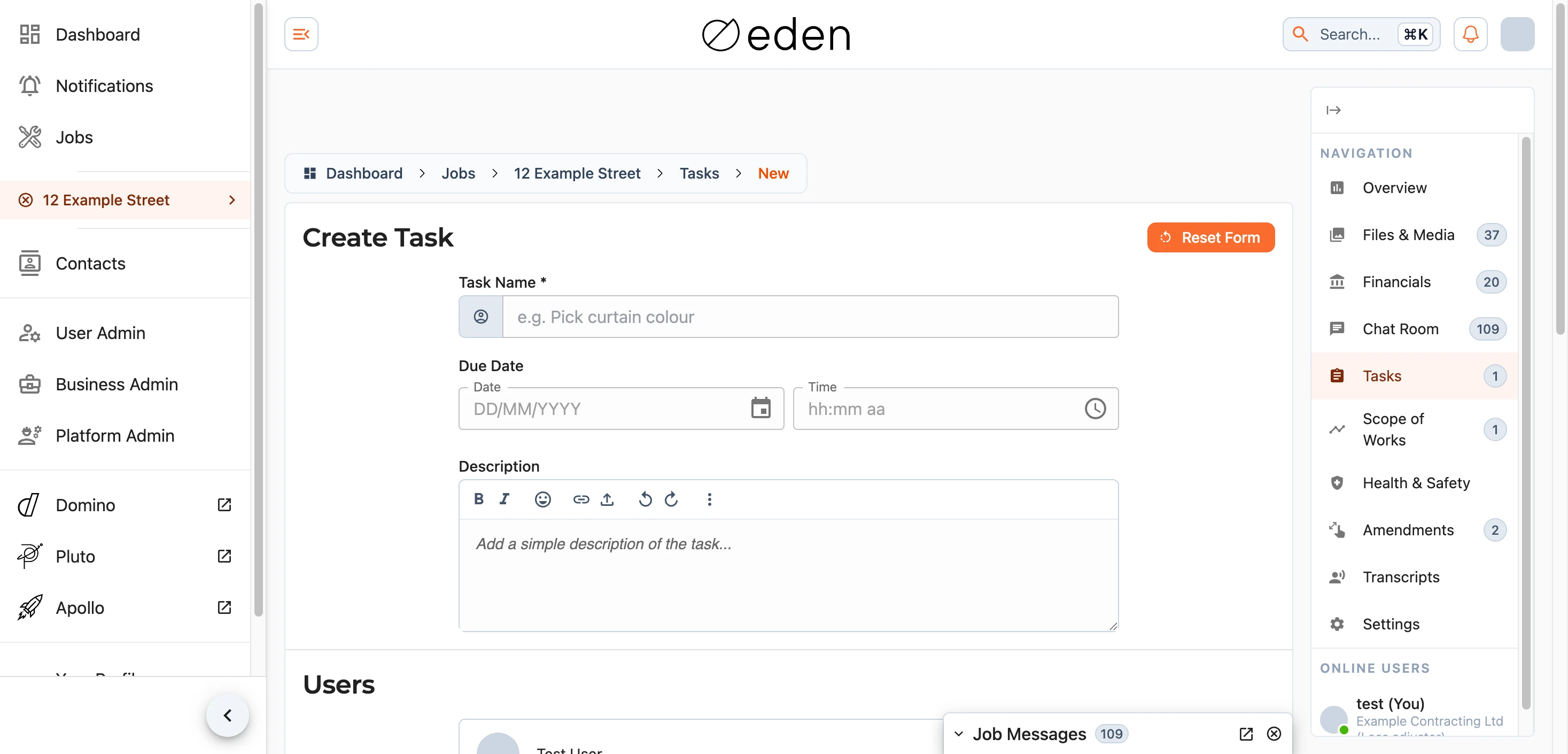
A task needs only a name to be created - everything else is optional and there to add as much or as little detail as the task warrants:
- Title - a short name for the task. This is the only required field.
- Due Date - an optional date and time the task should be completed by.
- Description - a fuller explanation of what is needed. You can format the text and attach images directly within it.
- Users - the people you expect to own the task. Assigning someone does not lock anyone else out; anyone with access to the job can still see and complete the task. It simply marks who is responsible and who EDEN should remind. You can leave this empty.
- Requirements - an optional checklist of smaller steps that make up the task. Drag them to reorder, and give any of them their own due date if it helps.
- Attachments - any files or photos that will help the task be completed. Tick the option to also add them to the job's Files & Media section if you want them available there too.
Your progress is saved as you go, so you can come back and finish a task off later. Use Reset Form to clear everything and start again, and Create Task once you are happy. The button stays disabled until the task has a name.
Viewing a Task
Opening a task shows its full detail across a set of tabs.
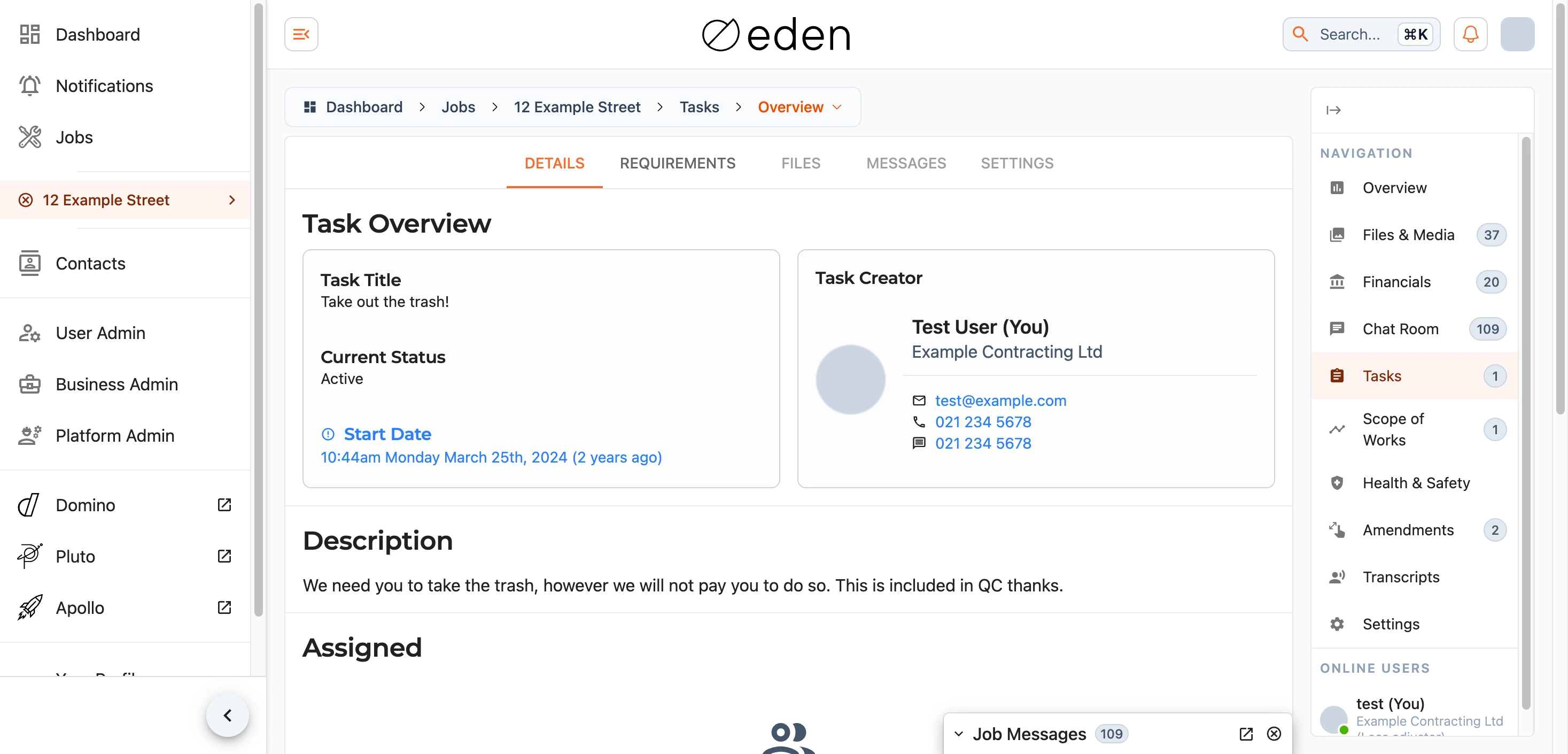
The Details tab gathers the essentials: the task's title and current status, its start and due dates (with the same blue and red highlighting for upcoming and overdue work), who created it, the full description, who it is assigned to, and a record of activity on the task.
The Requirements tab lists the smaller steps that make up the task, each with its own status and dates. Select a row to expand it for more detail. If a task has no requirements, you will see a note that there are no specific milestones to achieve.
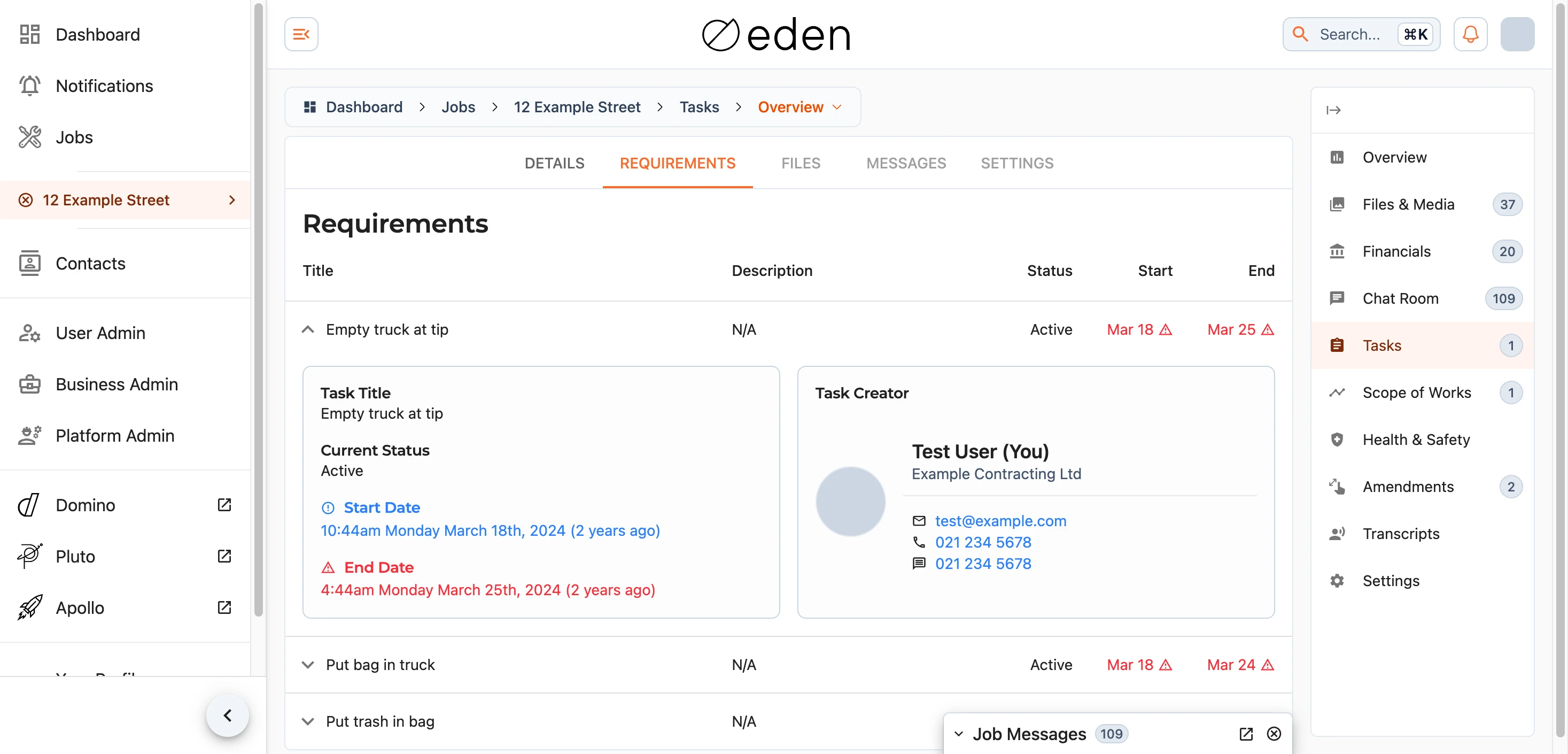
Note: the Files, Messages, and Settings tabs are on the way and are not yet available.