Everything visual or documentary attached to a job lives in Files & Media - the photos uploaded from site, the documents shared by the team, and any 3D visualisations of the property. You will find it in a job's navigation menu, split across two tabs: Files and Visualisations. Which tabs you can see depends on the permissions you have for the job.
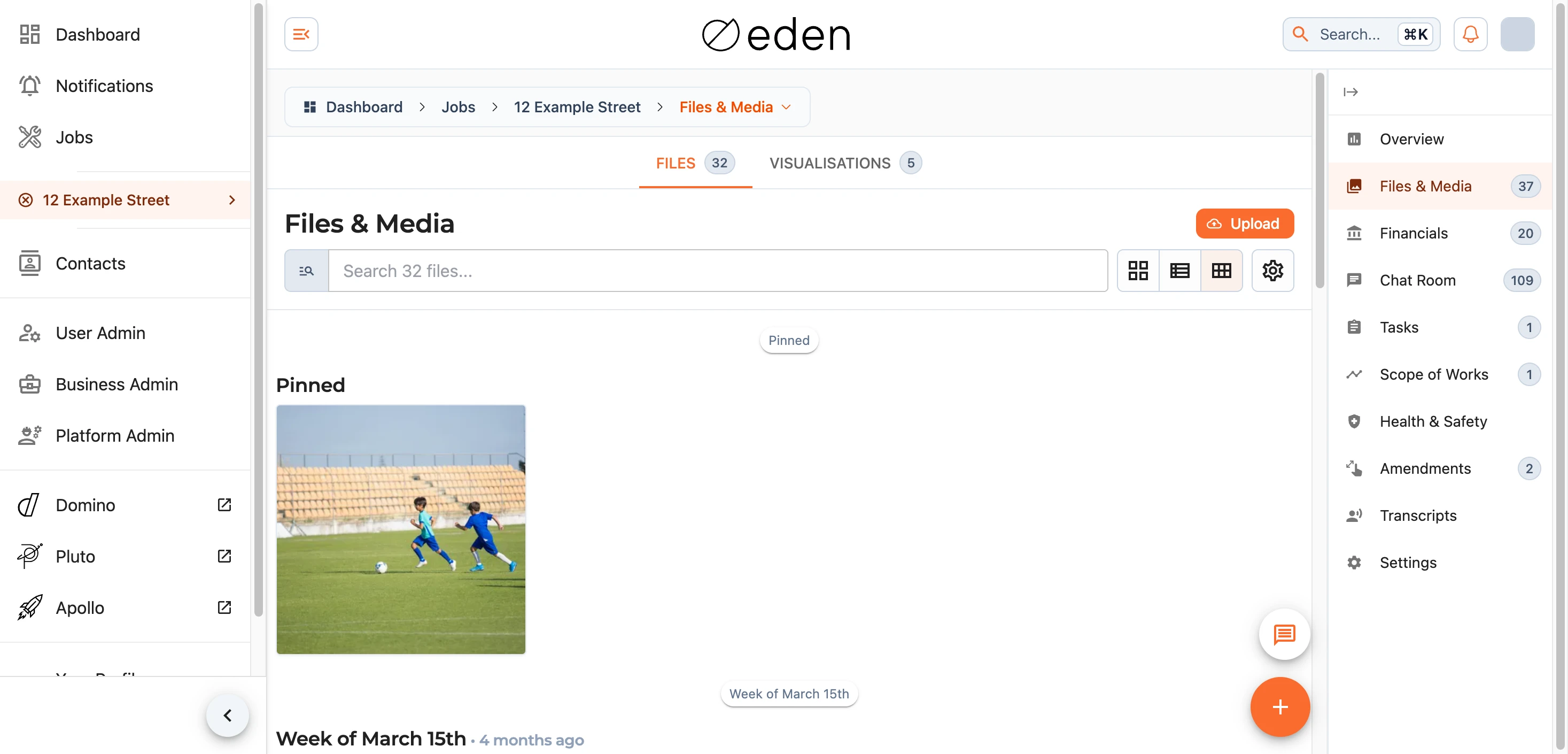
Files
Files are grouped by when they were added - Today, Yesterday, this week, and earlier weeks - so the most recent uploads are always easy to find. Anything pinned is gathered into its own group at the top.
You can switch between tile, list, and grid layouts to suit what you are looking for, and EDEN remembers your choice for next time. Select any file to open it in a preview, or, for files that cannot be previewed, to download them.
Finding a File
The search box looks across file names, descriptions, labels, the text inside documents, and who uploaded them. For a more precise search, open the advanced filters to narrow by file type (image, audio, video, PDF, or other), by who uploaded the file, or by a date range. Clear filters resets everything back.

Adding Files
If you have permission to add files, you can drag photos or documents onto the page and drop them, paste an image you have copied, or use the upload button. Larger uploads show their progress as they go.
Working with a File
Each file has an actions menu offering the things you can do with it. Depending on your permissions and the type of file, these may include:
- Preview the file, or Download it (including a PDF copy where one is available).
- Pin it so it stays at the top of the list and on the job overview.
- Edit an image - crop and adjust it, then save the result as a new file.
- Set Permissions to control who else can see it.
- Move to Financials if the file belongs with the job's financial documents instead.
- Delete it.
Doing More at Once
Tick the checkbox on any files to select them, then use the bulk actions to pin, download, or delete the whole selection in one go. Select All is there when you want to act on everything.
Note: you can only pin or delete files you have permission to manage. If some of your selection cannot be actioned, EDEN will let you know and act on the rest.
Visualisations
The Visualisations tab holds any interactive 3D visualisations of the property - a virtual walk-through you can explore right in your browser.
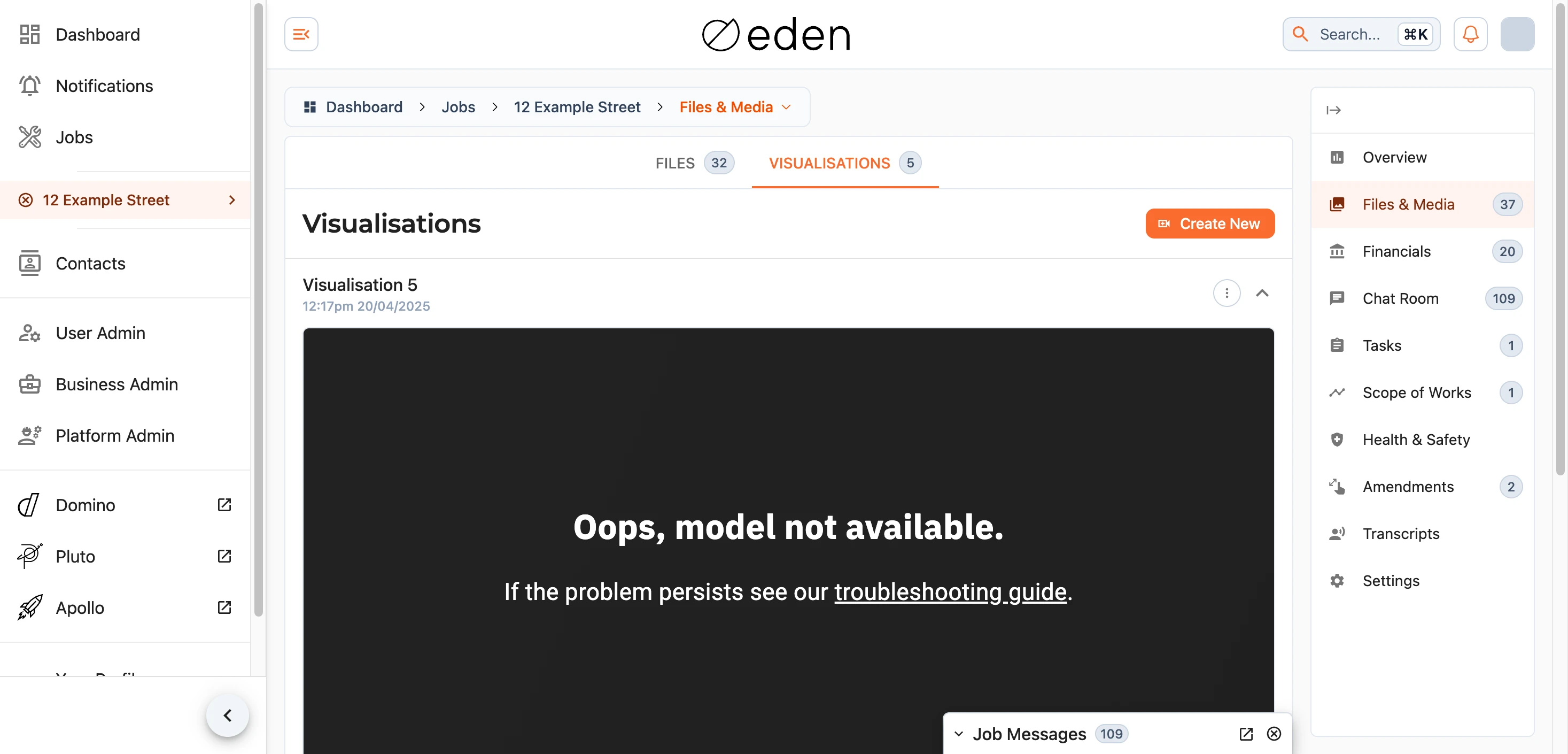
If you have permission, you can add a new one with the Create New button. If there are none yet, or you do not have access to them, the tab will simply tell you so.