The Scope of Works sets out the work to be carried out on a job, broken into individual items with their own dates, order, and progress. You will find it in the Scope of Works section of a job's navigation menu. It can be viewed two ways - as a Table or as a Gantt chart - using the tabs at the top, and both show the same work items with the job's overall start and end dates.
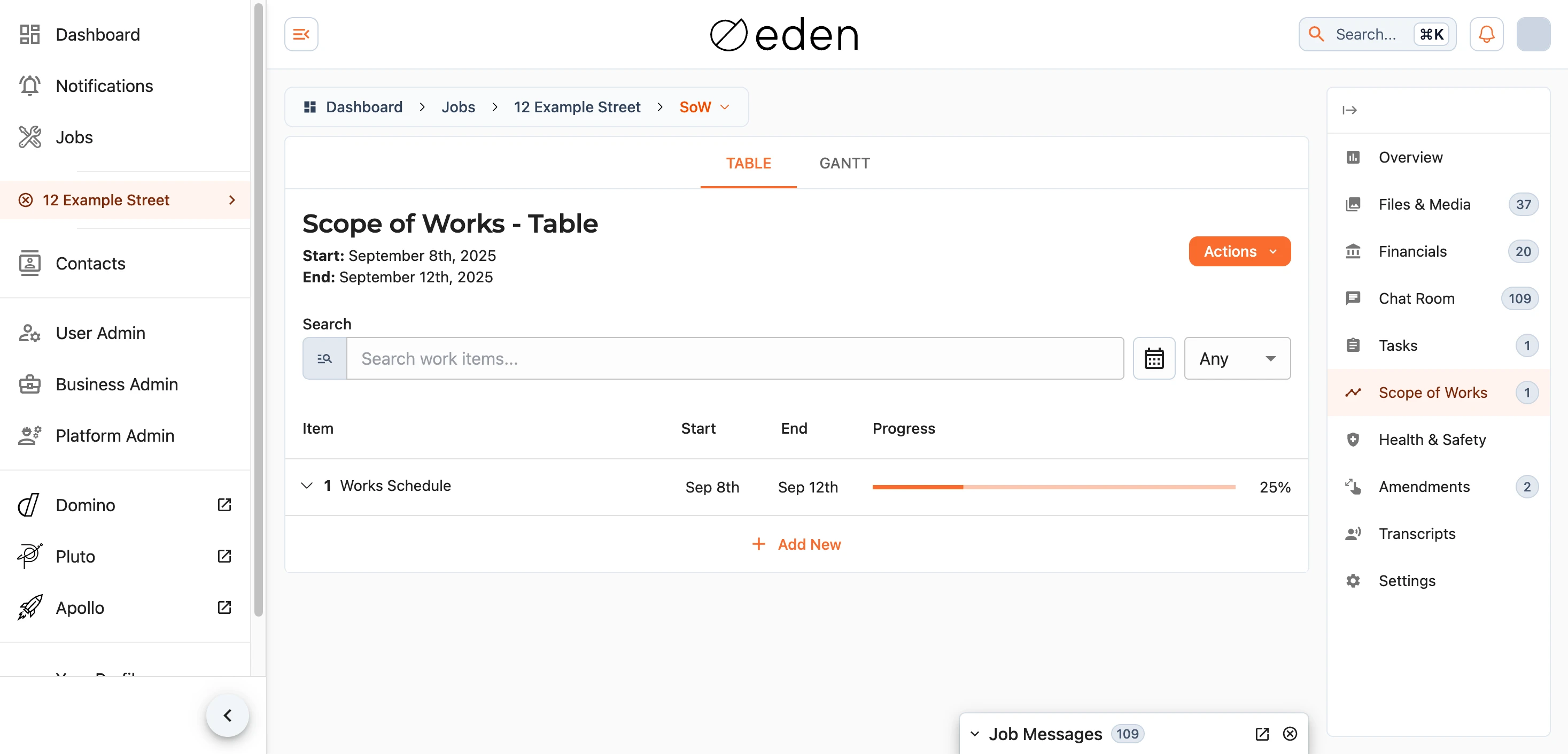
The Table View
The table lists every work item with its start and end dates and a progress bar. Items are numbered to reflect the order they happen in and how they depend on one another, so an item numbered 2.1 follows on from item 2. Select any column heading to sort by it.
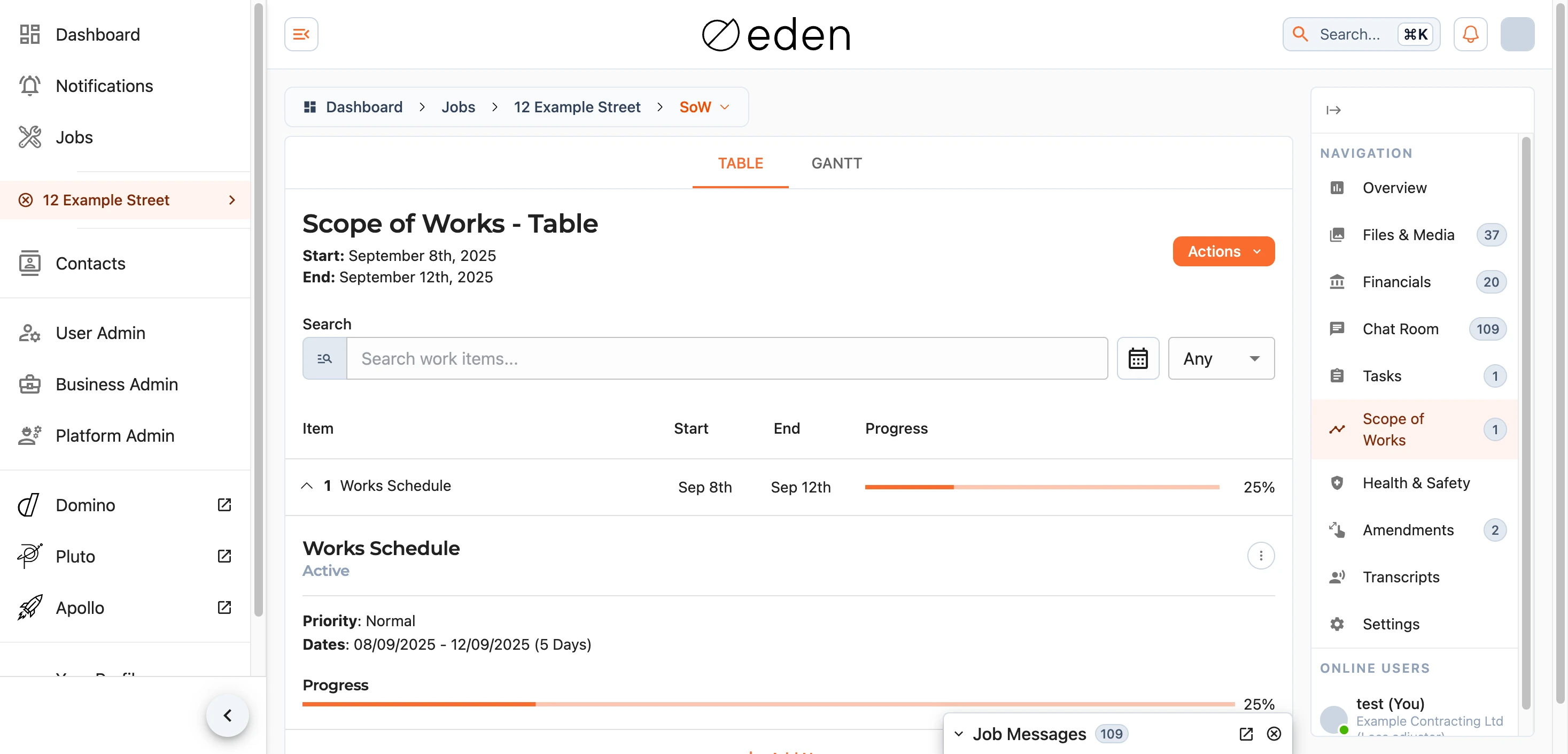
Selecting a row expands it to show the full detail of that item: its priority, dates, progress, anyone assigned to it, a description, and which other items it depends on.
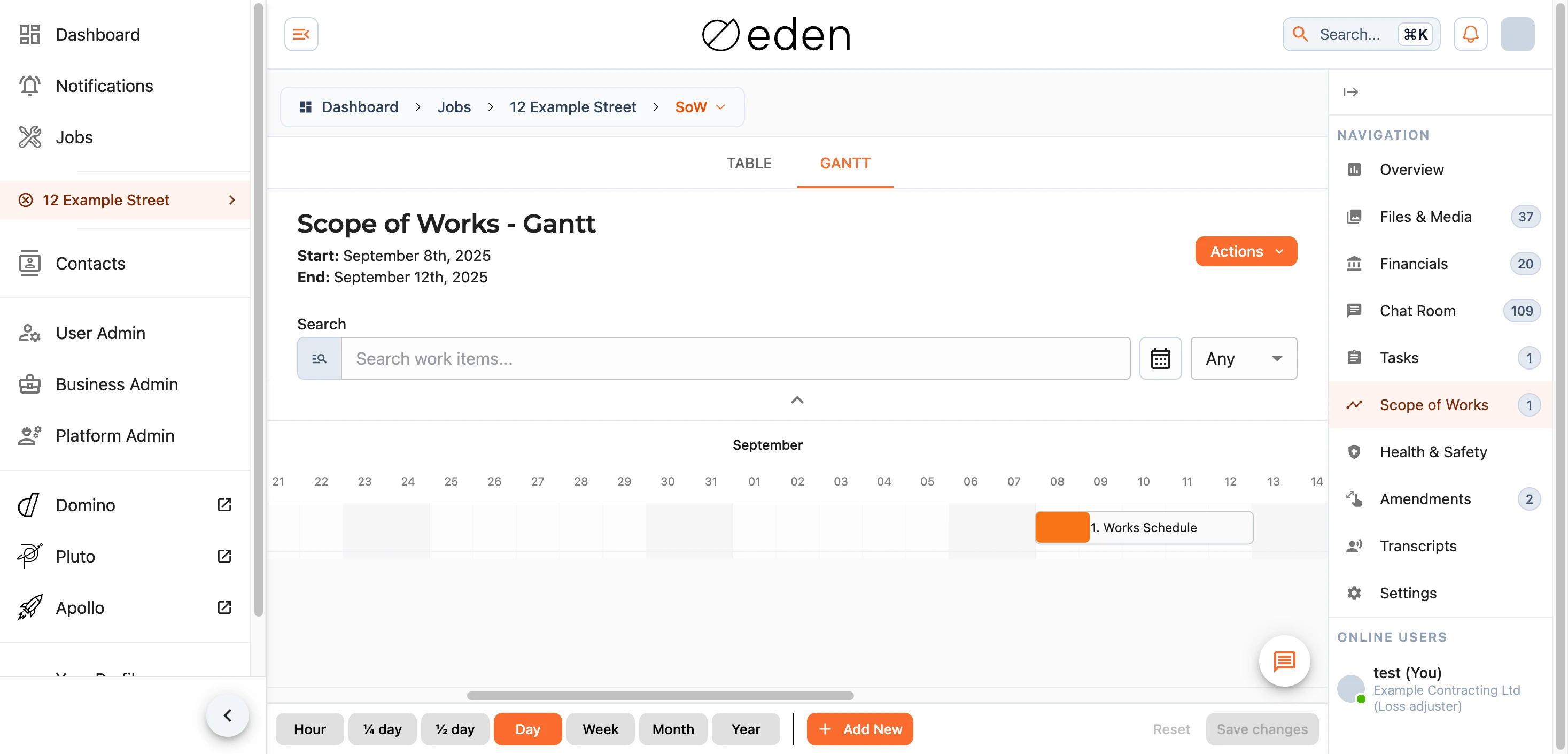
The Gantt View
The Gantt chart plots the same work items along a timeline, which makes it easy to see how the job flows from one item to the next and where things overlap. Use the view controls at the bottom to zoom between day, week, and month scales, and collapse the header with the chevron to give the chart more room.
Searching
Both views share a search box, so you can filter the list down to the items you care about by name, and narrow it further to a particular date range.
Downloading
The Actions menu in either view lets you download a print-friendly PDF of the schedule to share or keep.
Editing Work Items
If you have permission to manage the schedule, an edit menu appears on each work item (and changes can be made directly on the Gantt chart). The options available to you may include:
- Edit Values - change the item's title, description, status, priority, progress, and dates.
- Set Assignees - choose who is responsible for the item.
- Change Parents - adjust which items this one depends on.
- Add New Child - create a follow-on item that depends on this one.
- Edit Permissions - control who can see and work with the item.
- Delete item - remove the item from the schedule.
On the Gantt chart you can also drag an item to reschedule it, or drag its progress, then save your changes from the footer.
Note: changes that affect the schedule - such as moving dates, reducing progress, or renaming an item - ask you for a short reason. This reason is shared with everyone following the item, so please make it clear and meaningful rather than something like "tbc".
Creating a Work Item
If you have permission to add work, you can create a new item from the Actions menu, or as a follow-on from an existing item using Add New Child. When you add a child item, EDEN helpfully carries over the parent and its assignees and suggests a sensible start date.
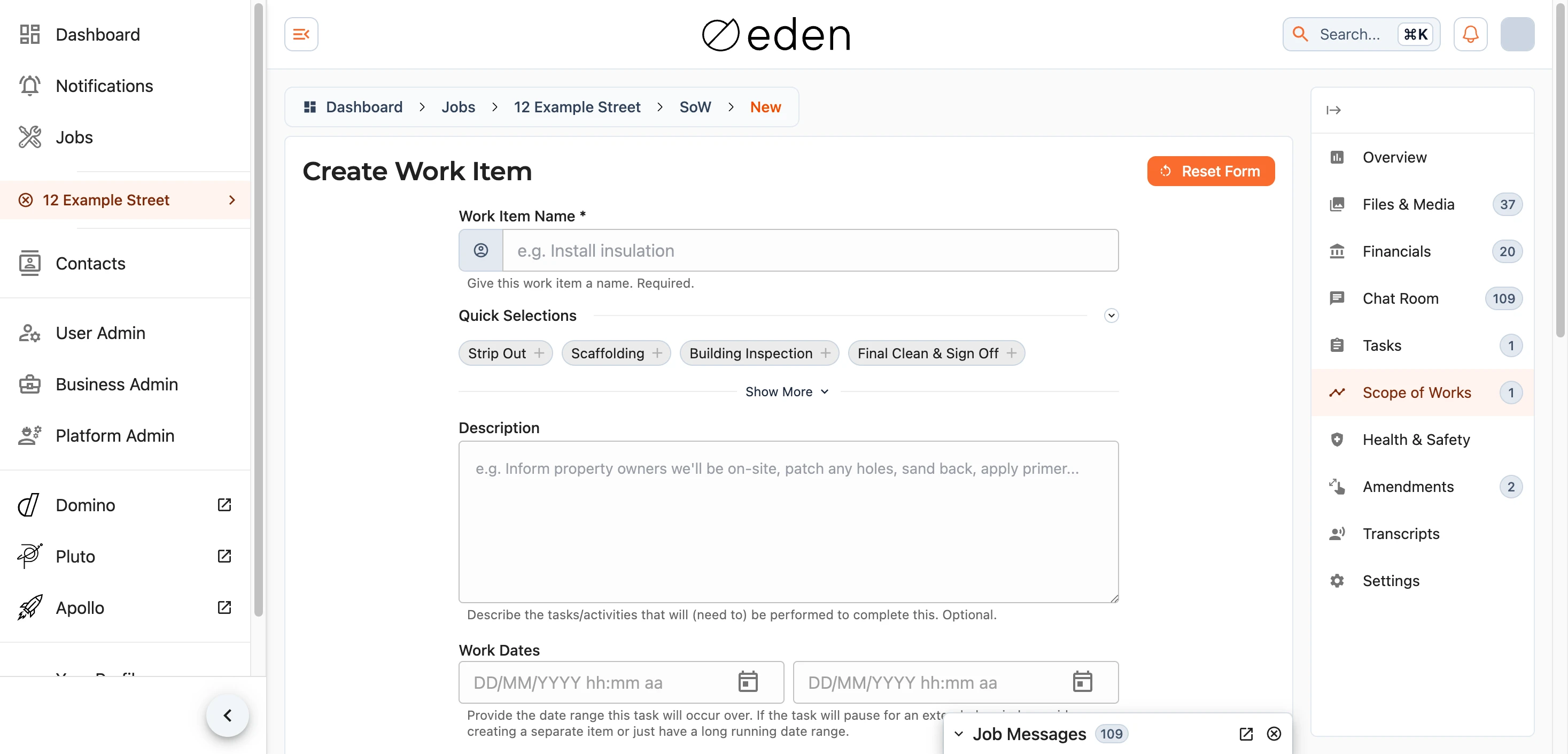
Only a title is required; everything else is there to add as needed:
- Title - a short name for the item. This is the only required field.
- Description - more detail about the work involved.
- Dates - when the item is expected to start and finish.
- Priority - how important the item is relative to the rest.
- Parent Work Items - the items this one depends on, so it is scheduled to follow them.
- Assignees - the people responsible for carrying it out.
Your progress is saved as you go, so you can step away and finish later. Use Reset Form to start over, and Create Work once you are ready. The button stays disabled until the item has a name.
Note: the dates and progress shown across the Scope of Works are working estimates to help everyone plan, not a guarantee of completion by any particular date.