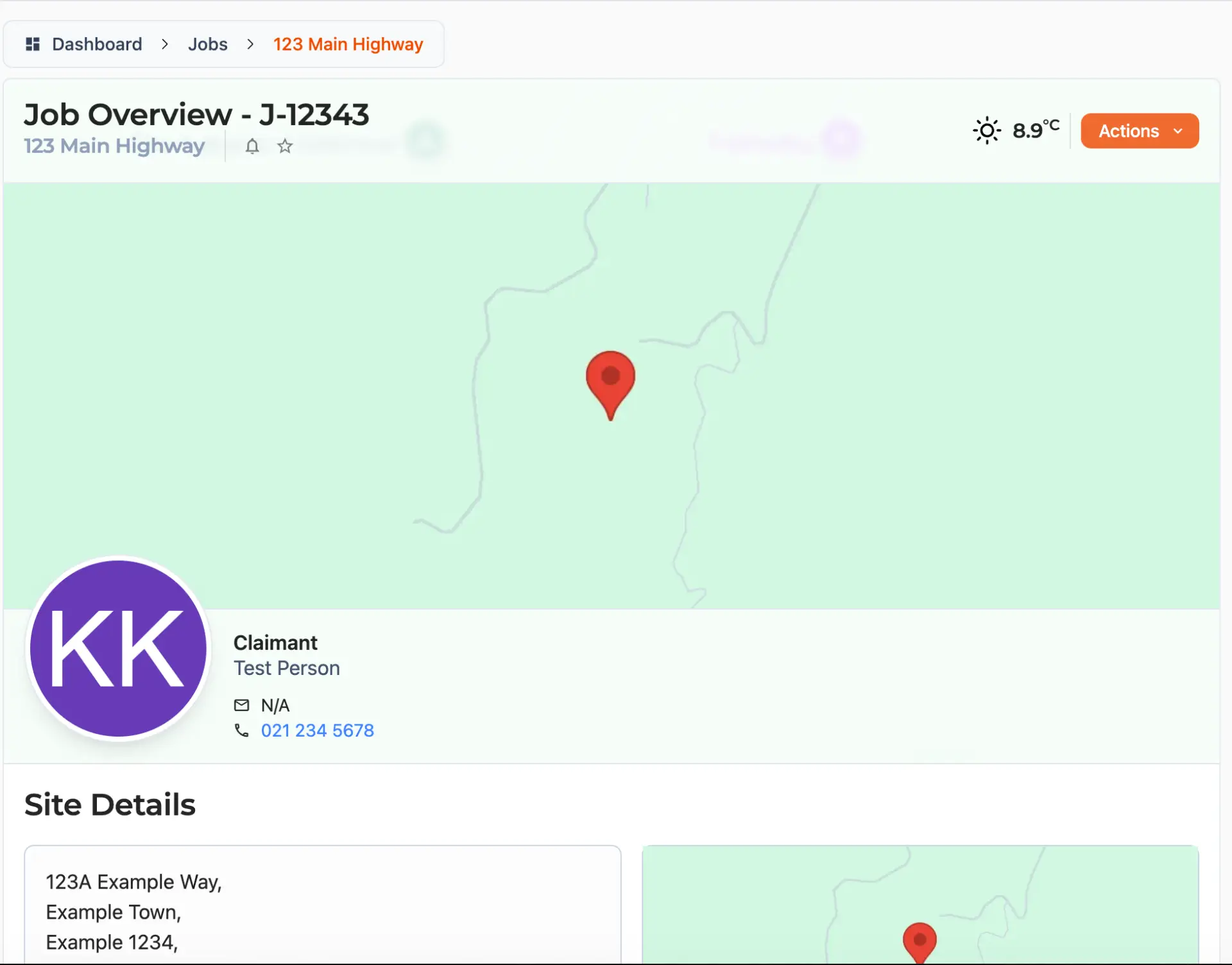
Opening a job from your dashboard brings you to its overview - a single page that gathers together everything happening on that job, from the people involved to the latest photos, documents, progress, and even the weather on site. The rest of the job is organised into sections you move between using the navigation menu.
Which sections and details you can see depends on the permissions you have been given for that job. If something described here is not visible to you, it usually means you have not been granted access to it - reach out to us at support@samconsulting.co.nz if you believe you should have.
Finding Your Way Around
The job's navigation menu lists every section you have access to. On a larger screen it sits down the side of the page and can be collapsed to give yourself more room; on a phone or tablet it slides in when you open it. A small count next to a section tells you how much is inside it - for example, how many files or tasks the job has.
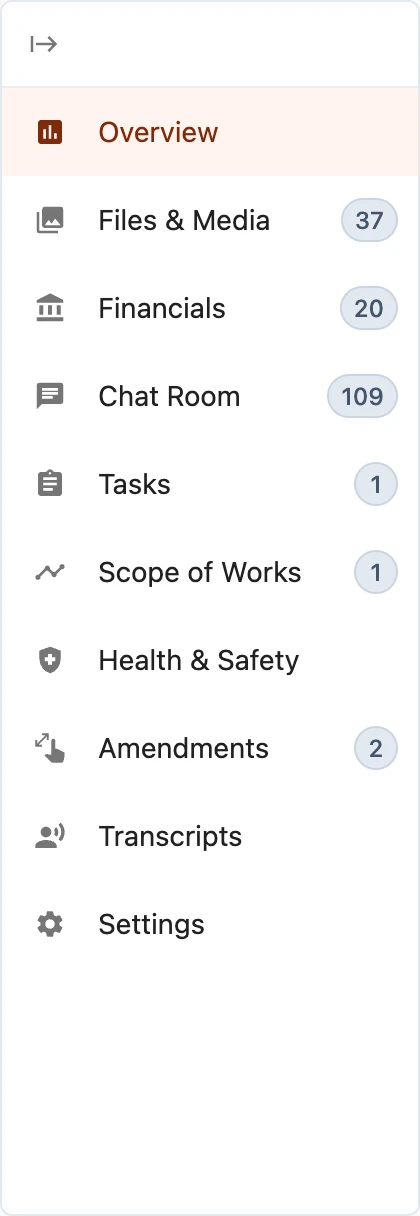
The sections you may see are:
- Overview - the summary page you land on.
- Files & Media - the job's photos, documents, and 3D visualisations.
- Financials - quotes and financial documents.
- Chat Room - the full conversation for the job.
- Tasks - things that need doing, and who is doing them.
- Scope of Works - the schedule of work to be carried out.
- Amendments - changes and variations to the original scope.
- Settings - job configuration, available to job administrators only.
You can always tell where you are from the breadcrumbs at the top of the page, and step back out to your full jobs list from there at any time.
Who Else Is Here
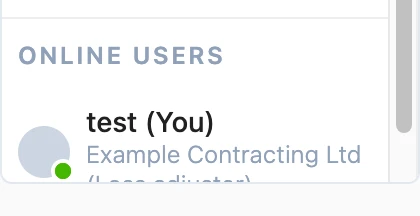
Towards the bottom of the navigation menu you will see the people currently viewing the job, each with a green dot to show they are online. Selecting one shows their contact details and, where available, a quick way to email or call them or open the chat.
Job Messages
A compact Job Messages panel follows you around the job, tucked into the bottom corner of the screen, so you can keep an eye on the conversation without leaving the page you are on. It shows how many messages there are, and highlights in red when there are unread ones waiting for you. On a phone this appears as a chat button you can tap to open.

Expand the panel to read and reply, drag a file straight onto it to attach it, or use the open-in-new button to jump to the full chat room. You can also tuck the panel away with the close button if you would rather not see it.
Adding Files Quickly
If you have permission to add files, you can drag photos or documents straight onto the job page from your computer and drop them anywhere to upload them - there is no need to find a particular button first. You can also paste an image you have copied. A small panel keeps you posted on the upload as it happens and lists what has been added.
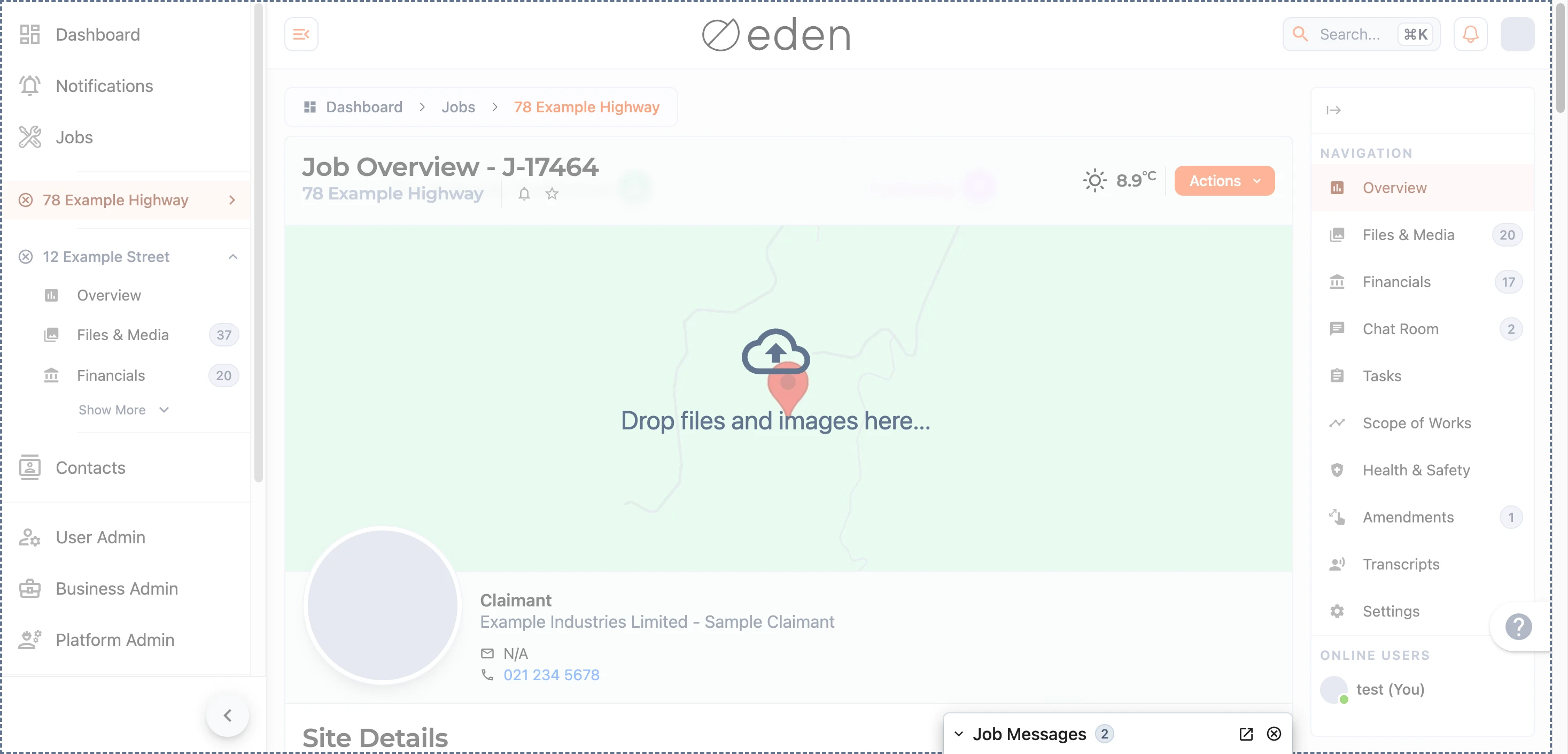
EDEN accepts images, video, audio, PDFs, common office documents (such as Word, Excel, and PowerPoint), and compressed archives like .zip. Anything else will be politely declined.
The Actions Menu
The Actions menu in the top corner of the overview gathers together the things you can do with the whole job:
- Favourite - pin the job to the top of your dashboard. You can also do this from the star near the job's name.
- Notification Settings - choose how and when EDEN updates you about this job. Read more in the notifications article.
- Download PDF - save a print-friendly copy of the job overview.
- Leave Job - remove yourself from the job.
Note: leaving a job removes your access to it. If you leave one you still need, you will have to be re-invited.
What's on the Overview
The overview page is built from a series of sections, each summarising one part of the job. Only the sections you have permission to see will appear.
Pinned Messages
Important messages can be pinned so they sit right at the top of the overview where nobody will miss them. Selecting one takes you straight to it in the chat room.
Job and Site Details
Below the job's name and cover photo you will find the main property contact for the job, along with the site address shown on a map. Use Open in maps to get directions. The Job Details section lists the job type, its current status, any reference numbers (including the Fergus reference where there is one), a fuller description of the work, and which business is administering the job.
Job Progress
When a schedule of works has been set, the overview shows how the job is tracking: the percentage complete, the number of work days done against those estimated, and a breakdown by work item, along with the expected start and end dates.
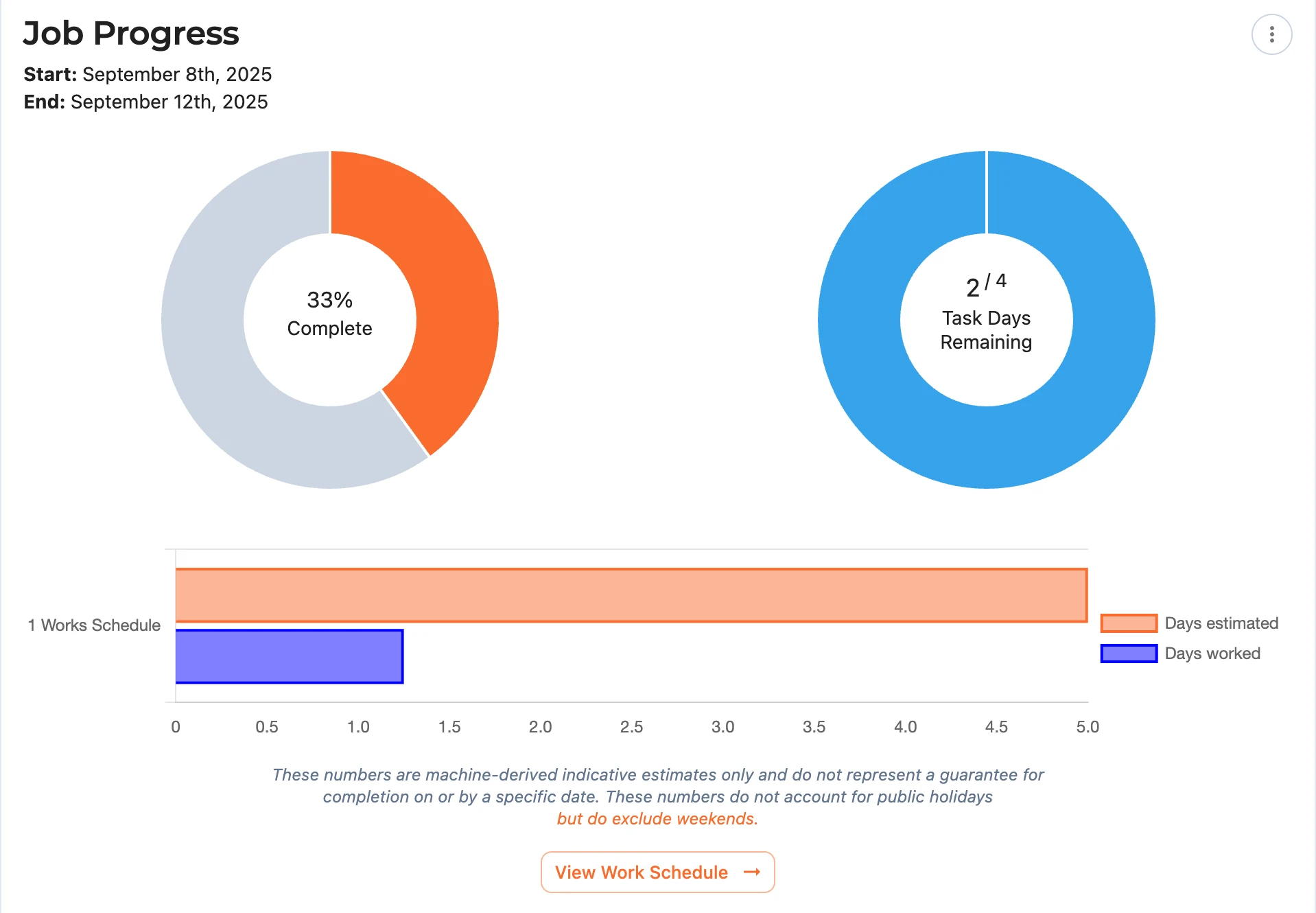
Note: these figures are indicative estimates only and are not a guarantee of completion by any particular date. By default they exclude weekends and do not account for public holidays; you can choose to include weekends from the options button. For the full picture, use View Work Schedule to open the scope of works.
Visualisations, Files and Financials
Where they are available, the overview previews the job's most recent 3D visualisations, files, and financial documents. Pinned items are shown first. Select any image or document to open it, and use the View all button beneath each section to see everything in the files and media or financials sections.
Key Contacts
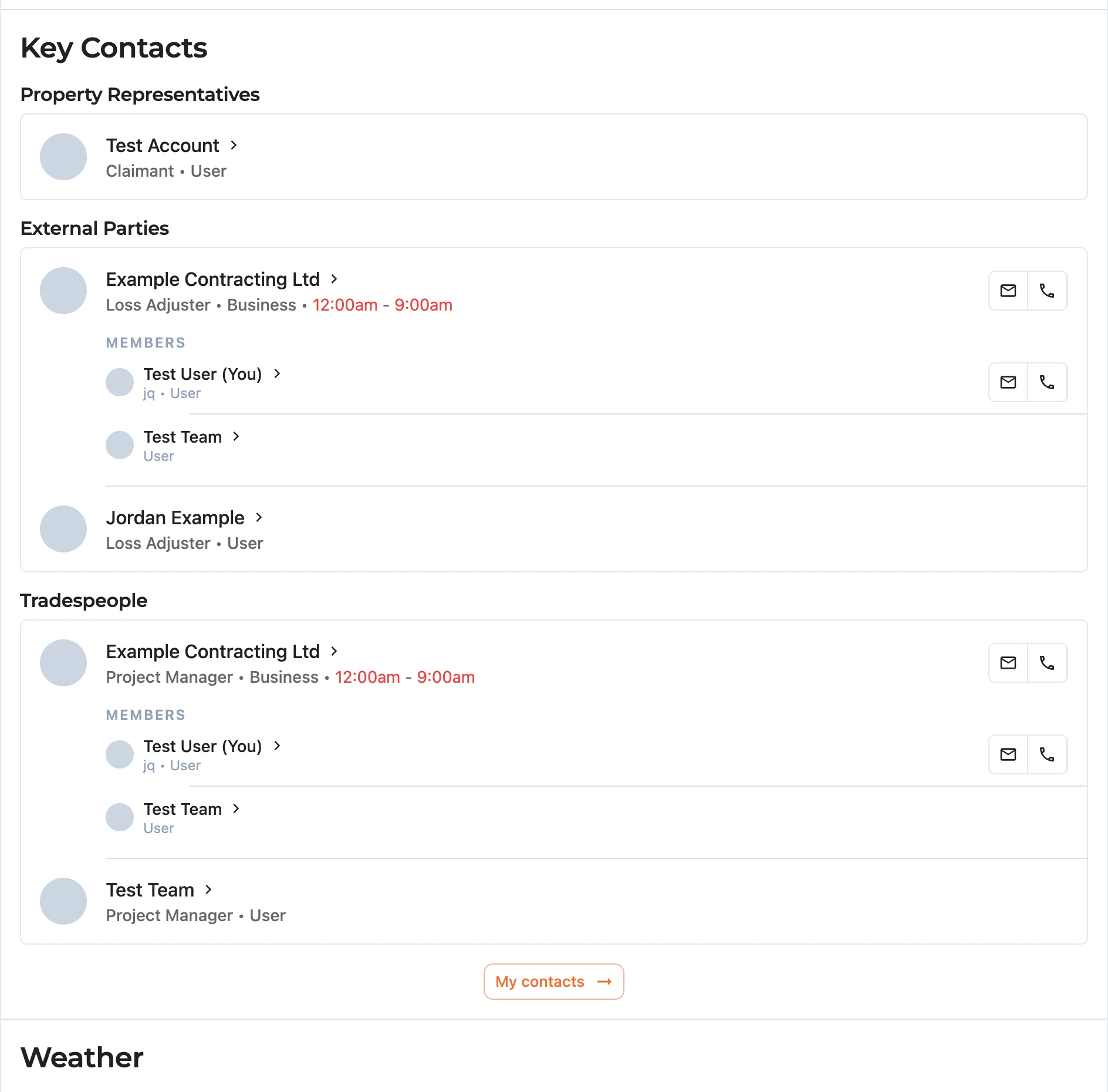
The Key Contacts section groups everyone involved in the job so you can see, at a glance, who to talk to:
- Property Representatives - the owner, claimant, tenant, or property manager.
- External Parties - loss adjusters, assessors, project managers, and similar.
- Tradespeople - the team carrying out the work, led by the administering business.
- Other Observers - people with access to follow the job who are not directly involved in the build.
Weather
Finally, the overview shows the current conditions on site - temperature, chance of rain, humidity, wind, and cloud cover - drawn from the job's location, with a link out to a full forecast.
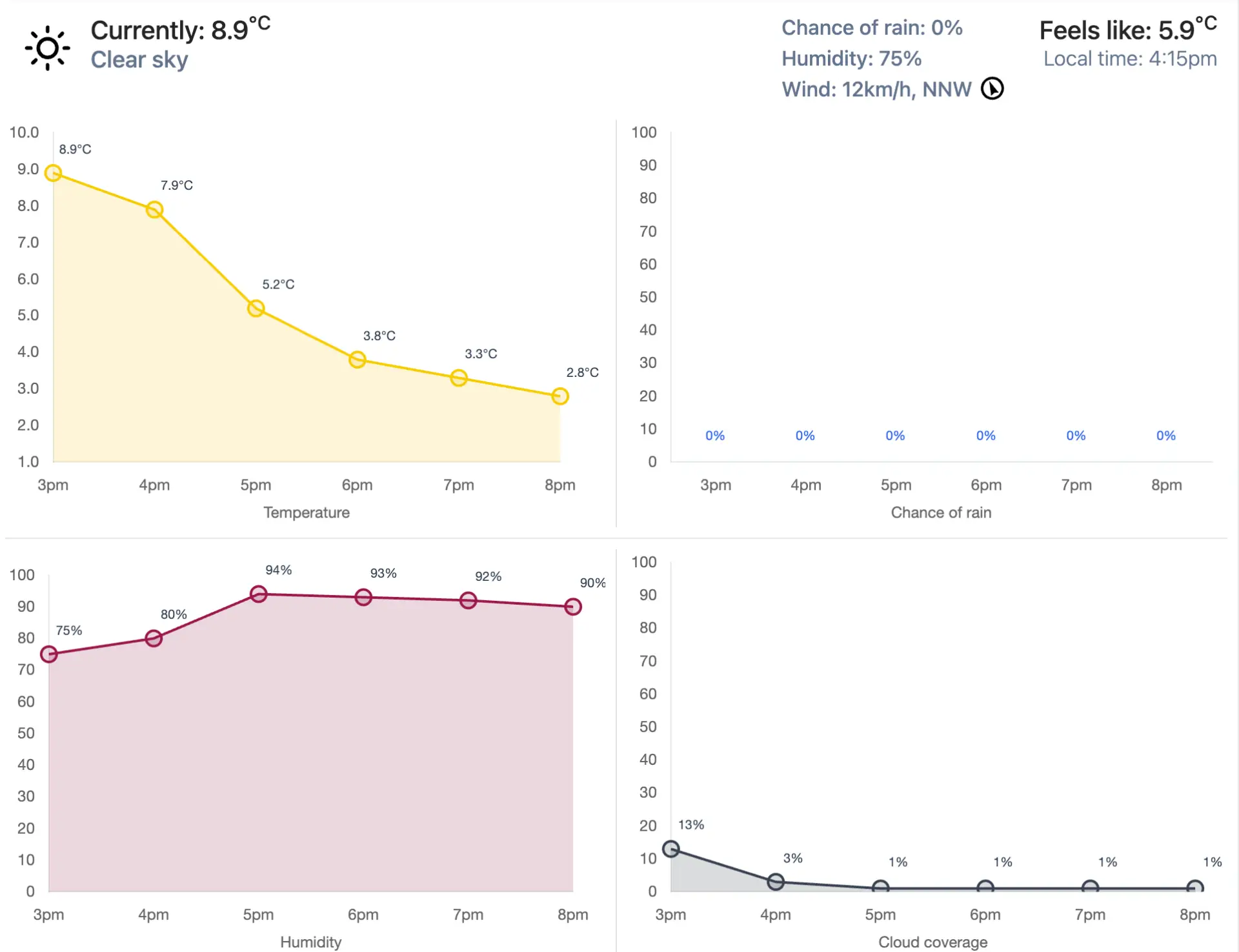
These forecasts will allow our works teams to better plan their days, and may impact things like outdoor works.