The Inbox
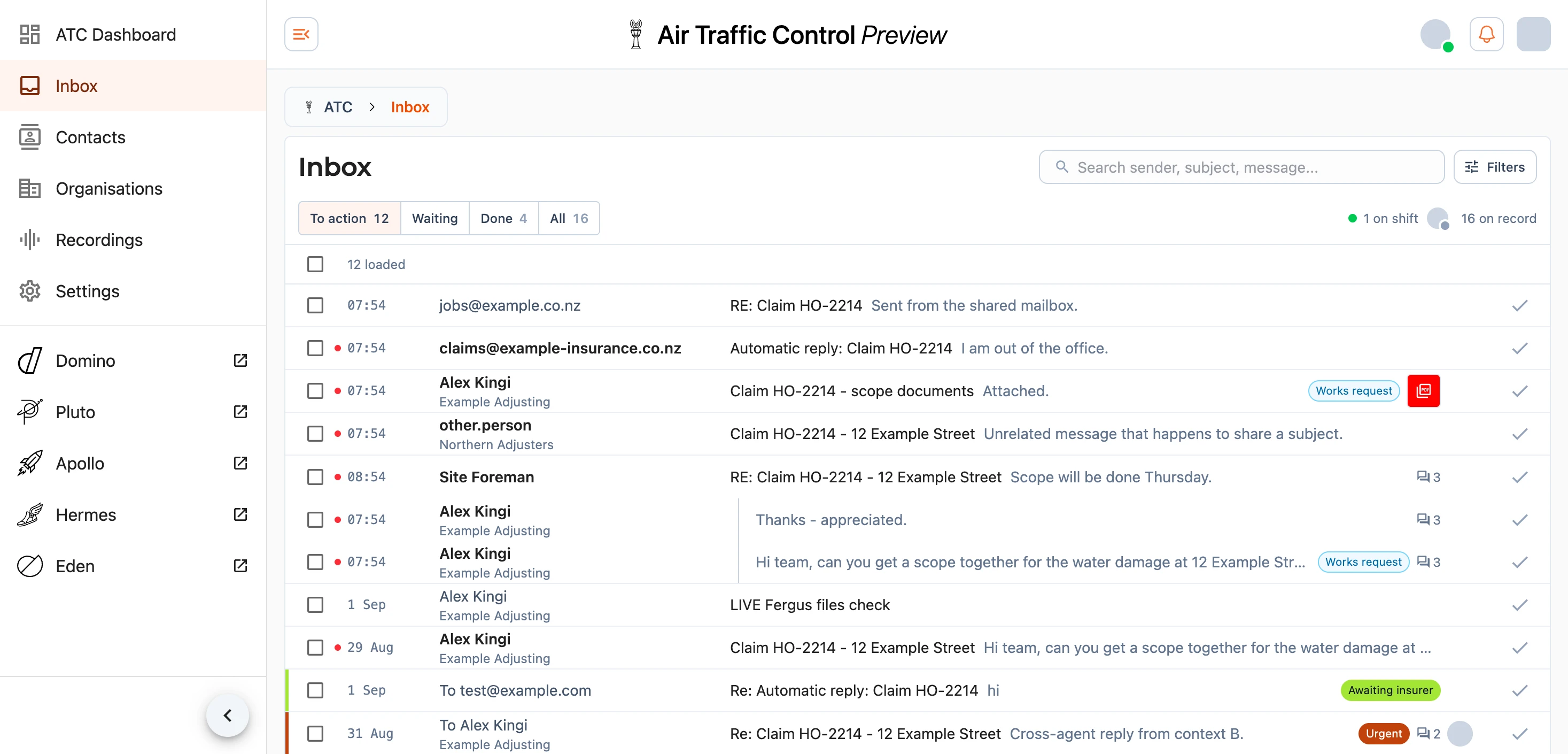
The Inbox is the board every conversation lands on, and the page you will spend the day in. It shows one line per message, newest first, with the columns lined up so you can read down the board rather than across it. You can open it here:
The Four Views
Across the top sit four views, the first three with a count of the conversations in each. They group the six statuses a conversation can hold into the three questions you actually ask of a board:
To action- new and open conversations. Work that is yours to move. The board opens here, and its count is the one shown in amber.Waiting- pending and on hold. Work parked on somebody else until a time you choose.Done- done and archived. Work you have finished with.All- everything, including the rows above.
Selecting a view replaces what the board shows. The counts refresh as the board does, and the number in your browser tab tracks the To action count so you can see it without switching back. Which view the board lands on when you arrive with nothing chosen is yours to set under Settings.
Beside the views sits a line saying how many of the team are online, which opens the full list, and the New email button. Most of what you do in ATC is answering mail somebody sent us, but writing first - to a claimant, to an adjuster you need something from - starts here rather than in Outlook, so the conversation and everything attached to it stays on the board. See Reading a Conversation.
The Six Statuses
Underneath the views is a finer ladder, which you will see on each row and can set yourself:
New- nobody has opened it yet.Open- somebody is working it.Pending- waiting on the person who wrote to us.On hold- waiting on somebody else.Done- finished.Archived- finished and put away.
New and Open carry no pill on a row, because most of a busy board is one or the other and a badge on everything tells you nothing. The rungs in between are decisions somebody made, so they say so.
Pending and On hold always come with a time. Choosing either one asks when the conversation should come back to To action, offering the next working morning, three days, next week or a fortnight away (all at 9am, with a weekend rolled on to the Monday), or any date and time you pick yourself. In Waiting the row's pill reads Pending until Thu 9am, and choosing the same status again is how you change the time.
Three changes happen without you setting them. Replying to a conversation moves it from New to Open, and a fresh message arriving on a parked conversation brings it back to Open so it does not sit forgotten. A Pending or On hold conversation also comes back to Open once its time passes, wearing a Back from pending or Back from on hold mark so it is clear why it has reappeared, and whoever it is assigned to gets a notification. The mark stays until somebody parks it again, marks it done or archives it.
Note: the unread mark is shared across the team rather than being your own. A conversation is New until somebody opens it, and whoever opens it clears the mark for the whole team. If you want to hand a conversation back to the board unread, use Mark as unread inside it.
Searching And Filtering
The search box looks across senders, subjects and message bodies as you type. A broad term reaches the search index as its best few hundred matches rather than all of them, so a line underneath says how many messages matched in total. Narrowing the search is what brings the rest into reach.
The Filters button opens the rest. A count appears beside it when filters are applied beyond the view you have chosen, and a Clear filters button appears inside once there is something to clear.

| Filter | What it does |
|---|---|
| Period | How far back the board reaches - 7, 30 (the default), 90 days, a year, or all history |
| Channel | Everything, or only Email, or only Eden chat - the messages people leave in a job's chat room in EDEN |
| Sender | Everything, or only mail from a Linked contact, an Unlinked address, or a contact still To confirm |
| Status | A view, or one of the six statuses on its own |
| Assignee | Anyone, Unassigned, Assigned to me, or a particular person |
| Region | Which region a conversation has been filed under |
| Label | A label, or Untagged |
| Attachments | Whether anything was attached at all, or what it was - PDFs, Word documents, spreadsheets, photos and images, zip archives, or other files |
Region and Label only appear once there are regions or labels to choose from.
Every filter is written into the page address, so a filtered board can be pasted to somebody else and it will open the same way for them. The browser Back button steps back through what you have changed.
Reading A Row
Each row is one message, and it is never folded into a summary. Reading left to right you get the selection checkbox, a red dot where the conversation is still New, a coloured edge carrying the colour of its first label, the time, and then the sender - the contact's name where we know them, the address where we do not, with the organisation underneath. Outbound mail reads To and the recipient.
After that comes the subject, printed once per conversation so a chain of replies shows a tie rather than the same words repeated, then a one-line snippet. On the right sit the marks: a Works request pill where the message is asking for work to be done - becoming Ready to create, Creating job or Job created as it moves - a Likely spam or Blocked sender mark where the screening had something to say, a Back from pending mark where a parked conversation's time ran out, Awaiting reply while somebody named on an urgent send has not answered, Reply required where staff have answered since the customer was last emailed, label pills, a recording's duration, attachments, and a count where the conversation holds more than one message.
Where the files on a message have thumbnails, they appear on the row as small tiles. Selecting one opens it in the viewer without opening the conversation first, which is usually all you need to decide what a message is.
Hovering a row brings up the two controls triage actually needs - who is dealing with it, and what state it is in - along with a tick to mark it done.
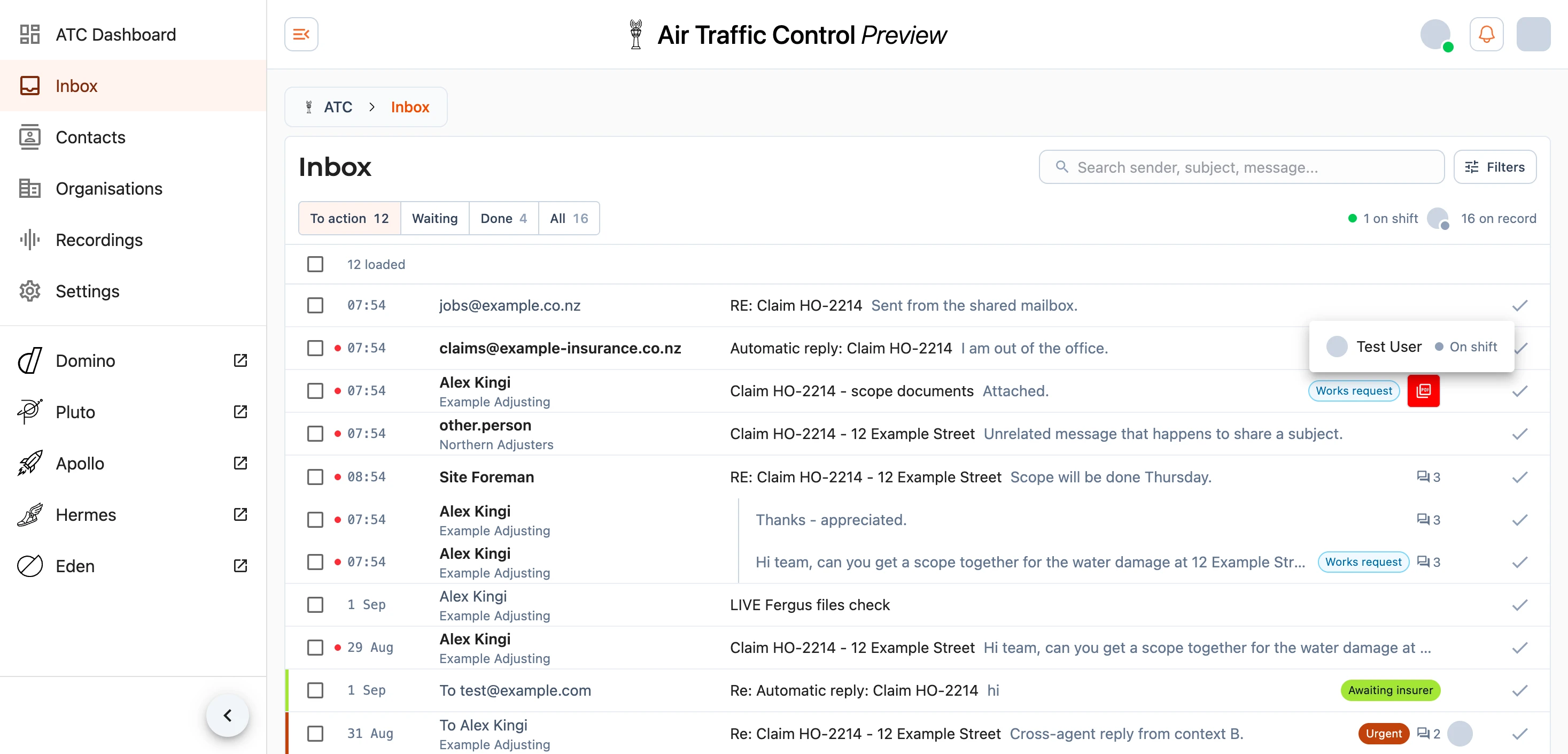
The assignee button lists everybody with ATC access, ordered by who can pick work up now, each with their shift state. Choosing somebody who is off shift asks you to confirm - they can still be assigned, and ATC holds their notifications until they are back on.
Rows that are not part of a conversation yet, such as a recording, show a dash instead of these controls.
Eden Chat On The Board
A message a homeowner, claimant or adjuster leaves in a job's chat room in EDEN lands on the board beside the mail, so it is answered rather than left to sink into the Fergus notes the works team already gets. All the chat on one job is one conversation, which reopens whenever somebody outside the business writes again; replies your colleagues leave in EDEN appear in it too but never bring it back onto the board.
A chat row is told apart by a teal beside the time and an Eden - J-12345 line under the sender's name in place of an organisation. Opening one shows the messages as cards, each named for the person who wrote it. Under a message from outside you can Reply in Eden, which sends your reply into the chat room under your own name where everyone on the job reads it. Send to J-12345 opens the same Fergus send dialog an email uses, where you choose what goes on the job and who to tag. A chat message EDEN has already put on the Fergus job reads In J-12345 and cannot be sent a second time, but Send to J-12345 stays beside it so you can still tag somebody, and the tag is posted as a reply under that message's note so it lands on the message itself.
When you tag one person who has an account with us, the dialog also offers Make them this job's project manager. Ticking it means EDEN tags that person on every later chat message on the job without anyone in ATC having to, which is usually the reason the message was sitting unanswered in the first place.
Note: opening a chat conversation marks its messages as seen by you in EDEN, the same way reading them in the chat room would.
Working Through The Board
Marking a conversation done holds it on screen, dimmed, for a few seconds with an Undo button, so a misfire costs nothing. Every row of that conversation dims together.
New mail arrives on the board while you are looking at it, briefly highlighted, without moving what you are reading. Where ATC cannot work out what your tab missed, an orange band appears offering a Refresh.
You can walk the board from the keyboard: the up and down arrows move a cursor down the rows and Enter opens the one you are on. Reaching the bottom loads the next page. With a conversation open, the arrows step to the next and previous conversation instead.
Triaging With A Thumb
On a touchscreen, dragging a row sideways runs a triage action on it. The two directions are yours to set under Settings, and they start as Done leftward and Archive rightward. A swipe behaves exactly as the same action taken from the menu does, Undo included.
Delete is the exception. It is the one action on the board with no undo, so the gesture asks you to confirm and the row springs back until you answer.
Dealing With Several At Once
Ticking a row's checkbox turns the views strip into a bulk bar showing how many you have selected. The checkbox above the list selects everything loaded, and holding Shift while ticking a second row selects everything between the two.
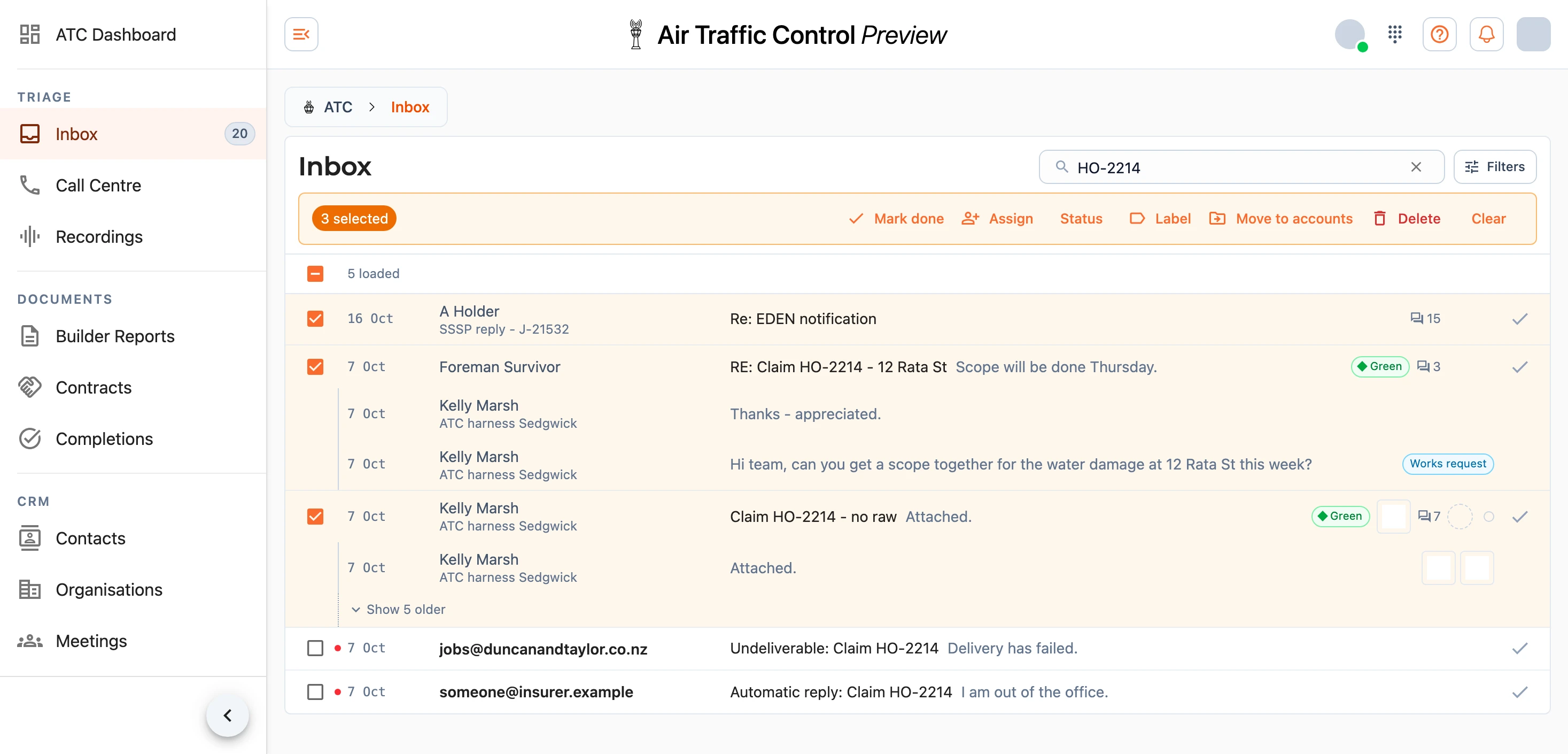
From here you can mark them all done with Mark done, Assign them to somebody or unassign them, set their Status, add or remove a Label, or Delete them. Where some of what you selected is not part of a conversation, the bar says so and leaves those rows alone.
Note: deleting takes conversations off every view, and it cannot be undone from the board. It does not destroy the mail - inbound correspondence is a business record and is kept.
When The Board Is Empty
An empty board with a search or filters applied offers a Clear filters button. An empty To action with nothing else applied reads Nothing to action, and the usual cause is the period: the board reaches back thirty days unless you tell it otherwise, so changing the period under Filters brings older mail into view.
If the board fails to load, ATC will tell you and ask you to reload. Where that keeps happening, let us know at support@samconsulting.co.nz.