Contacts & Organisations
ATC keeps the directory of everybody the platform knows: the people who write to us and the firms they work for, and our own team and alliance members. Most of it is built out of the mail itself rather than typed up in advance, which is what lets a message arrive already knowing who sent it, and it is also where platform accounts are looked after. You can open either half here:
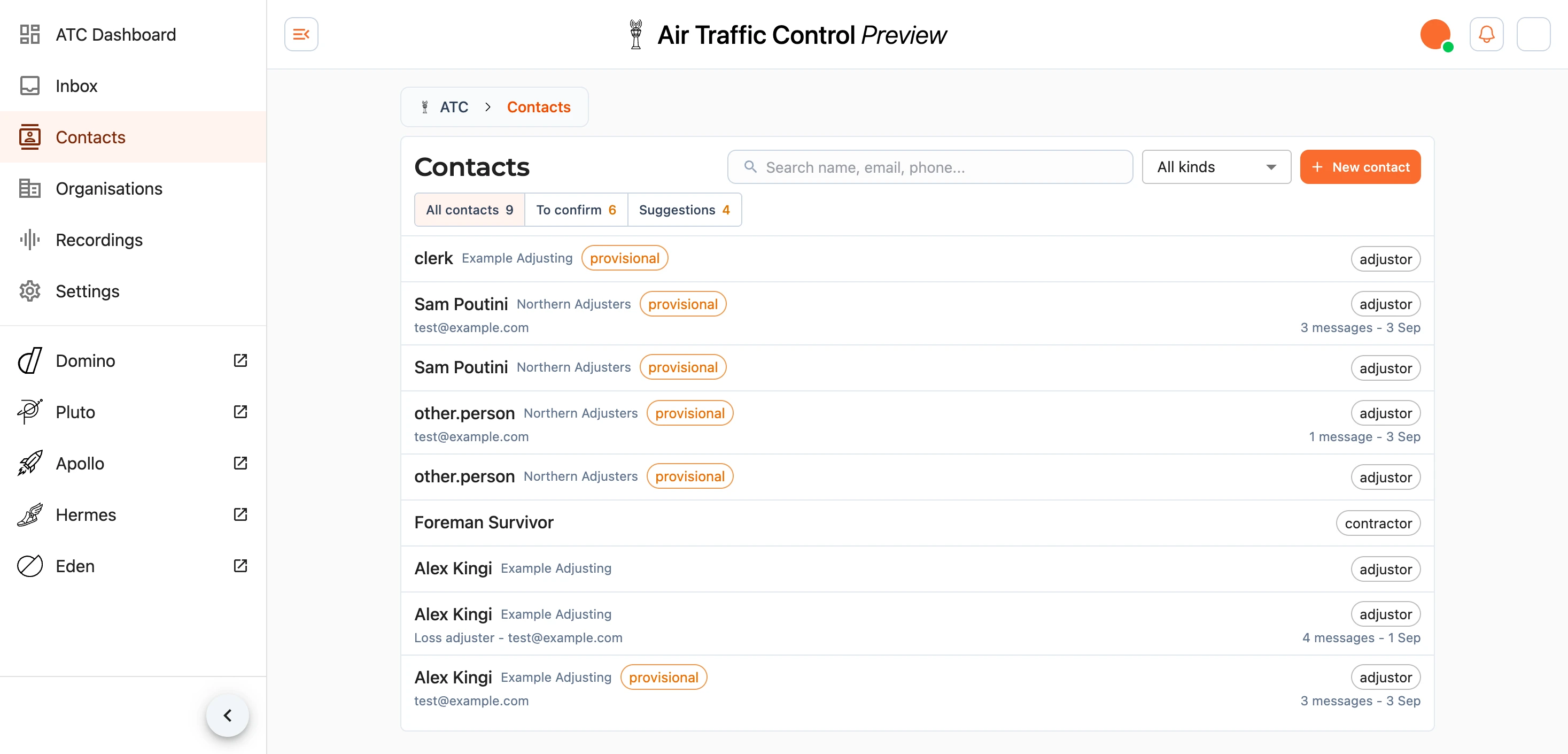
A contact is a person, and it carries the email addresses and phone numbers we reach them on. Those are the keys everything is matched against, so a message from an address we hold arrives already attached to the right person. An organisation is the firm behind them, and it carries the email domains its staff write from.
Every contact is a platform account and every organisation a platform business, one to one. A person you add here with an email address or phone number has an account from the moment you save, and a firm has a business. A contact with neither gets their account once you add one, since there is nothing for them to sign in with until then.
Note: adding somebody does not tell them anything. The account exists without a password or an invitation, and they only hear from us once somebody sends their welcome email (see Accounts). A record ATC created from a signature gets its account once it is confirmed rather than before.
Finding Somebody
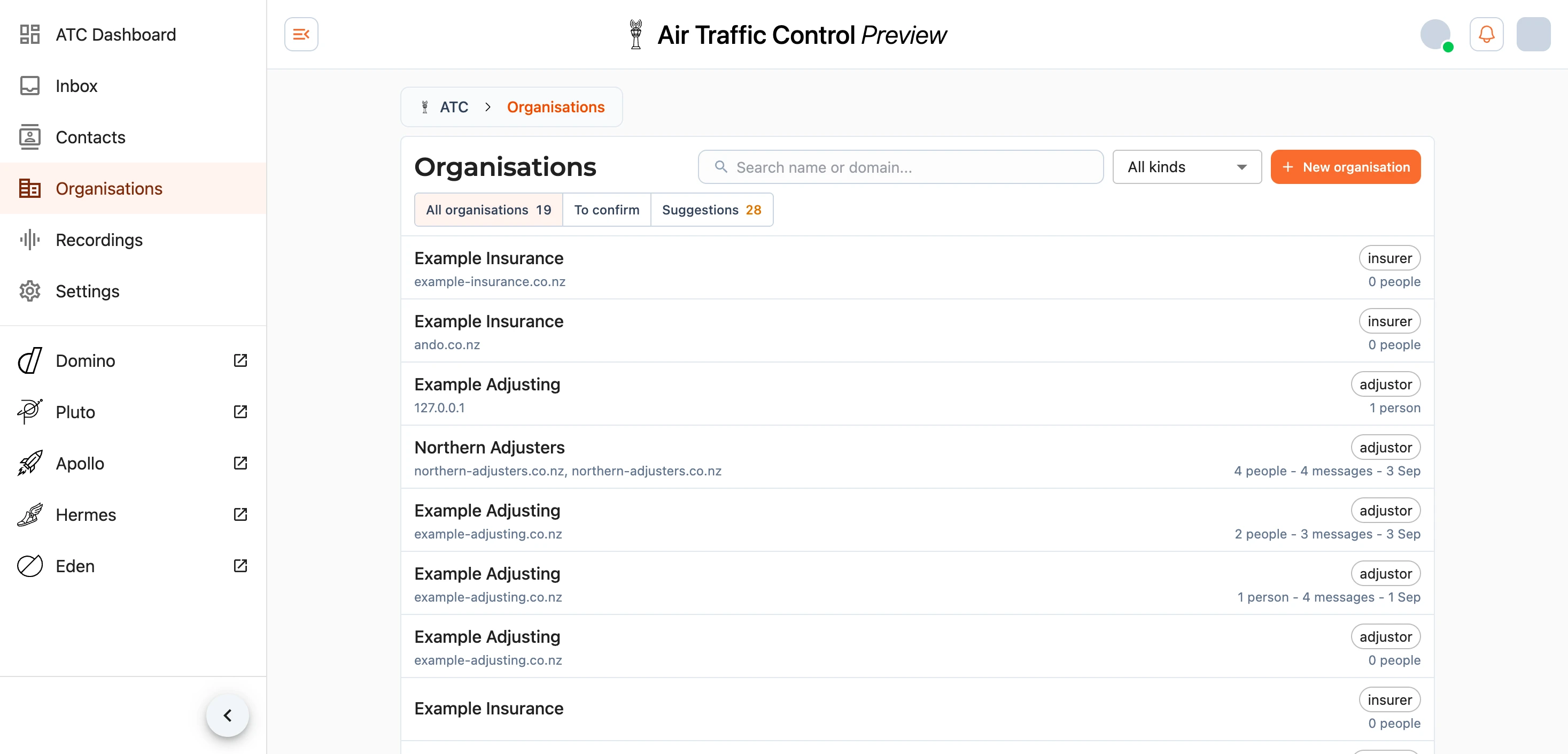
Search looks across names, addresses and phone numbers on the contacts list, and names and domains on the organisations list. Beside it, a Kind filter narrows the list to adjusters, claimants, homeowners, tenants, contractors, staff or other for people, and to adjusters, insurers, councils, schools, body corporates, suppliers or subcontractors for firms. On the contacts list a Permission filter lists the people holding a platform-wide permission, such as ATC Admin or Jobs Dashboard, whether they hold it themselves or through a business they belong to.
The views above the contacts list are All, To confirm for records ATC created from a signature that nobody has checked yet, Fergus accounts for everybody linked to a Fergus employee, which is the quickest way to our own team, Alliance for everybody with an Alliance rate card, and Suggestions for the proposals waiting on a decision. A row shows Fergus and the permissions its person holds beside their kind.
The organisations list works the same way, showing each firm's domains, how many people are filed under it, and when it was last in touch.
Adding And Editing
New contact and New organisation open a dialog, and the same dialog edits an existing record.
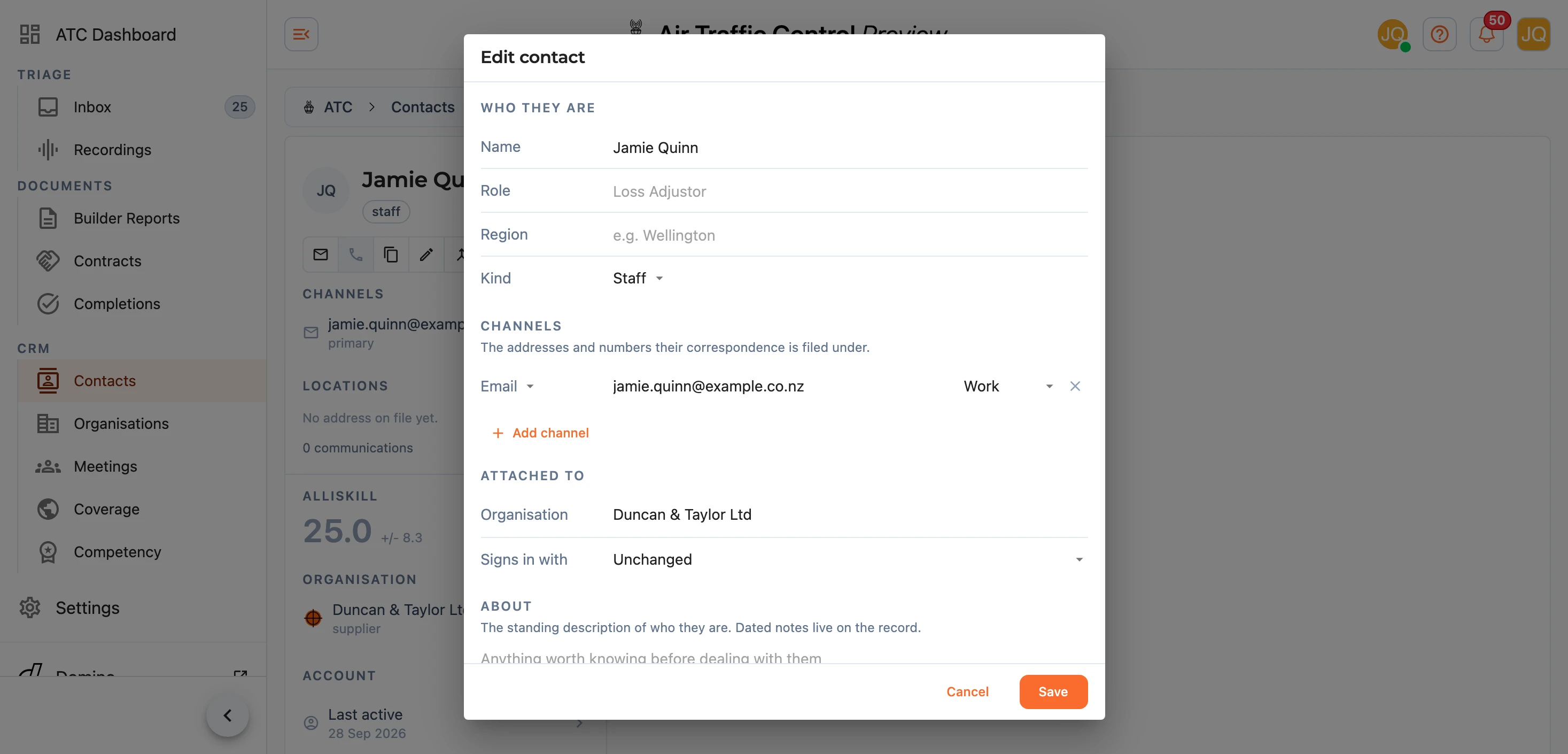
For a person you set their name, role, region and kind, then their channels - a row per email address or phone number, each labelled work, mobile, home or other. The phone button beside a number rings it through ATC, so the call is recorded and kept on their record; see Ringing Out. Underneath, you attach them to an organisation, and Signs in with chooses which of their email addresses their account signs in with.
For a firm you set the name, kind and region, and for a subcontractor the trade it works in. Then come the email domains its people write from. Senders from those domains are filed under the organisation, which is how a new person at a known firm arrives already placed. You can also record a phone number and address.
The record is where a person or firm is edited, and their account or business follows it. A person's name and phone numbers reach their account when you save, and a firm's name, email, phone and logo reach its business. It also works the other way for a person's sign-in address and phone numbers: change them on their account and the record picks them up as channels.
Note: choosing a different address under Signs in with signs them out everywhere, so make sure they know which address to use next.
About on either is one standing paragraph describing who this person or firm is. It is not the same thing as a note - notes are dated and authored, and they live on the record itself.
Note: domains are never matched on a consumer mail provider. A homeowner writing from a personal address becomes a contact with no organisation, whatever domains somebody has typed onto a firm.
Confirming What ATC Found
A record ATC created from reading a signature is marked provisional and appears in To confirm. Open it, check the details are right, and confirm it - either from the notice at the top of the record, or with Save and confirm in the edit dialog. Confirming a contact also attaches any archived mail from that address to them, and tells you how many messages it picked up.
Proposals that would change something already on file - somebody moving firms, two records that look like one, a domain on a firm somebody created by hand - are never applied for you. They appear as suggestions on the record and in the Suggestions view, each with its evidence, for you to accept or dismiss. A dismissal is permanent.
Once a week ATC re-reads the directory as a whole and proposes what a single message cannot see, such as duplicate people and firms. You can turn the summary of that off under Settings.
A Person's Record
Opening a contact or an organisation gives you three columns: who they are on the left, everything that has passed between us in the middle, and their connections on the right.
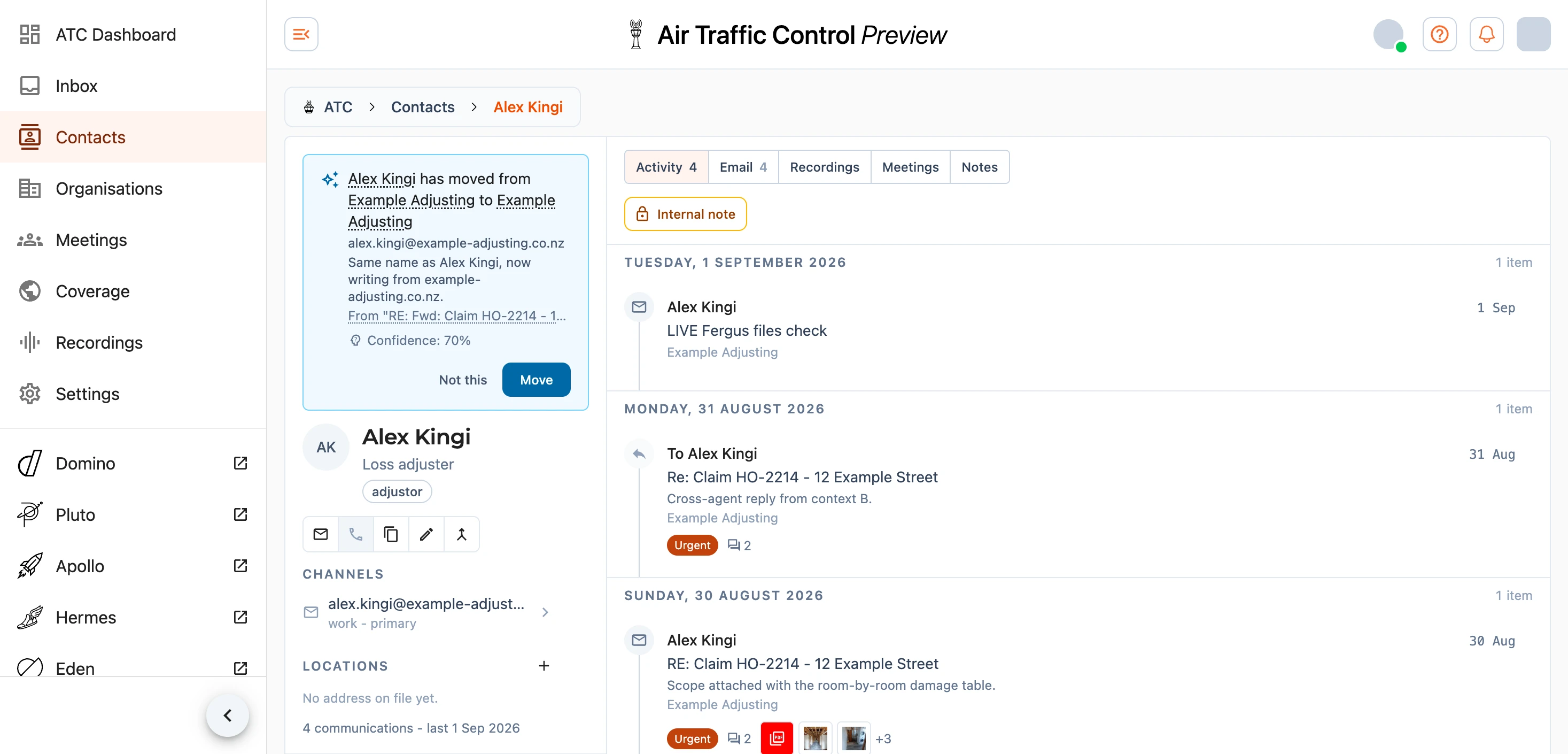
The identity card holds the name, kind, role and channels, with buttons to email or call them and to copy their address. The mail button opens the ATC composer rather than your own mail program, so writing to somebody from their record keeps the message, its attachments and its replies on the board with everything else. Underneath sits the About description, and at the foot, how many communications there have been and when the last one was.
The rail on the right shows a contact's organisation, any firms they used to be at and when they left, their account, their competency and Alliance rates, and a breakdown of their conversations by status. For an organisation it shows the people who work there, the domains filed under it, its business, its competency and Alliance rates, and the same conversation breakdown.
Locations holds where they actually are, on a map rather than as a line of text. A person has one place; a firm has as many offices as it has, with the first drawn on the map and the rest listed underneath. Adding one takes an address with suggestions as you type, what kind of place it is - head office, branch, site, home, postal or other - and a note for a floor, an entrance or when it is staffed. Show this one first decides which place gets the map.
Note: an address cannot be edited in place. Addresses are shared across the platform, and a job or a quote may be pointing at the same one, so putting a wrong address right means removing the place and adding the correct one.
An organisation also carries Says it covers - the towns, districts and regions the firm tells us it works in. That is a claim rather than a record of work, and it appears on the Coverage map drawn differently from the places work has actually come from.
The middle column is the activity feed - every email in and out, every recording, every meeting and every note, newest first and grouped by day. The tabs above it narrow the feed to one of those. Selecting an email opens the conversation; selecting a recording opens the recording; selecting a meeting opens what was written up.
The Meetings tab carries a mark where something is still to come, and while you are looking at it a Write up a meeting button appears, which starts the form with this person or firm already named as an attendee. See Meetings.
At the top of the feed you can write a note about the record. Notes are dated, attributed, and visible to anybody with ATC access. They are never sent to the person they are about, and you can mention a colleague with @.
AlliSkill
Every contact and organisation carries an AlliSkill score at the top of its rail, worked out from the stars owners give completed jobs. Where the owner was not asked or did not answer, the office's verdict on the completion stands in for them, so a job that went badly is still included. Everybody starts on 25. Well-rated jobs lift the score and poorly rated ones bring it down, and it does not go below 0. Beside it is the record of wins, draws and losses, where a job rated four or five stars is a win, three a draw and one or two a loss, and underneath is a line showing how the score has moved against the dashed line at 25. A score with no new ratings settles back towards 25 over time.
Completion ratings lists the ratings behind it, newest first, with the stars, the completion and what the owner wrote, and each one opens its completion. An insurer's list shows the ratings on its jobs, marked won or lost from the insurer's side.
Accounts
A contact's rail carries an Account section: when they were last active, the Fergus employees they are linked to, the permissions they hold and the businesses they belong to. Manage, or a press on any of those rows, opens their account, with the address they sign in with and where and when they last did so at the top.
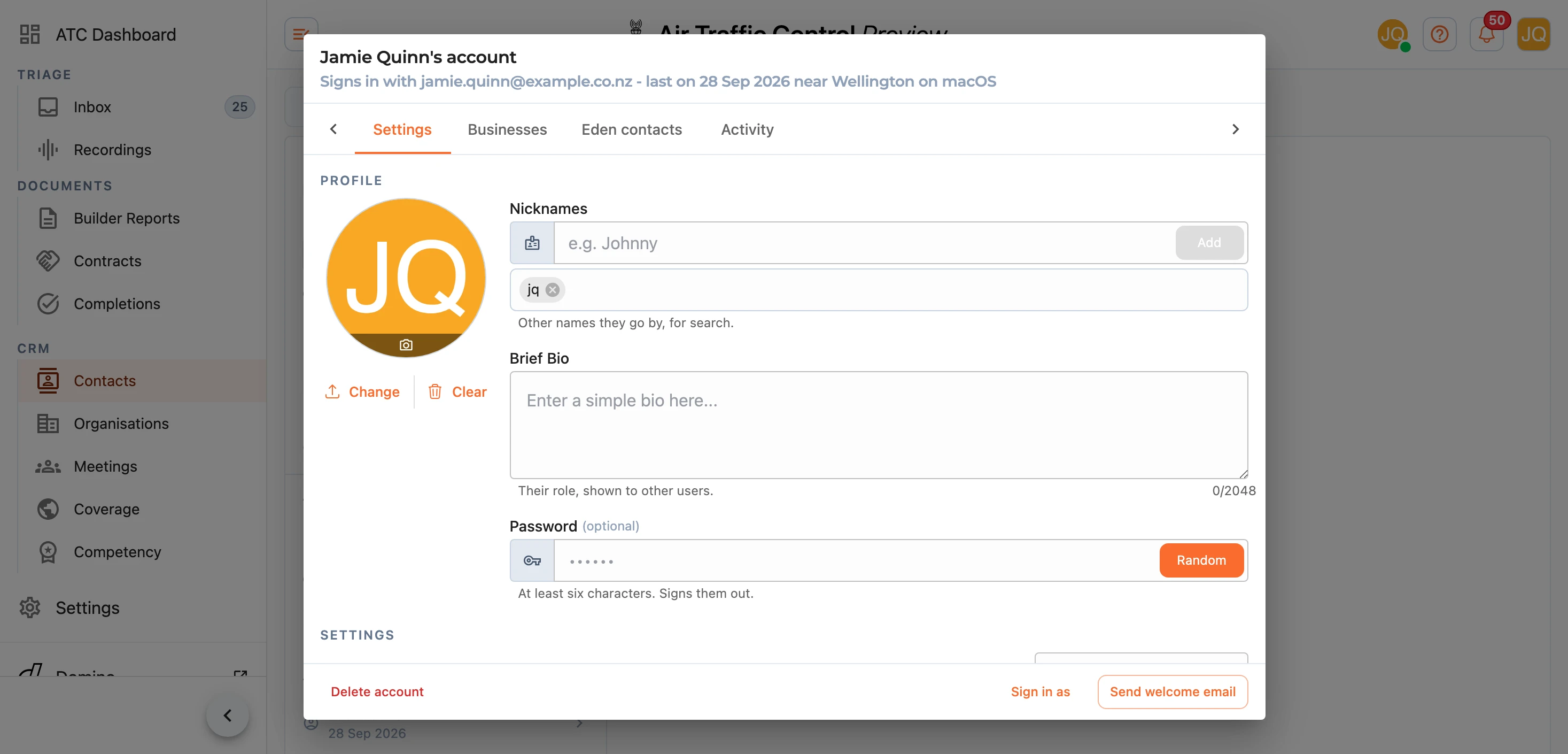
Settings holds their photo, the address they sign in with, their phone numbers, nicknames, bio and a new password, then their colour mode, sign-in methods, email and push notifications and quiet hours, then the platform-wide permissions they hold, and last the Fergus employees they are linked to. You can only give or take away a permission you hold yourself. Each change saves as you make it - the bio when you leave the field, the switches, checkboxes, names and phone numbers as they move, and quiet hours when you accept the time. A new sign-in address is set with Change beside it and a new password with Set password, rather than on leaving the field, since both change how they sign in and a new password signs them out. If an address or number already belongs to another account or contact, the field turns it away and says why underneath.
A Reports section sits between those settings and Permissions, where you choose how often the person receives each report by email: None, Daily, Weekday, Weekly, Fortnightly, Monthly or Quarterly. There are three: the Apollo summary, described under The Summary Email, the ATC summary, described under Summary Email, and the Service level report, described under The Service Level Report by Email. Where the person cannot receive the Apollo or ATC summary the row says No access, and you give them access in the Permissions section beside it. Subscribing someone to the Service level report needs no such step, since it also gives them access to the EDEN dashboard.
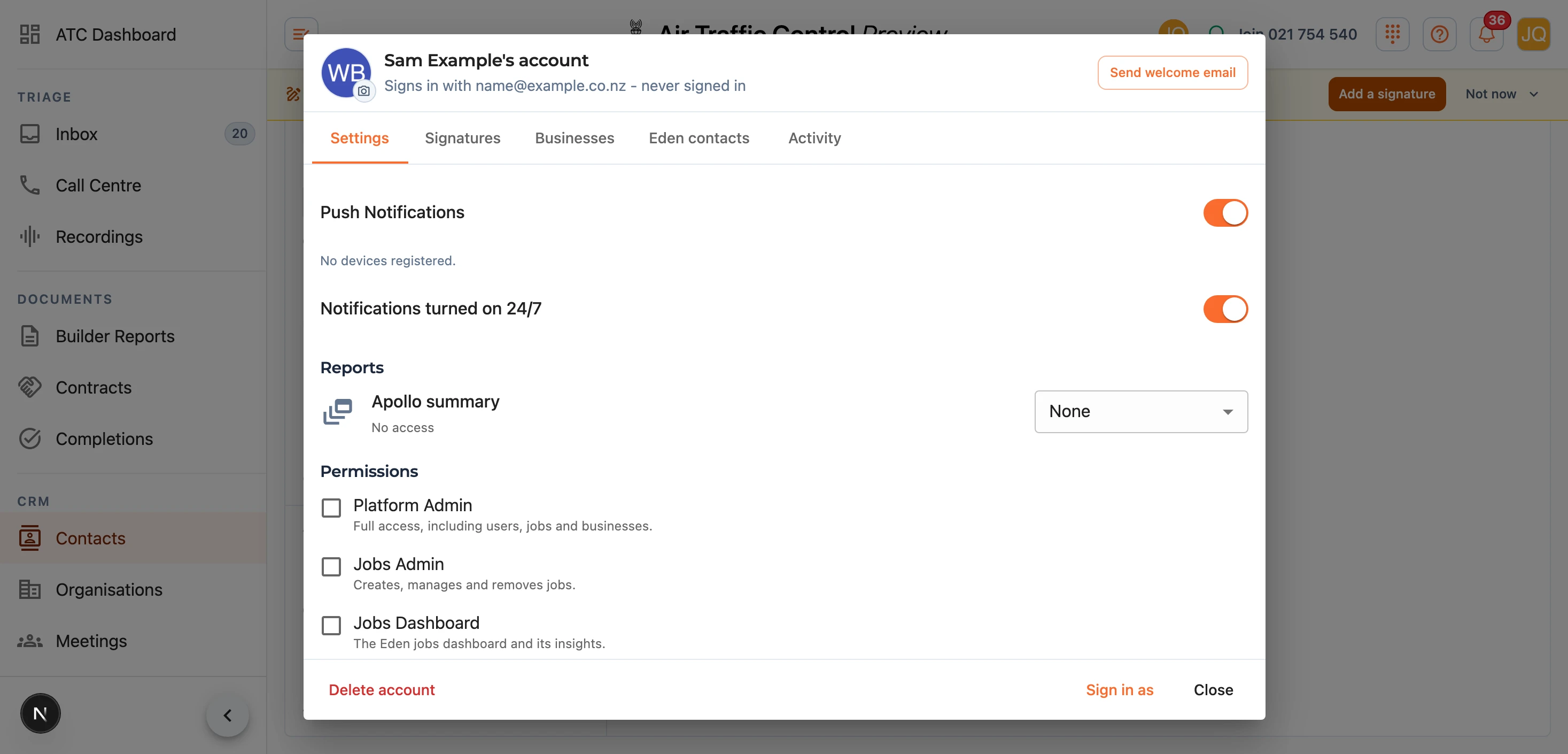
Only another platform admin can change a platform admin's password, sign-in email or signatures, or delete their account.
Signatures lists the signatures on their login with when each was last used, and New signature or Edit writes, changes or deletes one for them, the same as they would from their own settings. Where several people share a login, you can put each person's signature on it here. Businesses lists the businesses they belong to, each with their title there, their roles (owner, admin, finance) and whether they are its contact. Eden contacts is their own list of people they can find and message in EDEN, and Activity is everything they have done on the platform, their sign-ins included, with a filter by kind and date. Changes on those tabs save as you make them.
Along the foot, Send welcome email sends them the email that tells them how to sign in, with a link that signs them straight in. Delete account removes the account and the contact with it.
Note: deleting an account cannot be undone. They lose access to the platform, and what they created on it, such as messages and files, stays but is anonymised.
Businesses
An organisation's rail carries a Business section with how many members its business has, whether it is locked, and the permissions it gives every member. Manage opens it. Profile holds the business's bio, the other names it goes by, its opening hours, whether it is locked against its members' own edits, and the permissions every member inherits, such as Jobs Dashboard. Members lists the people who belong to it with their title, roles and contact flag, and adds or removes one. Both tabs save each change as you make it, a title when you leave its field.
Competency and Alliance Rates
A contact or organisation holding certificates or trade licences shows them under Competency, and staff and subcontractors show the section even while it is empty so the first can be added. Add records a certificate and a press on one corrects it; the full register, with licences and certifiers, is on Training & Competency.
Where the account or business is paid on an Alliance rate card, Alliance rates lists its classes and what each pays. Manage (or Set up on staff and subcontractors without a card) opens the card. Anybody with ATC access can see it, and changing it needs books administration, since the card is what members are paid.
Setting an Insurer's Targets
If you hold ATC Admin, an insurer's record has a Targets section in its edit dialog, below the firm's details. It sets the service levels that the Eden dashboard judges that insurer's jobs against; see Service Levels. The targets sit in one table, a row per service level, and the first column ticks the ones the firm sets its own target for. Ticking a row opens its allowance, success share and band edges for you to set. A firm with no targets of its own uses its parent firm's, or the platform targets when the parent has none, and where the parent has targets a line in the section says so. Once you tick any, the firm's own targets replace its parent's as a whole, and each service level left unticked takes the platform target.
Only insurers carry targets, and the section does not appear for other kinds of firm.
Merging Duplicates
Where the same person or firm has ended up on the books twice, Merge on the record joins them. You pick which record survives, and the channels, history, notes, certificates, licences and - for a firm - its people, domains and conversation links move across to it. The survivor keeps its own account or business, or takes the other record's where it has none. The record you merged away stays as a pointer to the survivor, so old links still lead somewhere sensible.
Where both hold an account, or both a business, the merge goes ahead only if the one being merged away has never been used, and that account or business is deleted. One that has been used, such as an account somebody has signed in with or one with a job, stops the merge, and we can help put the two together at support@samconsulting.co.nz.
Note: merging cannot be undone. Check you have the right pair, and the right survivor, before confirming.
If a record has been merged or removed, opening its old address tells you so and offers a way back to the list.
Any questions, or something looks wrong in the directory? Let us know at support@samconsulting.co.nz.