The EDEN dashboard is for people who look after a whole portfolio of jobs - our own team, and the insurers and loss adjusters we have given access to it. It shows how your jobs are tracking as a group, picks out the ones that need attention, and lets you check any one of them without leaving the page. If you have dashboard access and more than one job, this is where you land when you sign in:
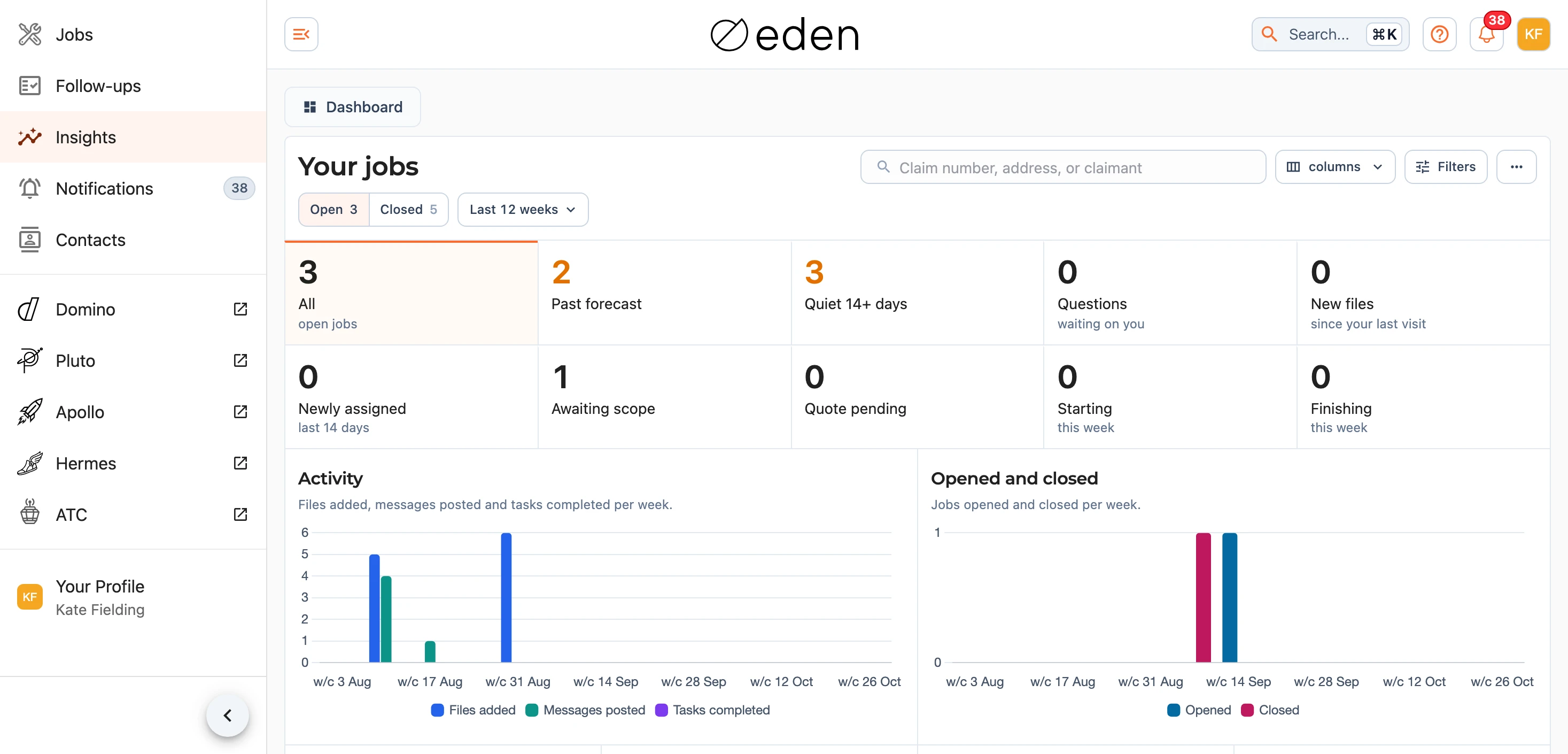
The search box at the top finds a job by claim number, address or claimant, and the Open and Closed tabs show how many of your jobs sit on each. The address in your browser carries what you choose on the page - the tab, the search, the filters and whatever count or chart you have pressed - so you can copy a view and send it to a colleague, and they will see the same thing for the jobs they can see.
If you can only see one job, EDEN takes you to Your Jobs instead, because a dashboard over a single job tells you less than the job itself.
The Counts
Ten counts sit across the top of the Open tab, and each one answers a question about your open jobs: All of them, Past forecast (work still left after the forecast finish date), Quiet 14+ days (no activity you can see for a fortnight), Questions waiting on you, New files since your last visit, Newly assigned to you in the last 14 days, Awaiting scope (no scope of works yet), Quote pending, and the jobs Starting and Finishing this week. The counts that mean something is waiting on somebody show in amber. Press a count to list only those jobs underneath, and press it again (or press All) to go back.
The Charts
The Activity chart shows the files added, messages posted and tasks completed on your jobs each week, and Opened and closed charts how many jobs started and finished. Both are drawn over the chart window, the button beside the tabs, which starts at Last 12 weeks. Press it to choose Last 4 weeks, This month or Last month, or Custom range... to set your own From and To dates. Leave a date empty to run the charts back to your first job or up to today.

Underneath, four charts describe your open jobs as they stand today. Status splits them into draft, quoting, open and other, Progress shows how far through the scope of works they are, Age shows how long they have been open, and Customers lists the insurer or customer on each job. Press a segment of Status, Progress or Age to list those jobs below. On a phone the charts sit behind the Charts button, so the list comes first.
Service Levels
Under the charts on the Open tab, Service levels shows how well the jobs decided in the dashboard period kept to the service levels that apply to them. It is shown to everybody with dashboard access, and it loads a moment after the rest of the page because it reads every job in your scope. The line under the heading says when the figures were taken and which targets the bands are measured against. An open-ended period shows the quarter to date, and the line then says so.
There are eight service levels, listed in this order:
- First contact, within 1 business day.
- Urgent first contact, within 2 hours on the clock.
- Site visit, within 2 business days of first contact.
- Report and quote, within 2 business days of the visit, and both where a report is expected.
- Works start, within 10 business days of authorisation.
- Contact every 20 business days.
- Average gap between contacts.
- Life of claim, within 60 business days.
Each one shows Met, Missed, Pending and Not recorded counts, then Share, Band, Median and Previous. Share is met out of met plus missed, so a job still pending does not count against you. The band names how that share sits against the targets: Exceeding, Target, Not met or Critical. Median is the typical time taken, and Previous is the figure for the period before.
Not recorded means the platform cannot see the event, such as a phone call made from a mobile. A service level counts as missed only when the platform recorded the event late (or, for life of claim, while the claim is still open past its target), and an event it never saw is Not recorded. A first contact counts only when the platform sees it, which means an email, an ATC call or text, or a Hermes invite. A site visit made in time also counts as contact being made.
Each job is counted once for each service level, in the period where that service level was decided. The figures are as of the moment the page loaded, so an earlier period can change slightly as late information arrives.
Note: the figures cover your own jobs and every job where your firm is the insurer or the loss adjuster, including ones you cannot open. Those are listed without a link.
Looking at the Jobs Behind a Figure
Press a count to list those jobs underneath the table, and press it again to close the list. Insurers also see a breakdown by loss adjuster, loss adjusters see one by insurer, and our own team sees both. Press a firm's figure to list that firm's jobs for that service level.
Targets
Each job is judged against the targets of its insurer. That means the insurer's own targets where it has them, otherwise those of its parent firm, otherwise the platform targets. The line under the heading names the targets the bands are measured against. For an insurer those are its own targets where it has them, and for everybody else they are the platform targets, while each job is still judged on its own insurer's.
If you manage jobs on the platform, Targets... sits in the menu in the dashboard heading. It sets the platform targets in one table: for each service level, the allowance, the success share and the edges between the bands. A figure that cannot be saved turns red, and hovering over it says why. Whether a service level runs on business days or clock hours is fixed. Our team sets an insurer's own targets on its record in Contacts & Organisations.
Claims
Beneath the eight service levels, Claims describes the jobs that came in during the same period, for the same scope. Its tiles are Claims in, Open at period end, Closed, Awaiting authority (a quote or estimate has been sent), Make-safes, Vulnerable customers (jobs live in the period) and Asbestos identified as a risk. A job whose finish date is only known roughly shows under Open at period end as "N not recorded", and you can press that count to list those jobs. Awaiting authority works the same way, showing "N unknown" for open jobs whose status at the end of the period is not known. That covers every open job in a period that ended before we began recording status changes.
The authorised value of the claims in, and of the make-safes, comes from approved quotes. Variations are shown as a share of the authorised value on closed claims. The completion rating reads like "4.3 from N jobs" and is the mean of the stars given on completion certificates, so it is not a Net Promoter Score. A Not recorded line names the figures the platform cannot see yet: closure call, complaints, customer delay and NPS.
Where you cannot see the money on a job, the job is left out of every sum and band, and "Money left out for N jobs" says how many were left out, under the authorised value and under the chart of claims in by authorised value. If none of the money can be shown, the authorised value reads "-".
Two bar charts follow. Open claims by status splits the open jobs into to price, awaiting authority, active, completed, declined and unknown, and Claims in by authorised value groups them by the Builder's Fee steps: up to $30k, $30k-$50k, $50k-$100k, over $100k and no value. Ranked lists then show claims in by region, by peril and by CAT code, each with its eight largest entries and the rest folded into Other. Peril uses the Hermes loss types, and where a claim carries free text it is matched against a word list.
Communications
This section measures how quickly emails from insurers and loss adjusters are dealt with. Received counts each time they wrote to us and were waiting on an answer, so several emails sent before we reply count once. Beside it are the Median time to a first response, the share handled Within target, and a line reading "Replied N, done without a reply N".
An email counts as handled when we reply to it, or when a person marks its conversation done, archived or closed, whichever comes first. The target comes from the priority of each conversation.
Two further lines are about opening rather than answering. Their emails first opened by us gives the number opened out of those received, the median time to the first open, and how many are still unopened. First opens are only recorded from the "Since" date shown beside these figures, so mail that arrived earlier is not in it. Our emails opened by them is labelled "where tracked", because open tracking misses some mail clients and the figure is a floor rather than the full count.
Each figure also says "on N jobs". Press it to list those jobs.
Health & Safety
Three figures sit here. Works started counts the jobs whose works began in the period. SSSP in place before works started counts the jobs whose Apollo SSSP was created before the works started. Site checks filed counts the checks filed in the period and the number of jobs they were filed on.
Reading These Sections
Pressing a count in any of the three lists the jobs behind it, and only the jobs you can open carry a link. If one of the sections could not be read, it shows "Could not be read." and the others carry on as normal.
The Service Level Report by Email
Subscribe..., in the menu in the dashboard heading, opens the "Service level report" dialog, where you choose how often the report arrives: None, Daily, Weekday, Weekly, Fortnightly, Monthly or Quarterly. Anybody with dashboard access can subscribe. Daily goes out every morning including weekends and Weekday on weekdays, and both send nothing on a quiet day when nothing happened on your jobs. Weekly arrives on Mondays, Fortnightly every second Monday, Monthly on the first Monday of the month and Quarterly on the first Monday of January, April, July and October. Once you are subscribed the menu shows your choice.
Each email covers the period just finished, and a monthly or quarterly one covers the previous calendar month or quarter. It opens with a short written summary, then the headline figures, the service levels below target, the jobs that missed one, the breakdown by the other party, and claims and Health & Safety. A link at the end opens the dashboard on the same period. A PDF of the full report, with a list of every job at the end, is attached along with a spreadsheet of the same jobs. If the files are too large to attach, the email says so and the dashboard holds the same figures.
The report covers what your own dashboard shows: the same jobs, the same hidden money, and no links to jobs you cannot open. It gives "Figures as of" a time, because figures for an earlier period can change slightly as late information arrives.
The same choice sits under Email Settings in your profile, described under account settings.
Downloading a Service Level Report
Download report... sits in the same menu, and anybody who can receive the service level report by email sees it. It makes the same report on request for a period you choose, and opens the "Download a service level report" dialog.
The dialog opens with the Period set to the one the dashboard is showing. You can switch to Last month, Last quarter or Quarter to date, or set your own From and To dates, up to 24 months apart. If you manage jobs for us, a Covering choice also appears. It reads All jobs or names one insurer or loss adjuster, and the report is then the one that firm's people receive through their firm.
You choose the Format as PDF, Spreadsheet or PDF and spreadsheet, and when you choose both they arrive together as one .zip file. Under What goes in you tick the sections you want: Written summary (the same short paragraph the emailed report opens with), Service levels, Claims, Communications, Health & Safety and Jobs (the list with one row for each job). At least one of Service levels, Claims, Communications or Health & Safety must be ticked. The spreadsheet carries Service levels, Claims and Jobs, while the written summary, Communications and Health & Safety are in the PDF only, and with both formats chosen those rows read "PDF only".
Download prepares the file, which takes a few seconds, and then it downloads. If you close the dialog or reload the page while it is being prepared, opening the dialog again picks up the same report rather than starting another.
Note: nothing is emailed or saved. The figures are as of the moment the report was prepared.
The Job List
Each row shows the claim number, the EDEN reference, the address, how complete the scope of works is and the forecast finish date, which turns orange once a job is past it. A hatched figure beside the percentage is indicative progress our team has not confirmed yet. Use columns () to choose which columns show, and press a column heading to sort by it. The newest jobs come first until you do, and a third press on the same heading puts them back in that order.
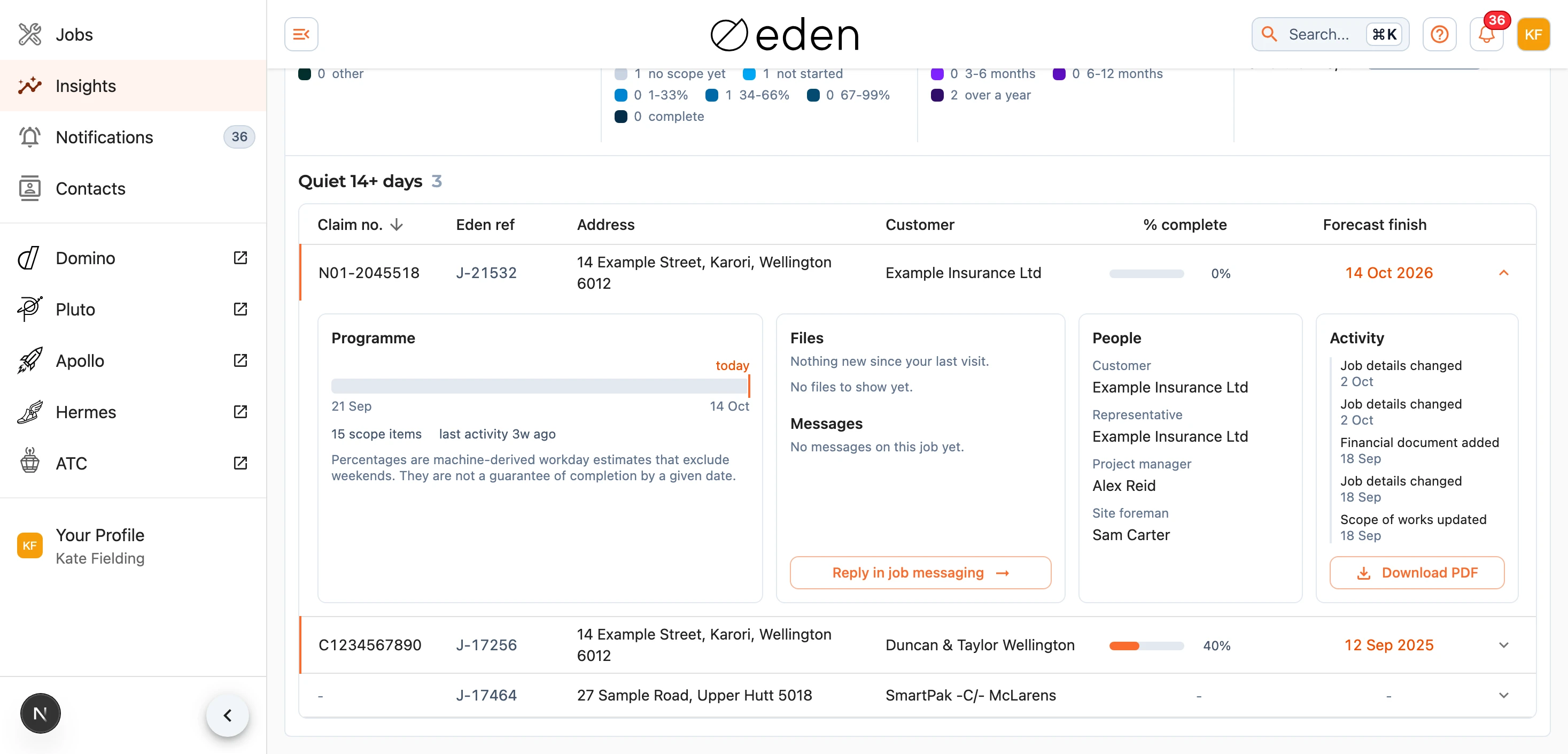
Press the claim number, reference or address to open the job. Press anywhere else on a row to open it up in place, which shows the programme with today marked on it, the newest files and the latest message, the recent activity, and a Download PDF button for a report on the job. If you manage jobs for us, it also shows who is on the job. More jobs load as you scroll down. On a phone each job is a card, and tapping it opens the job.
Filtering by Customer and the People on a Job
If you manage jobs for us, you can narrow the dashboard to the people involved. Press Filters () beside the search box to choose a Customer, a Representative (a loss adjuster, assessor or other representative, either a firm or one of its people), a Project manager, a Site foreman, or the Claim source a claim came through. Each choice shows how many jobs it would leave on the tab you are on, and choosing a firm as the representative includes the jobs where only one of its people is named.
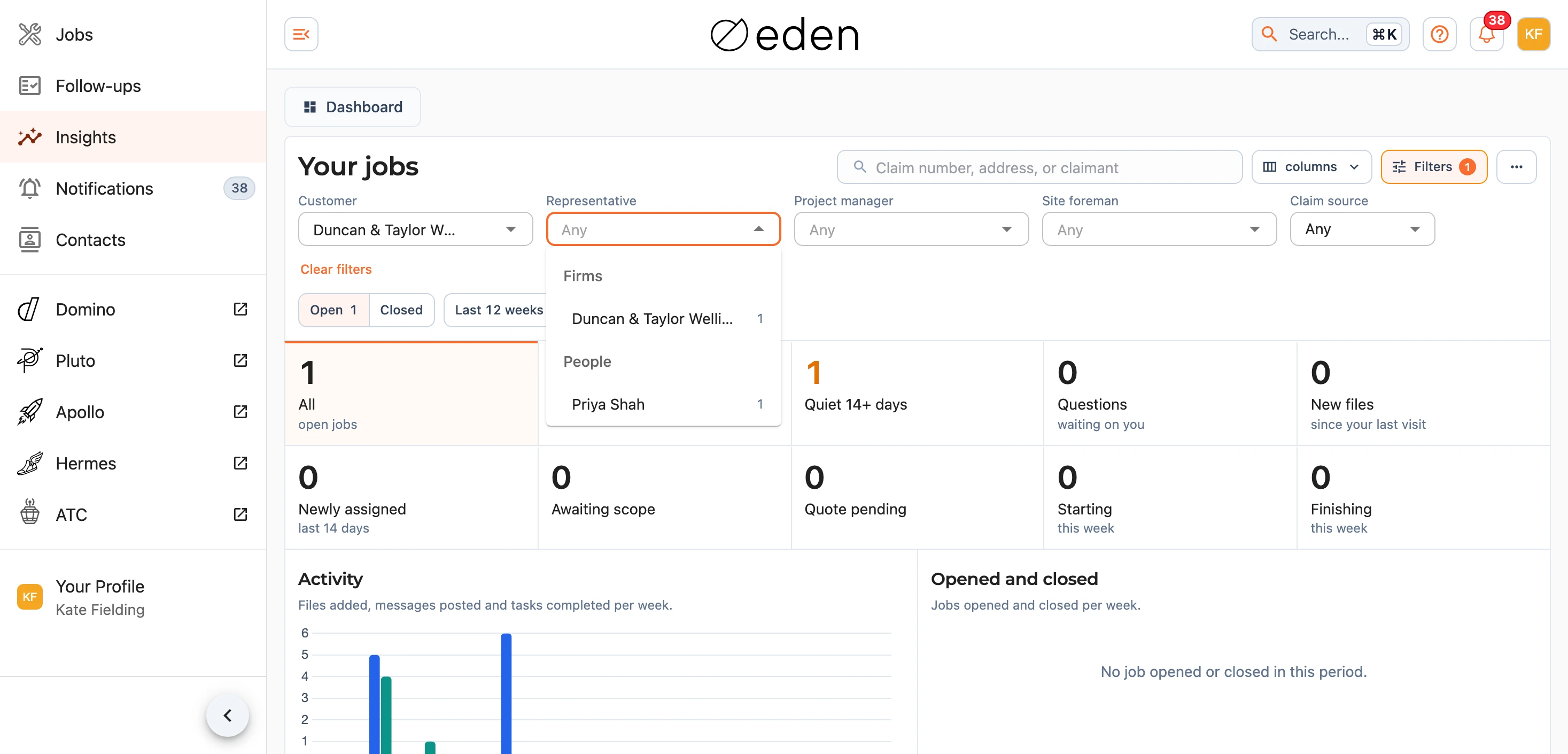
The filters narrow the whole page at once - the counts, the charts, the tabs and the list - and they combine, so you can see one insurer's jobs that one adjusting firm is handling. You can also choose a customer by pressing their row in the Customers chart or their name in the Customer column, and choose anyone in a job's People box by pressing their name. Press the same name again, or Clear filters, to take a filter off. The Filters button shows how many filters are on.
Note: the filters, the Customer column and the People box are only shown to people who manage jobs on the platform. Insurers and loss adjusters with dashboard access see their own jobs without them.
If a count does not match what you expected to see, let us know at support@samconsulting.co.nz.