Confirming a New Job's People
The project manager on a job knows who outside the business should hear about it and how, so they are the one who decides who the job's progress emails go to and who is invited to EDEN. When somebody else creates a job, they can still propose the insurer, the loss adjuster, the claimant and anybody else involved, but those people wait until the project manager confirms them. Until then nobody outside the business is emailed about the job, invited to it, or able to open it.
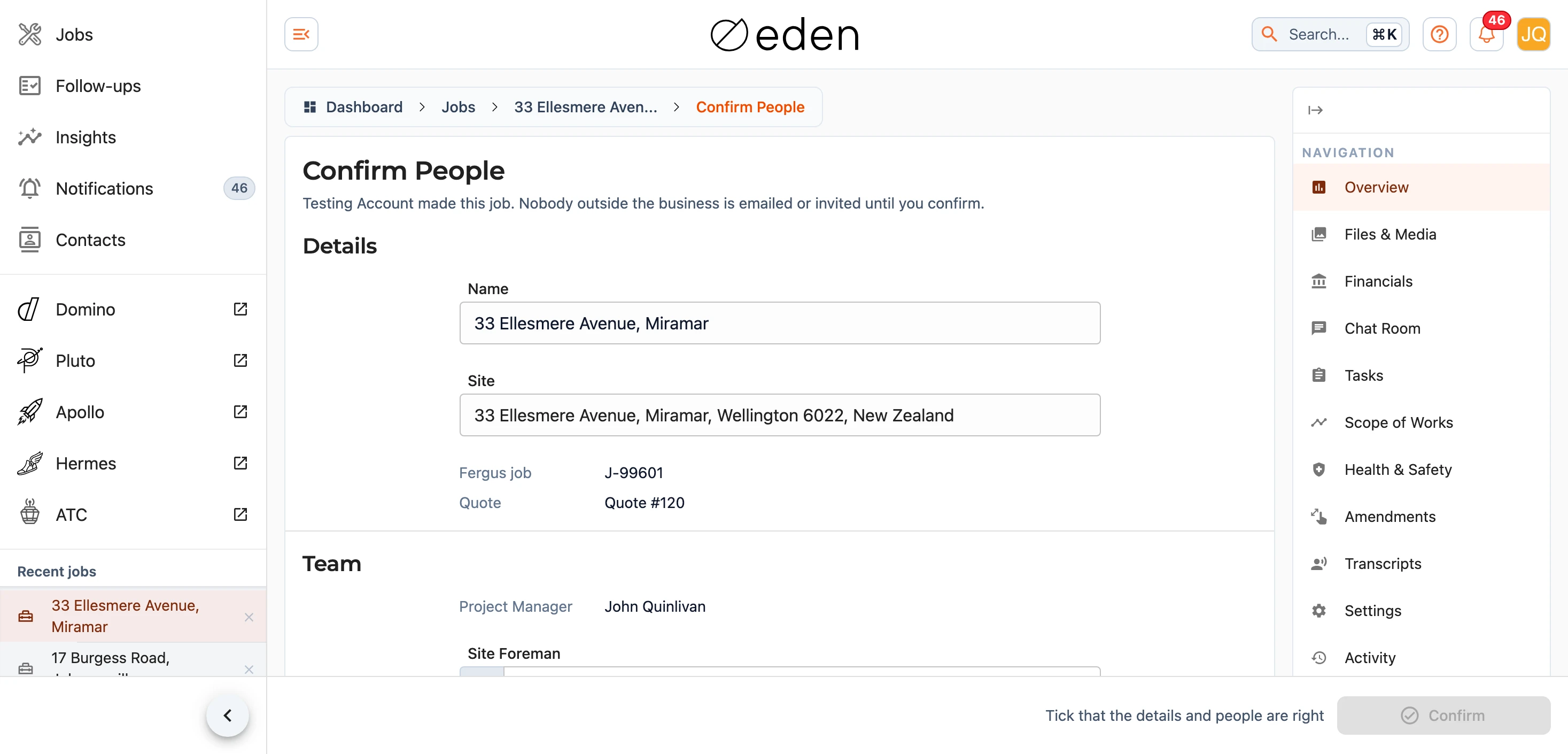
The project manager is sent a text and an email with a link to the job's Confirm People page, and can also reach it from the job's settings.
Creating a Job
Every job needs a project manager, so pick one under People on the New Job page before you press Create Job. The same goes for a job created from ATC when a quote is accepted or a works request asks for an EDEN job.
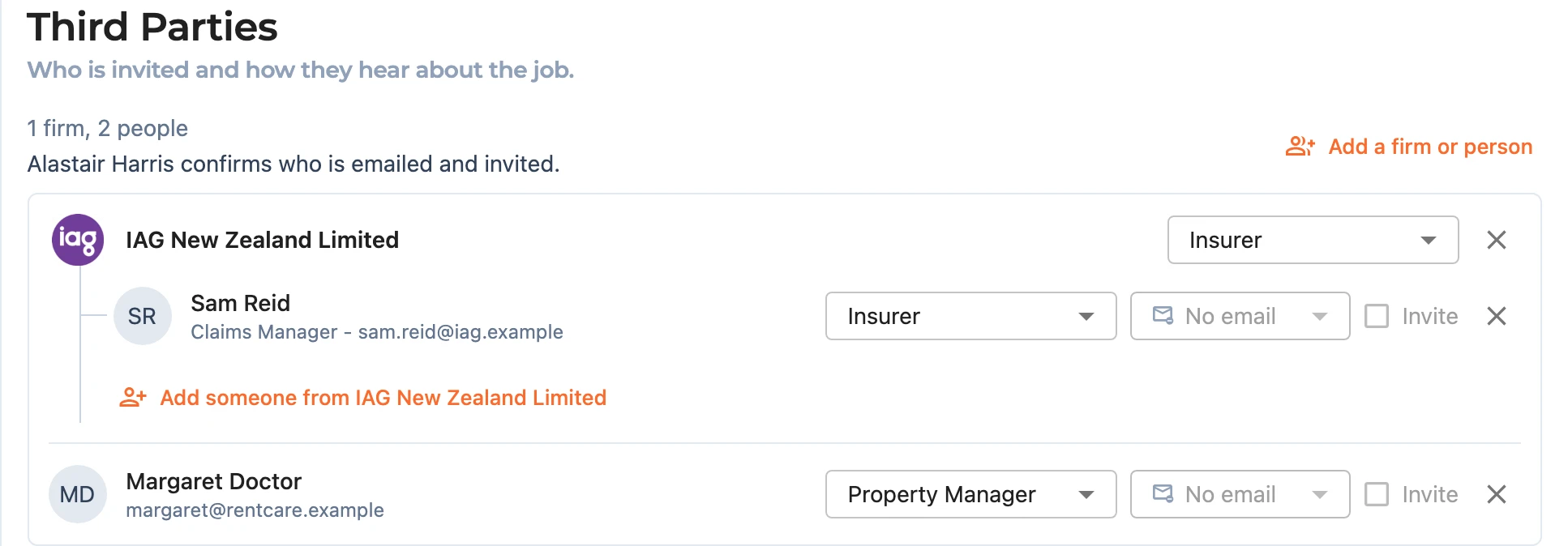
If you are the project manager, the Third Parties section works as it always has: choose each person's progress email from the envelope beside their name and tick Invite for anybody who should be invited. If somebody else is the project manager, you can still add and remove firms and people and give them their roles, but the envelope reads No email, Invite cannot be ticked, and the section names the project manager who will confirm them.
When You Are Asked
The project manager is asked by text and email as soon as the job is created, and reminded each working morning until they confirm, with weekends and public holidays skipped. After two working days the job's regional manager is asked too, or our health and safety team where the job has no regional manager, and from then on they can confirm in the project manager's place.
While the people wait, the job shows Pending under Parties on Follow-ups and stays on Needs attention until somebody confirms them.
Confirming
The page is laid out in three parts, which you check from top to bottom.
Under Details are the job's name and site, which you can correct, and the Fergus job and the quote, safety plan or scope it was created from, which are there for you to check against. Under Team you are shown as the project manager, with the site foreman and the regional manager, either of which you can change if they are wrong.
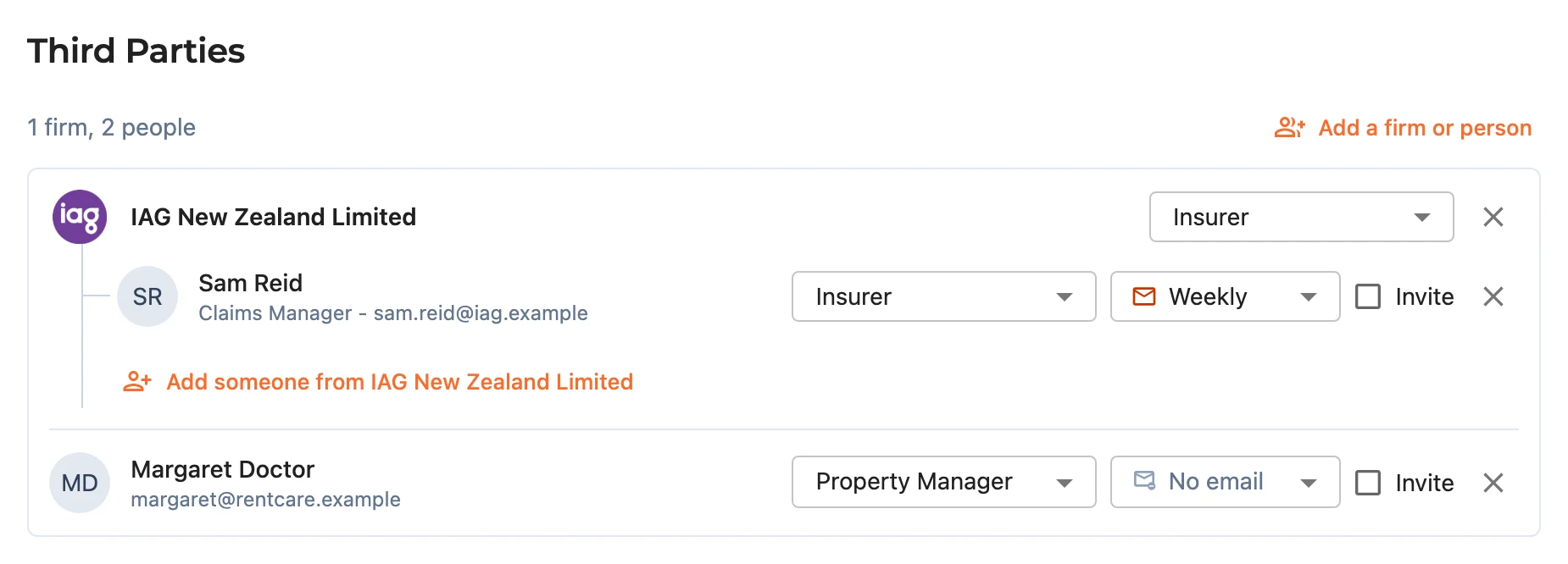
Under Third Parties are the firms and people that were proposed when the job was created. Each person's progress email and invitation are filled in from the rules our team keeps in the contacts directory, for example a weekly email for an insurer's claims manager, and you can change either, change their role, remove them, or add somebody with Add a firm or person.
When everything is right, tick The details and people are right and press Confirm. Everybody you kept is added to the job with the progress email and invitation you chose, and you are taken to the job's People settings.
Note: somebody our contacts directory says is never invited, such as a firm's shared mailbox, cannot be invited from here either. Leave Invite unticked for them and confirm again.
Waiting on Somebody Else
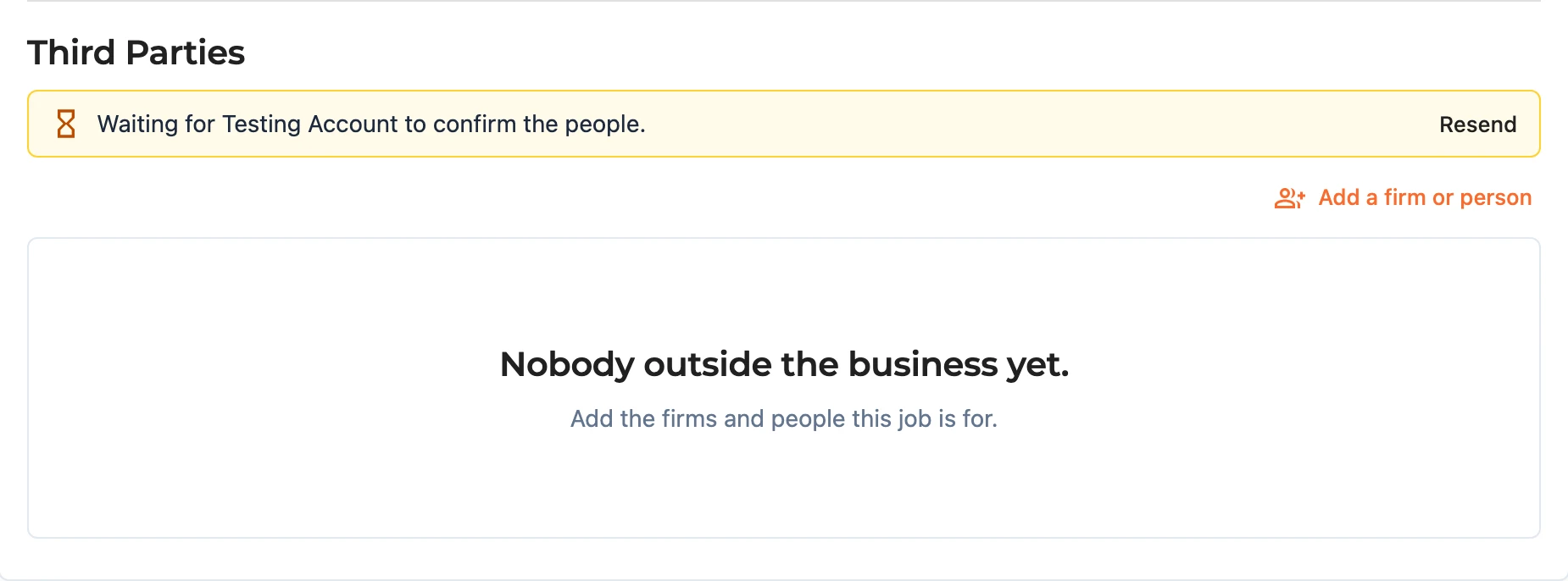
Anybody else who manages the job sees a band above Third Parties in the job's settings saying who it is waiting on. Resend sends the text and email to the project manager again, and to the regional manager as well once they have been asked. The project manager sees Confirm people in the band instead, which opens the page.
If you get stuck, email us at support@samconsulting.co.nz.