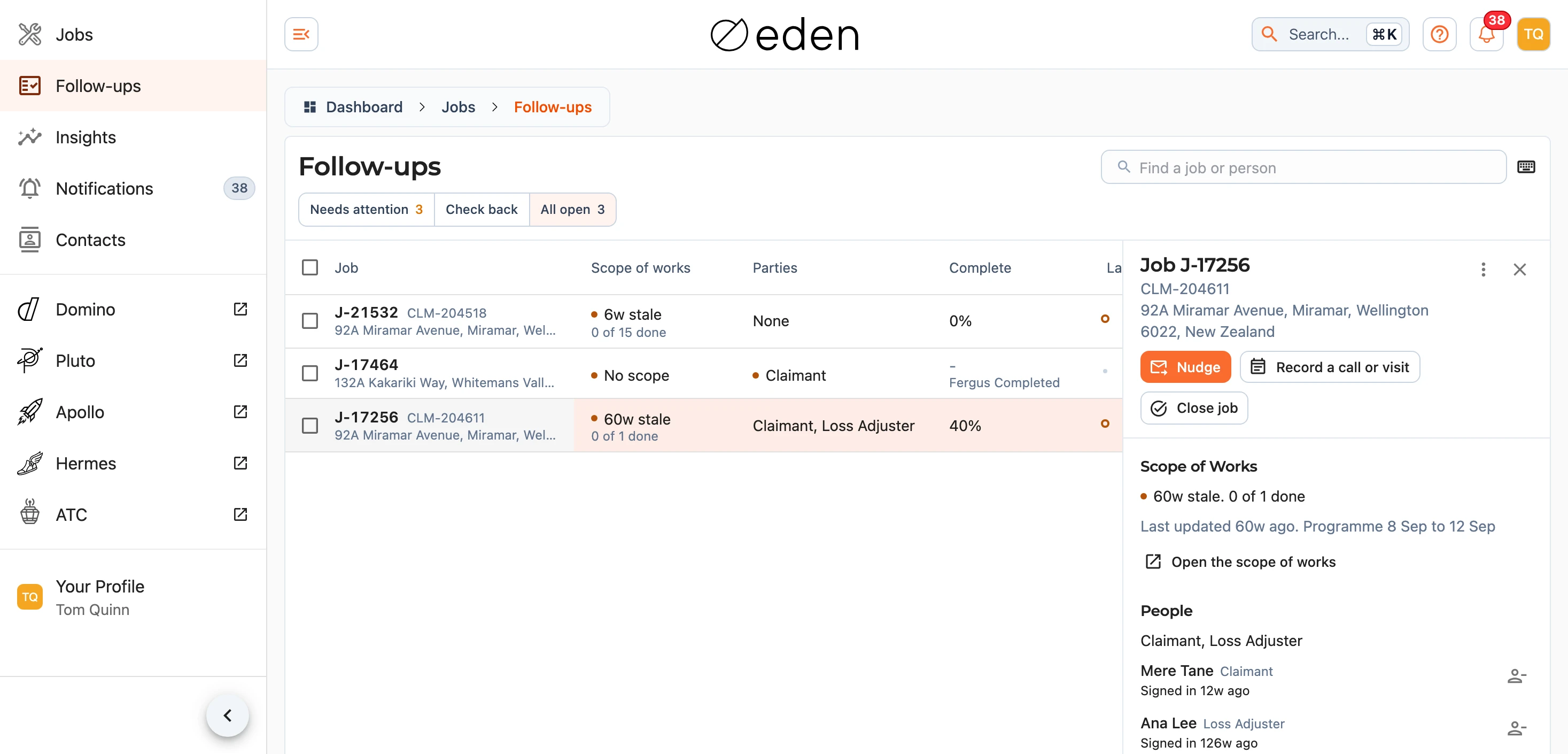
EDEN Follow-ups is a sheet of the open jobs you run as a project manager, foreman or regional manager, for keeping each job's scope of works up to date and its access in order without opening every job. Each row shows whether the scope of works is current and why not, who outside the business is on the job, how close the job is to complete, the last follow-up and when you said you would look at it again. A jobs admin sees every open job. Follow-ups sits under Jobs in the menu, here:
The Views
The sheet opens on Needs attention, which holds the jobs with something wrong (a stale scope of works, a problem with somebody's access, or a job ready to close) that nobody has followed up in the last two working days, plus any job whose check-back date has arrived. A follow-up is a nudge you sent or a call you recorded, and weekends and public holidays do not count towards the two days. Check back lists the jobs with a check-back date still to come, soonest first, and All open lists every open job on your sheet. A closed job leaves the sheet. The search box matches the job and Fergus numbers, the claim number, the address, the people on the job and your notes. The newest jobs come first until you press a column heading, and a third press on the same heading puts that order back.
Each row says where things stand in a few words with an age. The Scope of works column reads 9d stale when the works are running and nobody has updated the scope of works for five working days or more, No scope when Fergus has the works underway (or a quote was approved) and the job has no scope of works yet, and Fergus says further along when Fergus has the job further along than the scope of works does. Under it is how many items are done. Parties names the claimant and any third parties on the job by role, for example Claimant, Loss Adjuster, or reads None. Complete shows the works percentage, and reads Ready to close once the works reach 100% or the completion certificate is signed. Last follow-up reads like Text 2d ago or Call today. Only a value that needs you carries the small orange dot, which on Parties means somebody cannot open the job. Hover over a value, or press it on a phone, for the detail behind it: who last updated the scope of works, where each party stands on their invite, or who a follow-up went to and who sent it.
The Last 6 weeks column shows the same six weeks on every row, ending with this week. A square is a week somebody updated the scope of works, an orange ring is a week the works were running and nobody did, and a short line under a week means the job was nudged that week. The help icon beside the heading explains the marks, and hovering over a week names who updated what that week, or says nothing happened. Press a column heading to sort by it, and press Add a note (or the note itself) to keep a line about the job, which saves when you press Enter or click away.
The Side Panel
Press a row to open the job beside the sheet, or over it on a smaller screen. The panel shows why the scope of works is or is not current, when it was last updated, the programme dates and, where Fergus has the job further along, the figure Fergus reads, with Open the scope of works to go and update it. Under People is everybody on the job with their roles and where they stand: Cannot open the job, Not invited, Invited 3d ago, never signed in or Signed in. A third party who has not signed in has Invite (or Re-invite) beside them, and takes somebody off the job after asking. A jobs admin also has Add a person, which puts a member of the team on the job with the roles you choose. Below that are the completion details, the Follow-up section with your check-back date and note, and the History of every follow-up and visit on the job.
Nudging the Team
Nudge sends a text and an email asking the people running the job to bring its scope of works up to date, with a link that opens it. The project manager starts ticked, and the foreman and regional manager are offered beside them. Ticking a person ticks their email and mobile, and you can untick either.
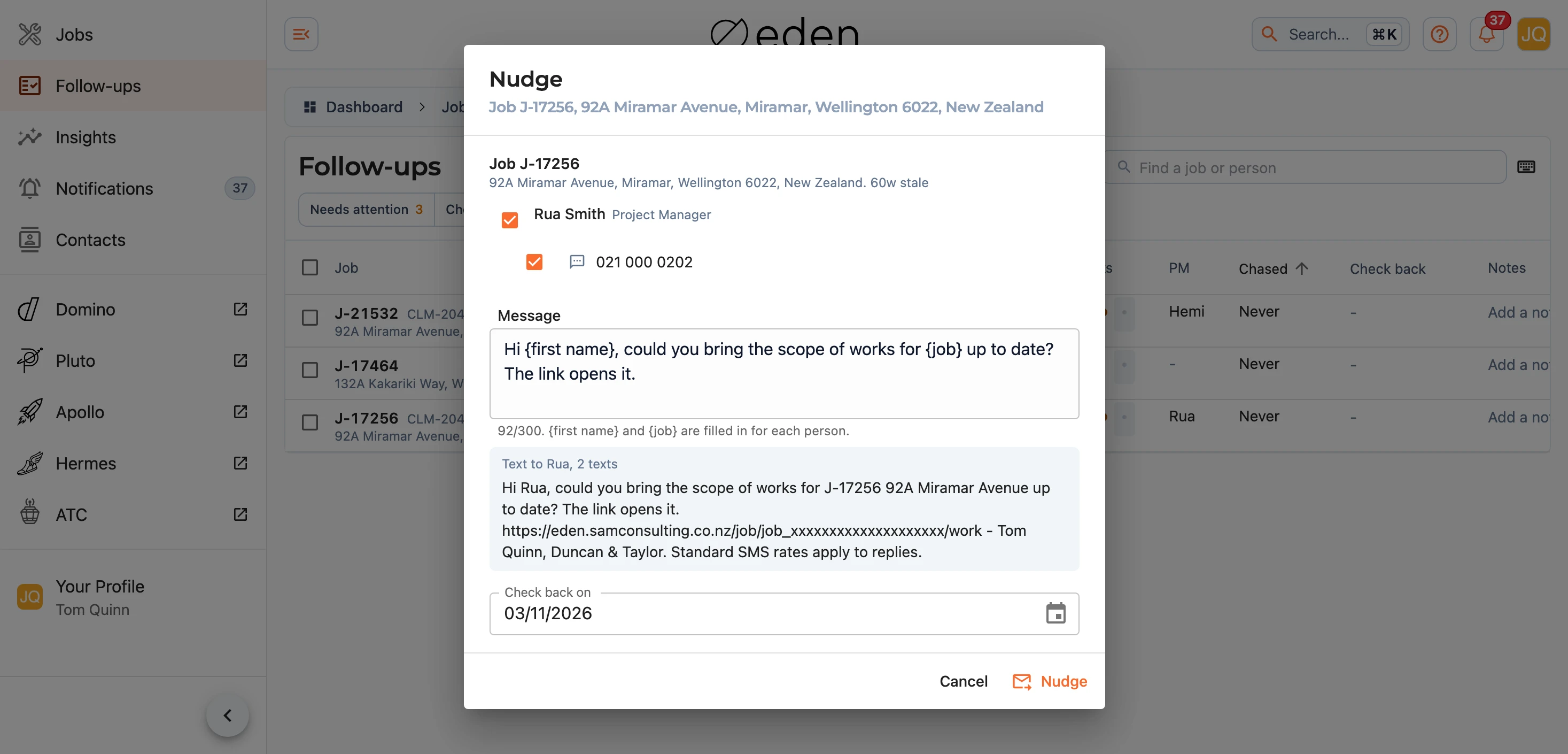
One message goes to everybody, and {first name} and {job} in it are filled in for each person (the job reads as its Fergus number and street, for example J-21532 92A Miramar Avenue). The preview shows the text as the first person you ticked will receive it, with your name as the sign-off, and how many texts it runs to. Sending sets the job's check-back date two working days ahead unless you change or clear it.
Note: a person with no email or mobile on their account cannot be ticked. Add one to their account in Contacts first.
Recording Calls and Visits
Record a call or visit records a call, a site visit or an audit against the job, with when it happened (now unless you change it), an optional note and the next check-back date. A recorded call counts as a follow-up, so the job leaves Needs attention for two working days. If you record something by mistake, press the bin beside it in the History to remove it. Nudges stay, because they record texts and emails that went out.
Closing a Job
Close job, in the side panel and in the menu on each row, sets the job's status to Closed as Settings does, and the job leaves the sheet. The confirm says when a job is not ready to close, so a job with works outstanding is not closed without you seeing it.
Working on Several Jobs
Tick the rows you want and the bar above the sheet offers what can be done to all of them at once: Nudge, Close, Re-invite (everybody on the ticked jobs who was invited and has never signed in, shown only when somebody is waiting), Add a person (for a jobs admin), Remove a person, Check back and Record. On a phone the bar sits at the foot of the screen, and everything but Nudge is under .
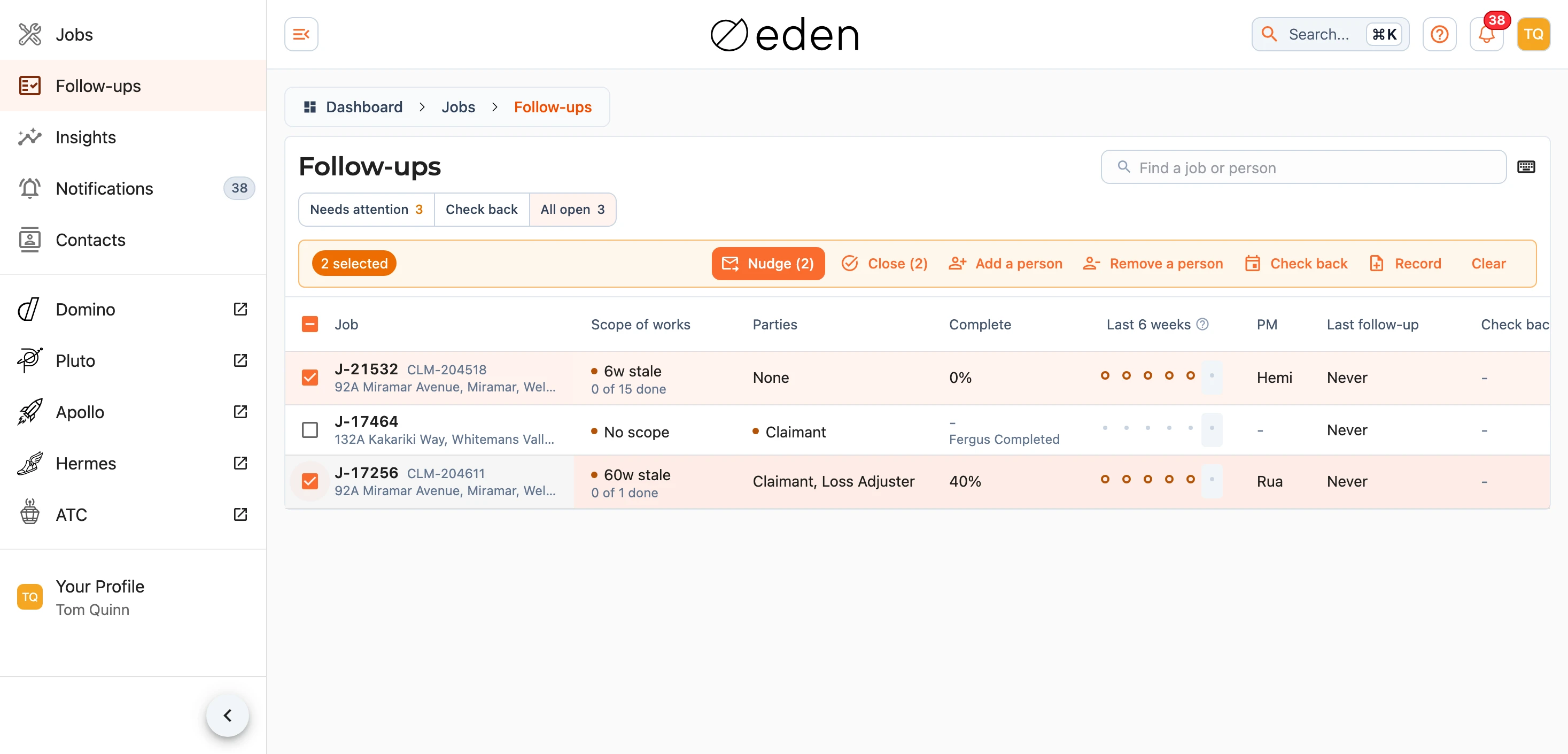
Each change asks first, naming how many jobs it will touch and listing them. Add a person keeps any roles the person already holds on a job and adds the new ones, and Remove a person lists everybody on the ticked jobs with how many of them they are on. If some jobs could not be changed (for example a job you do not run, or one closed in the meantime), the dialog stays open and names each one with the reason, and the rest are done.
Note: Add a person is for the team. A third party, such as a loss adjuster, is added from the job's own Settings, where their firm is found.
Keyboard Shortcuts
On a computer, the sheet can be run from the keyboard. The button beside the search lists the keys:
UpandDown, orKandJ, move between rows.Enteropens the row in the side panel, andEsccloses it.Xticks the row.Nnudges the ticked rows, or the row you are on.Lrecords a call or visit on the row you are on.
If a job is missing from your sheet, or a nudge did not reach somebody, let us know at support@samconsulting.co.nz.