Once a week while a job is open, EDEN asks the project manager and site foreman running it for a short update. You confirm the job's dates still hold, check the files and photos the homeowner, insurer and loss adjuster can see, and write what happened on site that week. EDEN adds it to the job description under a heading such as Job Update Week of 23/11, and it goes out in the next progress email. You do not need to sign in: the text and email you are sent carry a link to your own page, which lists every job you have an update due on. You can also open it from Follow-ups with Write update.
When You Are Asked
EDEN asks about each job on the weekday it was created, so a job created on a Tuesday comes up every Tuesday. A job created on a Monday, Saturday or Sunday comes up on the Friday instead, which gives you the weekend before Monday's progress emails go out. An ask that falls on a public holiday moves to the working day before, and nothing comes up during a shutdown such as Christmas. You get one text and one email on the morning of the ask, naming the jobs that are due, and the update is due before the progress emails at 8am the following Monday.
EDEN asks the people running the job one at a time, in the job's order: the project manager first, then the site foreman, then the regional manager, unless the job has been set up differently. The first person is asked on the ask day, and if nobody has written it by the next morning the next person is asked too, and so on. Anybody already asked can write it, the first of you to submit covers the job for that week, and the others see who wrote it and when.
Note: if a job's update is still not written when the Monday progress emails go out, EDEN leaves the job out of them until somebody writes it and tells the regional manager and our health and safety team straight away. Once the update is written, the held email goes out at the next morning send with everything since the last one.
Choosing Who Is Asked
A job admin sets who is asked on the job's Settings page, under People, in the Weekly Updates section. Ask for a weekly update switches the weekly ask on or off for that job. Below it are the job's project managers, site foremen and regional managers in the order they are asked: untick somebody to leave them out (a site foreman who does not use EDEN, for example), and use the arrows to move a person up or down. Somebody newly given one of those roles joins the end of the list, ticked. Switching a job off stops this week's ask as well, so nobody is chased and nothing is held for it.
Jobs created before weekly updates started are switched off, and a job admin can switch one on in the same place.
Writing the Update
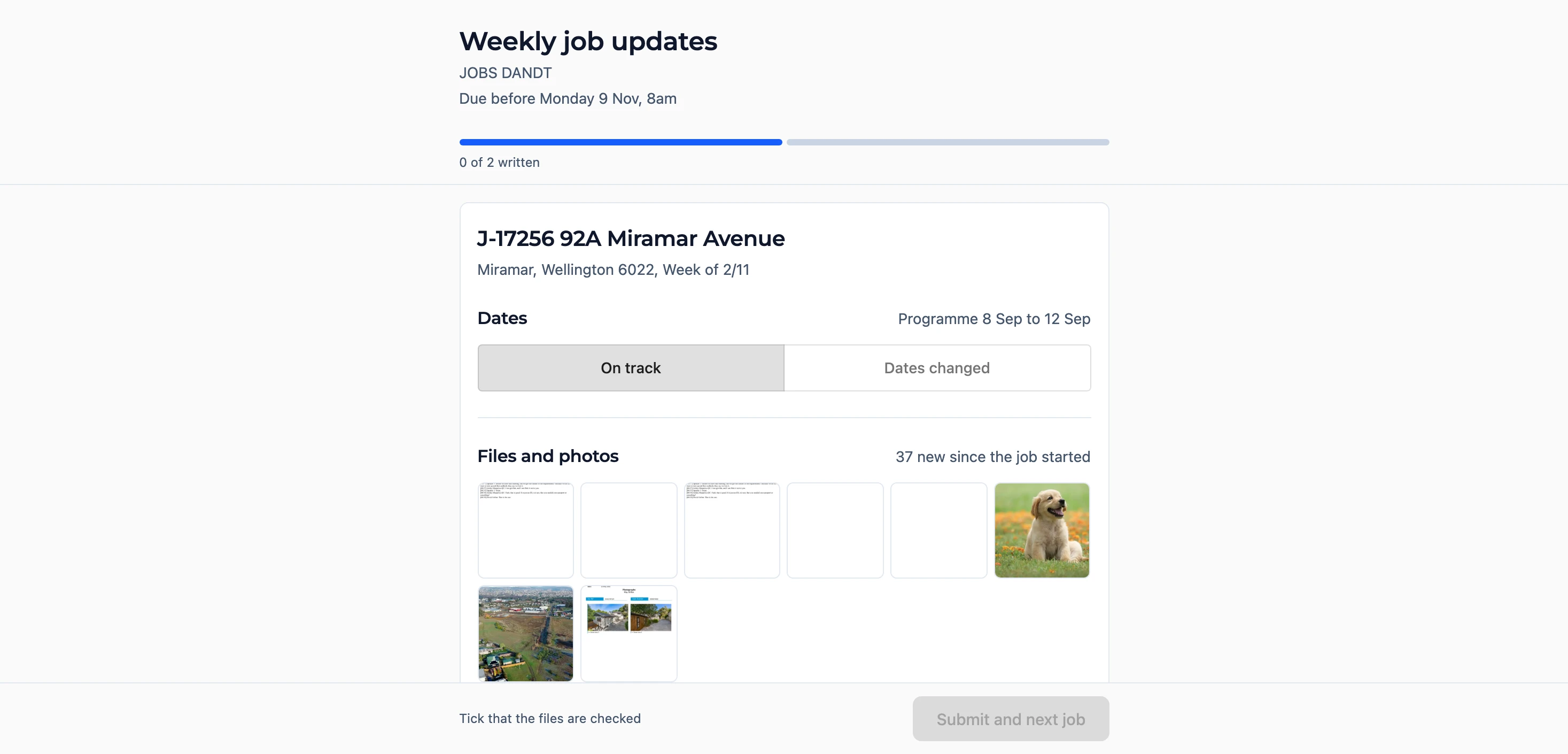
The page opens on the first job due. A bar across the top shows how many of your jobs are written, and the bar at the bottom says what is still to answer on the job in front of you. Submit and next job posts the update and opens the next job, and on the last job it reads Submit.
Dates
The page shows the programme, the first start and last finish in the job's scope of works. Press On track if those dates still hold. Press Dates changed if they do not, then pick the new finish date (and the new start, where the works have not started yet) and give a reason for the change. The unfinished items in the scope of works move to suit: an item not yet started moves by the same number of days, an item underway keeps its start and finishes later or sooner, and the last item finishes on the day you picked. If the change is not that simple, Adjust each item lists the unfinished items so you can give each one its own start and finish.
Clients read the new dates in the update, for example Expected finish 19 Dec (was 12 Dec)., but never the reason, which stays with our team in the job's history.
Files and Photos
The page shows every file and photo added to the job since the last update, and clients can see all of them unless you hide one. Press a file to choose Hide from clients, Show to clients, Open or Remove from job. A hidden file is greyed out and marked Hidden. Add photos uploads this week's photos from your phone, and once you have looked through them, tick Checked. A job with a long history shows the newest few first, with Show all for the rest.
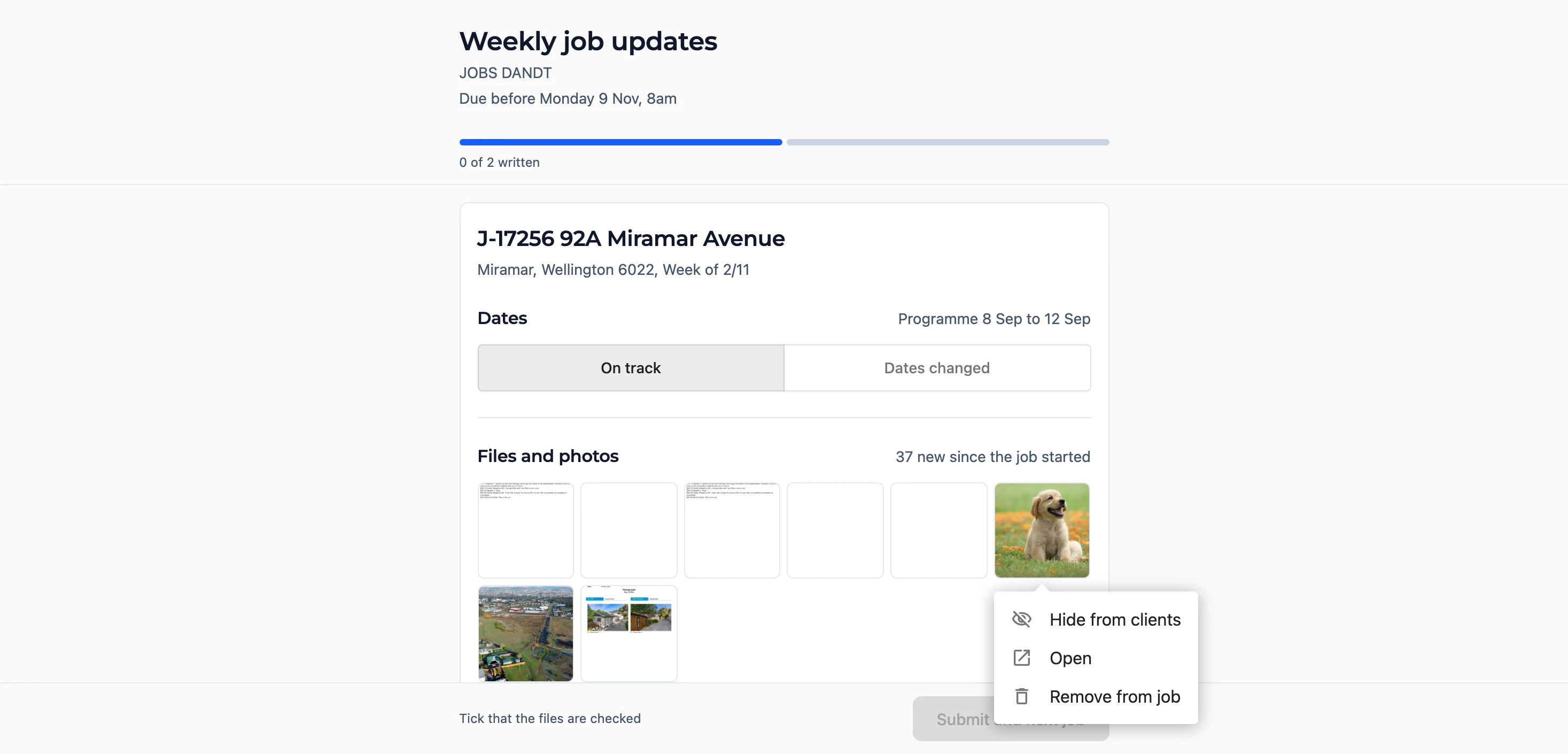
Note: a hidden file stays hidden from anybody who joins the job later as well, and our team can still see it. Remove from job takes the file off the job for everyone.
This Week
Write what was done on site this week, what happens next, and anything waiting on somebody else. A few plain sentences are plenty.
What Clients Will Read
Under your words is the update as it will appear in the job description, with its heading and any change of dates. When you finish typing, EDEN checks the wording and points out anything a client should not be told: a price or cost, blame on the homeowner, insurer, adjuster or a subcontractor, staff or office matters, another customer, or a date that disagrees with the dates you gave. It also offers a tidier version of your words. Use suggestion swaps it in and Keep mine leaves your words as they are. Nothing is posted until you press Submit.
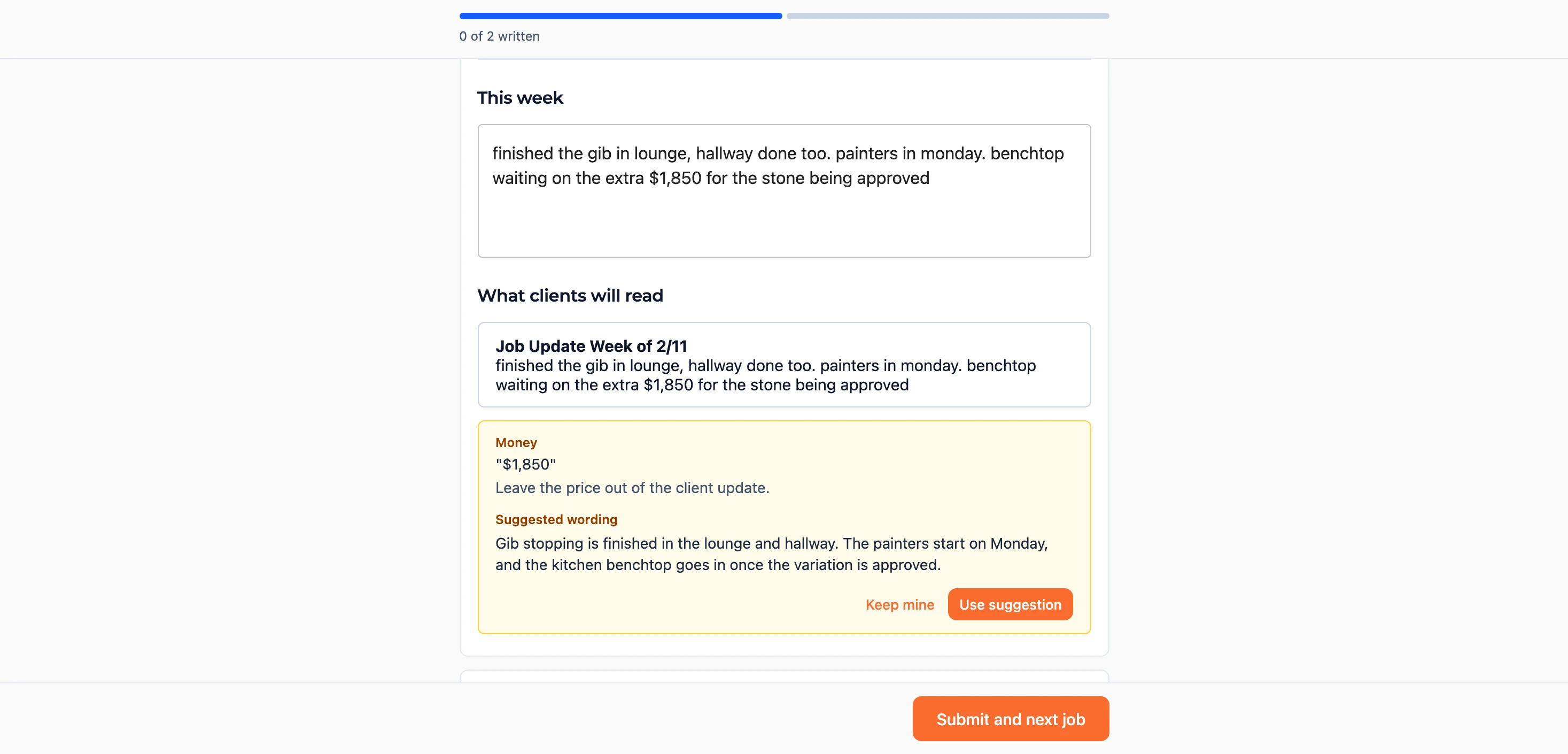
If you have turned writing suggestions off in EDEN's editor, the page skips the suggestion and keeps your words.
On Follow-ups
The Follow-ups sheet has a Weekly update column showing where each job stands: Due, with With SF or With RM once the ask has moved down the job's order, Written with who wrote it, the day of the next ask, Missed with Email held, or Off for a job switched off in its settings. A held job carries the orange dot and sits on Needs attention until its update is written. The side panel shows the last update written, a Job settings link for a job switched off, and Write update for anybody already asked while this week's is still to write. Every ask, every miss and every update written appears in the job's History.
A jobs admin keeps the shutdown dates under and Weekly update pauses at the top of the sheet. Nothing is asked or held on the days a pause covers.
If something here does not match what you see, email us at support@samconsulting.co.nz.